
I recently reviewed another chat plugin for BuddyPress, the BuddyPress-Ajax-Chat. While it was an ok chat plugin, I had a couple of issues with it. That's why I am still in the search of a better chat plugin.
I found Envolve Chat, a chat plugin whose developers claim to be similar to Facebook chat. I want to test the plugin to see if it is better than BuddyPress-Ajax-Chat. So, I installed and activated the plugin on our site.
After I activated the plugin, there is a settings link under the plugin name on the plugin page itself.

Clicking the settings link brings you to a page where you can set up Envolve Chat. This page gives you instructions on setting up the plugin on your site. You need to go to envolve.com to get a code to paste on a field on the settings page. You also need to tick a “powered by: envolve” checkbox which is necessary to activate the plugin. You can also choose to use a member's username on the chat application and to only show the application to logged in users.

Setting up the plugin involves going to and creating an account on their website, envolve.com. Clicking on the link on the settings page brings you to their site where you are asked to enter the url and name of the site where you installed the plugin.

After entering the url and name of your site, you are asked to create an account. Once you do, you are given the code to copy and paste on the settings page on your site.
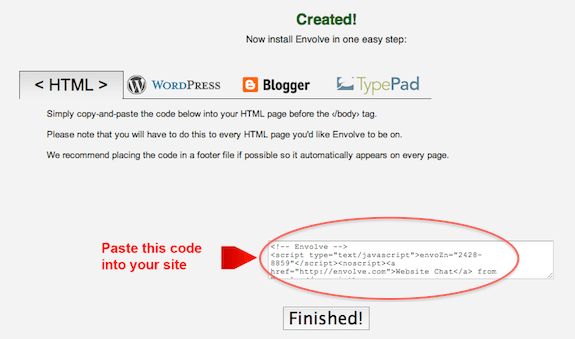
Once you paste the code on the settings page, you must tick the “powered by: envolve” checkbox and then choose if you want the to use a member's username on the chat application and to only show the application to logged in users. Then you save these settings and the plugin is good to go.
Like the Facebook chat application, Envolve chat appears on the lower right corner of your web page. It has two tabs – a new chat tab that creates a public chat and the tab which shows the users who are online on your site. You can also start a private chat on this tab by clicking on”chat” beside a member's username.

And like the Facebook chat, the tabs expand when you click on them. As expected, there are links on the chat window that will prompt you to create an account at envolve.com when you click on them.
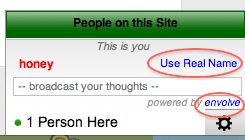
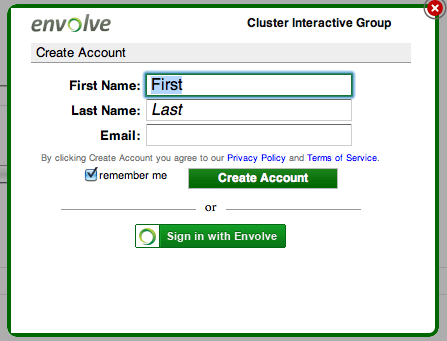
This plugin that I just installed is the free version, which has the basic features. There are also paid versions of the plugin with more advanced features whose pricing depends on the number of visitors your site has in a month. You can see their pricing here.
Overall, I would say that this chat plugin is a whole lot better than the previous one I reviewed. I like the fact that the chat box is in the lower right corner and is unobtrusive to the web page. It's interface is also very simple and not cluttered. It is a no-nonsense chat application that would be a worthy addition to your BuddyPress site.
Are you promoting your BuddyPress website via Twitter? Or do you have a Twitter account that you want to promote on your website?
It is an undeniable fact that Twitter is now being used as a marketing tool. So, wouldn't it be great if you can promote your Twitter account on your website and entice your users to follow you using a colorful widget?
The Twitter Signatures Widget plugin does just that. In its community page on buddypress.org, it is described as having the ability to add a widget on your side bar that displays information about your Twitter profile – like your latest Twitter message (tweet), and the number of your followers and friends. This plugin is by twithut.com.
I tested the plugin on our website to see if it is a worthy one to add on any BuddyPress site. I installed and activated the plugin on our site. On the Appearance > widgets menu, a Twitter signatures widget has been added. I dragged and dropped it on the sidebar.

Once dragged on the sidebar, you can edit the widget to add a title, specify the Twitter account you want displayed, and choose a design.

I expected that you would need to log in to the Twitter profile that you want to display. Turns out, you don't actually have to. You just need to enter the Twitter username and it displays the stats of that profile on the widget. It seemed kind of odd that you can basically display anyone's Twitter profile on the widget. This apparent oversight on security puzzles me. All you need is someone's Twitter username and you can display their stats on the widget. Well, thinking about it, you wouldn't be promoting just anyone's Twitter profile on your website, would you? But still, being required to login to a Twitter account to display it would've been a lot better.
There are five styles, in a variety of colors and backgrounds, with five different sizes. The styles are counter, special, modern, medium, and premium, with premium only reserved for premium members of twithut.com.
 |  |  |  |  |
| Counter (150×90) | Special (160×200) | Modern (400×150) | Medium (312×92) | Premium (172x 326) |
I tested this plugin on the default BuddyPress theme. If you notice on the screenshots I took above of all five styles, only two – counter and special, fit on the side bar. The other three get cut off on the right. Still, with the two styles that fit, the content doesn't fit in the perimeters of the Twitter box. In both cases, the Twitter username gets cut off on the right. Considering that “EasyOutsource” is not an unusually long username, the creators of this widget should've considered accommodating usernames with the maximum number of characters that Twitter allows. Also, on the “Modern” style, the tweet gets cut off. This is even more odd as it is common knowledge that tweets accommodate up to 140 characters. This widget should, too.
In the end, while the widget that this plugin creates looks cute and colorful on the front page of your website, it is useless if the image does not fit on your sidebar or if your Twitter username and tweet does not fit on the image itself. It might be useful to those that have short usernames and are not used to consuming all 140 characters allowed on Twitter, but it's definitely not for me.
Most social networking sites have a chat feature integrated into them. The aim of social networking sites is to connect people with the same interests and having the ability to chat with other members is one of the best ways to do that.
If you want to include a chat component to your BuddyPress social networking site, the BuddyPress-Ajax-Chat plugin will do just that. It adds an Ajax chat client that will work with BuddyPress. So, how well did this plugin fare? I installed it to find out.
When I installed and activated the plugin on our demo site, I encountered a permission error. I was no longer able to access the dashboard until the site owner, Michael, modified the permissions. Apparently, a file in wp-content/plugins/buddypress-ajax-chat/bp-chat/config needed its permissions changed from 755 to 777. This is not a good experience for me as this is the first time I encountered this with a plugin.

Once the permissions had been modified, I was ok to go and evaluate the plugin. Once installed and activated, there will be a”Chat Settings” link under the BuddyPress sidebar menu.

Clicking on “Chat Settings” allows you to change the settings for the chat window and shoutbox.

When I went to our site's main page, I saw that there is now a chat option added to the BuddyPress admin bar.
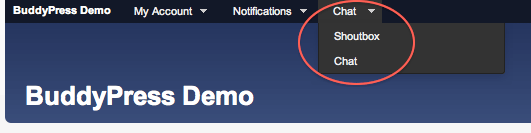
Here's how the actual chat window looks like. You can get to it by clicking on “chat” on the admin bar.
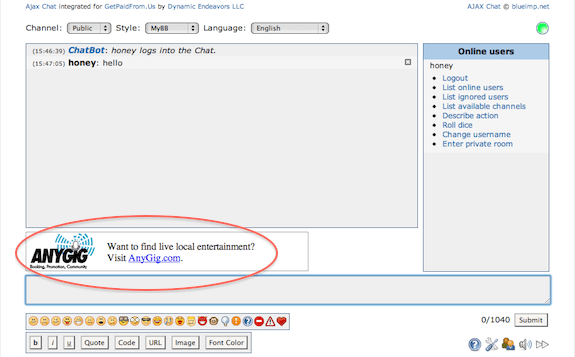
It comes complete with emoticons, a sound on/off button, show/hide online list button, and settings and help buttons. However, it also comes with a glaring ad which is a bit of a turn-off. The chat box was fully-functional and I can imagine members of a BuddyPress social networking site enjoying the feature.
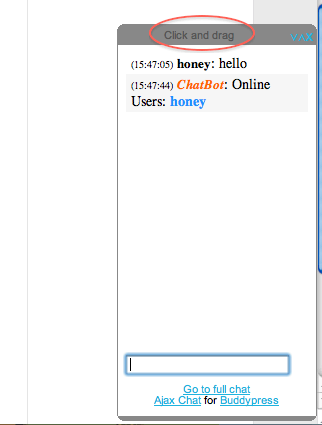
Clicking on “shoutbox” activates it and it pops up on the lower right corner of the page. It says “click and drag” on the top but no matter how I try to drag it, it stayed put. I wouldn't have really minded that you can't drag the shoutbox around the web page, but the fact that it says “click and drag” and you can't actually drag it was weird.
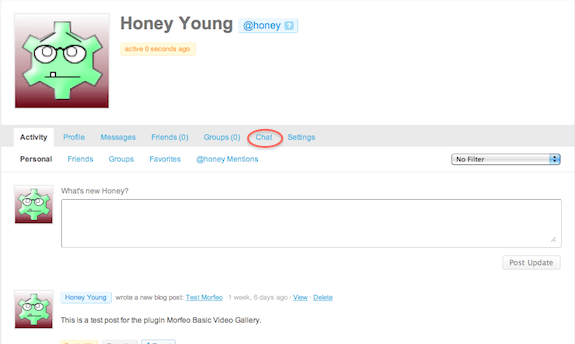
You can also access the chat box via the profile page. A “chat” link is added on the activity bar.
Overall, the BuddyPress-Ajax-Chat plugin is not so bad. True to its word, it does add a great, fully-functional chat component to your BuddyPress site. I am taking a couple of stars off my rating due to the fact that permissions had to be modified for the plugin to work and due to the presence of an advertisement on the chat box. Other than these minor inconveniences, this plugin would be good to have if you want to add chatting capabilities to your BuddyPress site.
| Editor Rating | |
| 4.0 out of 5 | |
| Download link | Featured Member(s) Widget |
| Plugin version | 1.2 |
| We tested with | WordPress 3.0.1 BuddyPress 1.2.5.2 |
| Author | Jeff Sayre |
| Price | Free |
When you use BuddyPress on your WordPress site it usually means that you want to run a social networking site or at least lend a social networking feel to your website. Social networking usually means members, a lot of them. Depending on the nature of your site, you may want to feature/highlight some of your members. This may be because they recently made a contribution to the site, created a new group, published a new blog post, etc. It's up to you.
The plugin Featured Member(s) Widget provides the venue for featured/highlighted members. It gives you the ability to add a widget to your sidebar which will display featured member(s) avatar(s).
The creator of this plugin says that the widget will look like any standard core BP widget. However, this widget is also customizable by adding your own CSS. You can customize it to match the theme you are using on your site.
After I install and activate the plugin on our site, I needed to go to Appearance > widgets on the sidebar. When I clicked on widgets, I was presented with the available widgets and I saw that I now have the Featured Members Widget.

I just dragged that widget on to the side bar and click on the grey inverted triangle to edit the settings. I can change the display title of the widget to say something else other than “Featured Members”. I can also enter the usernames of the members I wish to feature, separated by commas. I can save these parameters by clicking on ‘save'.

When I went to our site's home page, I saw the widget on the sidebar and saw the member's avatar whose username I entered earlier. Clicking on the avatar brings me to the member's profile page.
This plugin works according to how its developer described it. It is easy to execute and is potentially useful, especially if you run a site where being featured will help your members. An example application would be on EasyOutsource, a BuddyPress-driven job site built by BuddyBoss. Featuring a member would help that person get a job faster as an employer's attention would be drawn to his/her profile.
The main issue I encountered is that the plugin only displays the members' avatars. We went ahead and built our own updated version of the plugin, the Enhanced Featured Members Widget. It's based on the original plugin, with the addition that it displays each user's name underneath their avatar. This is especially useful for users who are still using the default avatar, in which case an avatar alone would give you no indication as to who they are.
Contact us today. Our standard rate is $100/hr and this type of install is usually billed at 1 hour.
As with a lot of other people on the web, I am into Twitter. So, wouldn't it be great if I could automatically tweet blog posts and activities right from our website? This is what the plugin BuddyPress Tweet Button claims to do.
I went ahead and installed the plugin by searching for it from the “add new” function under “plugins” on the dashboard sidebar. I then activated the plugin and checked existing blog posts on our site. True enough, a tweet button is now on the upper right hand corner of each post.
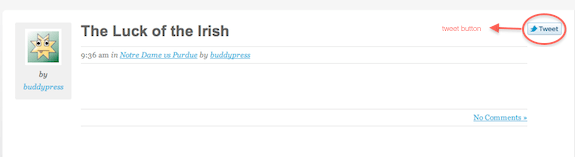
Aside from blog posts, the tweet button also appears on activities and forum topics.
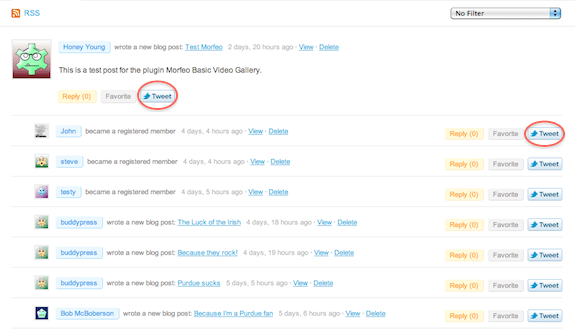
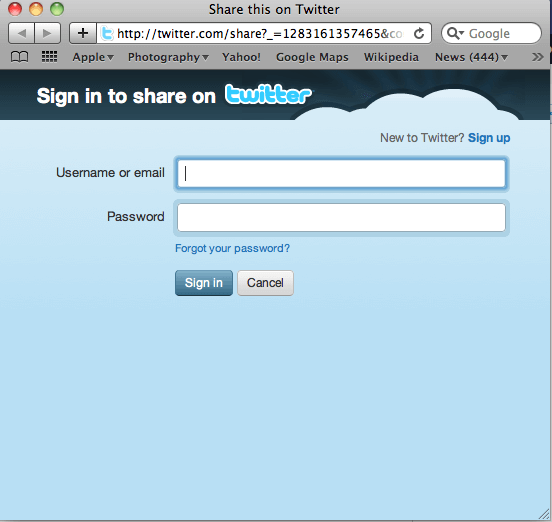
When you click on the tweet button, the twitter login page is presented in a popup window.
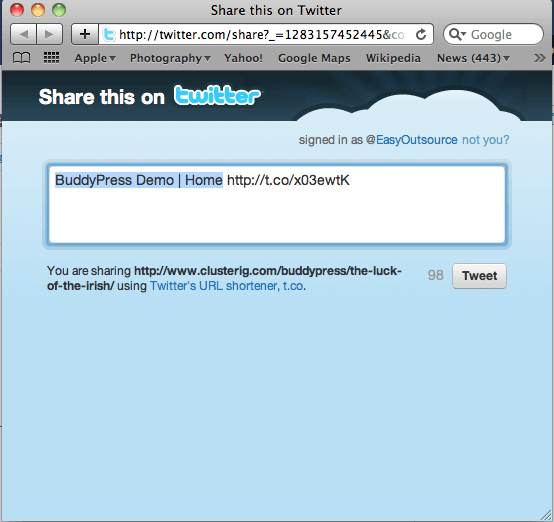
Once logged in, the url of the item you want to tweet is automatically pasted on the tweet field. And the url is twitter-friendly as it is already shortened!
This is one really great plugin and one that would be useful to have on your BuddyPress site as I am sure a lot of your members will also be on twitter. This will be a convenient addition especially if your site has a corresponding Twitter account and you always post your site content on Twitter. Also, having this plugin makes it easy for your members to tweet stuff they see on your sight and would also be useful in building backlinks to your website.
This plugin, though very simple, is also very powerful especially with the current reign of social networking sites like Twitter.
I will be reviewing another media uploader plugin. This time, this plugin is purely a video uploader. It cannot upload photos or any other media. Morfeo Basic Video Gallery allows you to create video galleries from flv videos or youtube videos and add them to your posts and pages.
The difference between this plugin and the previous one I reviewed is that since Morfeo Basic Video Uploader uses a video's url, the videos need to be web-hosted. If you want to add your own video, you'd have to first upload it to YouTube or another similar video-hosting service, or upload the video to your own server.
This version of the plugin is the free version. The plugin has a full version that you can purchase for 9.90 Euros ($12-13). But, I will focus this review on the free version.
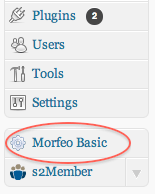
You can install the plugin by going into your dashboard, clicking “plugins” button on the left sidebar, and clicking “add new” on the top. Type “Morfeo Basic Video Uploader” on the search field and click the search button. You can then install and activate your chosen plugin.
Once you install and activate the plugin, you'll see a “Morfeo Basic” button on the left sidebar of your site's admin page. You click this button and you are brought to a page where you enter the video gallery parameters. The parameters are straightforward and not confusing at all. There are default videos already preloaded – movie trailers and music videos, I assume is placed there to serve as a guide to users. You just need to enter the url of the videos you wish to include in your gallery, with the first one on top. You also enter the video titles, and your preferred width and height of the gallery. You then click the save button and the gallery you created will be given a code that you can insert into your post/page. You can create and save more than one video gallery and you can delete galleries you don't need anymore.
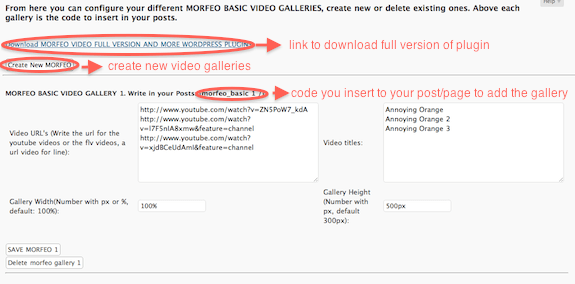
Once I saved the gallery, I copied the code and inserted it into a new post.
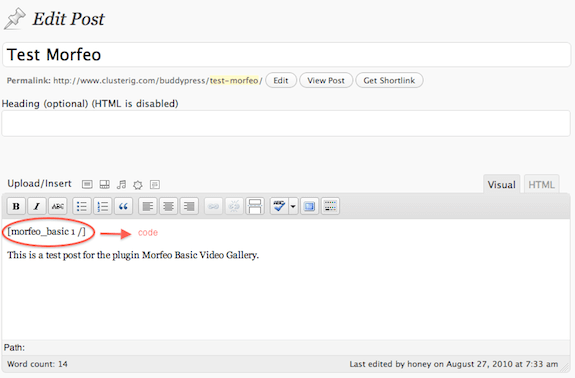
Here is an actual video gallery embedded using the Morfeo Basic Video Gallery Plugin:
[morfeo_basic 1 /]
I was very satisfied with this video gallery plugin. It couldn't be easier to use; and although this is the free version and presumably lacking in more advanced features than the full version, it serves its purpose very well. I also like the fact that you don't have to sign up for anything to be able to use it. Overall, this is a very worthy plugin to add to your site if you want to have the ability to add video galleries to your posts and pages.
Do you have a BuddyPress site and are plagued with spam sign ups/registrations? Are you tired of reviewing all new user sign ups and deleting countless spam?
If you can relate to the scenario I just described, then you may need a plugin to prevent, or at least lessen, these spam registrations.
I came across BuddyPress Humanity, a plugin that is to add a security question to the sign up process that is sure to stop spam bots on their tracks. This plugin does say that it cannot stop spam altogether, but i'm sure that if it works as it should, it will help tremendously.
 | I went and installed and activated the plugin on our site. Once you activate the plugin, you will see a BP Humanity link under the BuddyPress sidebar menu. |
When I click the BP Humanity Link, I am brought to the settings page. Here, you can set the title for your security question, type a question you wish to be your sign up security question, and the answer to the question that the system will accept. The settings page comes with a default title, question, and answer which you may also opt to keep. After choosing the settings, you can save it by clicking on the “save changes” button.

I tried signing up as a new user on our site and true enough, the security question is now part of the sign up process.

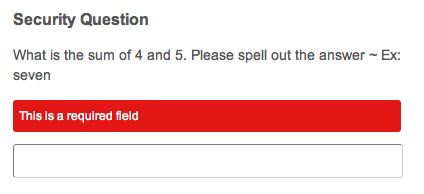
I tried not answering the security question and just clicking on the sign up button. It did not allow me to sign up and gave me an error saying that the security question is a required field. Great!
Overall, while this plugin may not completely eliminate spam sign ups, it will dramatically lessen the chances of its occurrence. I would highly recommend this plugin as a simple and quick solution for lowering the number of spam sign ups on your BuddyPress site.
First off, I would say that I was pretty excited about this plugin. The ability to add videos, photo galleries, music, and podcasts to posts and pages is great. Sure, this is nothing really new, and I am sure that other plugins can do the exact same thing, but I was excited to see what this particular plugin can do. Post Videos and Photo Galleries claims to handle all your multimedia needs for free.
So, I went ahead and installed the plugin on our site. It was very easy to do and you don't have to do anything else prior to the installation. All you need to do after installing the plugin is to activate it. That's it.
After activating the plugin, you will see a “c” icon whenever you post content onto your blog. It then struck me that this plugin is purely for posts and pages. My first impression was that I would be able to add media files on member profiles as well. I was wrong. This plugin is to add media to your posts and pages only. Even though it's listed as a BuddyPress plugin it's really just a WordPress plugin.

Anyways, it was still a welcome addition so I went ahead and tested it.
When you click on the “c” icon, a window pops up that asks you what kind of media file you'd want to add to your post.
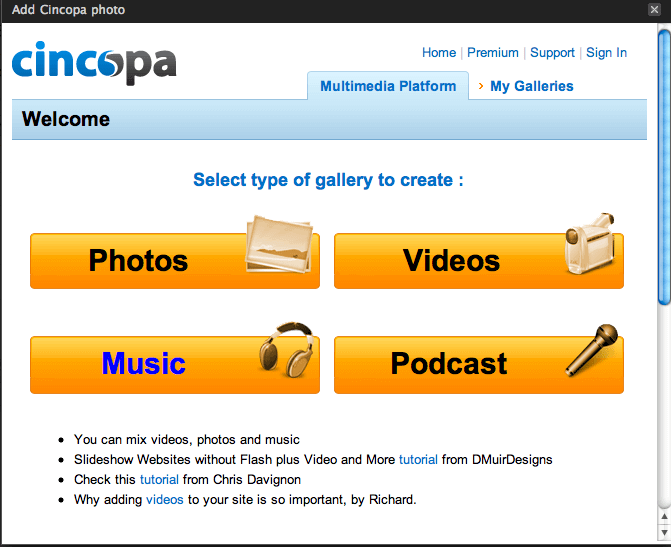
After choosing one, you are then asked to choose a skin/theme for how you'd want the media to look like. I chose to upload photos and chose a flash photo gallery with the simple viewer theme. Uploading photos was very easy and it uploaded quickly. After I clicked “save and continue”, I was brought to a log in page and was prompted to create an account. It then struck me that the files I uploaded will be hosted at the Cincopa server. I was uncomfortable with this and to be honest, was a bit put off. I thought the files will be uploaded on my server. Ok, so I went ahead and created an account and the process was quick and hassle-free. For those of you who don't mind uploading files to Cincopa's server, then this will not be an issue.
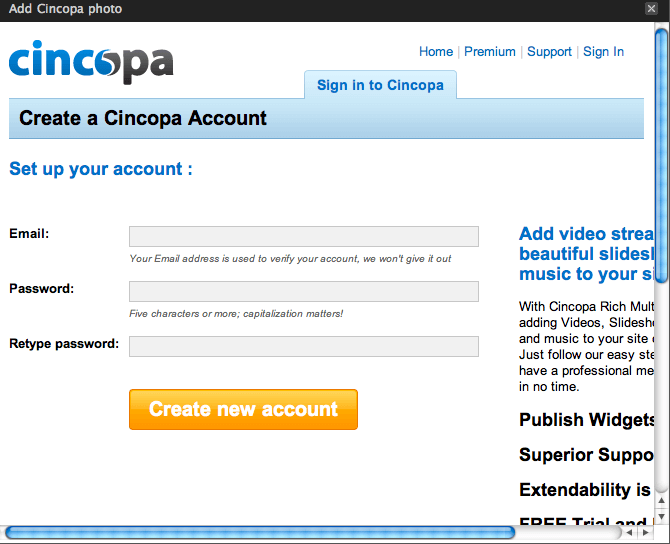
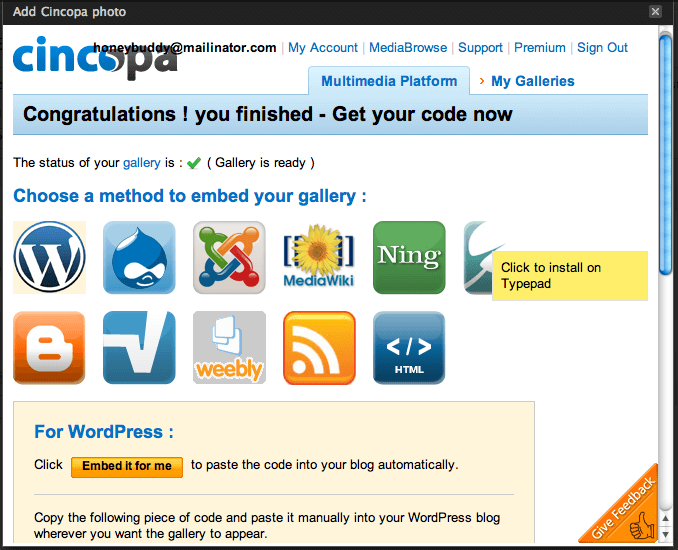
After creating an account, you are then asked under which method you'd want to embed your gallery, which is a choice of different blog platforms. For BuddyPress/WordPress, there is an automatic embed button which says “embed it for me” which effectively copies the given code on to your text editor.
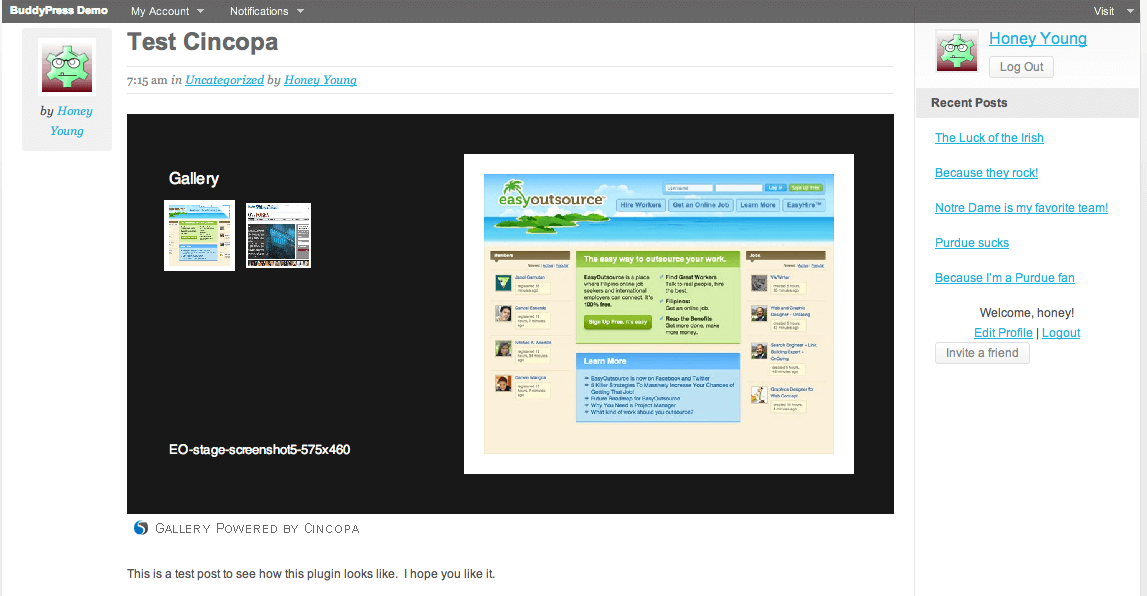
I saved my post as a draft and previewed it and it looked really good. Here's a screenshot:
Overall, the plugin is not bad, but could have a few points to improve on. First, there is no back button on the pop-up/upload window. If you make a mistake or change your mind on the theme you'd wish to use, you'd have to close the window and start all over. A back button would be a worthy addition. Another thing that bothers me, which I have mentioned earlier, is that the files are uploaded on a different server, whose terms and conditions we are subject of. As I said, if this doesn't bother you, then it won't be an issue.
In conclusion, if you want to include photo galleries, videos, and other media in your blog posts and pages which have a different look and feel from the traditional media uploader included in your text editor, then Post Videos and Photo Galleries is a plugin that you should consider.
When you install BuddyPress into your WordPress site, it comes with the BuddyPress default theme. This is set up this way so that as soon as you install BuddyPress, you can immediately use it without having to install and run a theme you'd have to download somewhere else.
However, you are not limited to this theme. There are a lot of other BuddyPress themes that you can download and customize to fit your site's design. You can find premium BuddyPress themes right here on BuddyBoss. You can find additional themes at BuddyPress.org. Installing and activating them is not that difficult.
Want to start your community for FREE with just a few clicks? Try $299
Read More about BuddyBoss | View Demo
Note: Your custom theme will be located at wp-content/themes, but the default BuddyPress theme will remain at wp-content/plugins/buddypress/bp-themes/bp-default. Do not delete the default theme as this will make upgrading your site very difficult. The default theme acts as a parent theme, while the theme you install acts as a child theme.
Aside from themes, another tool that you can use to customize BuddyPress are widgets. I will discuss this on the next post, so do watch out or that.
Want to start your community for FREE with just a few clicks? Try ReadyLaunch!
Contact us today. Our standard rate is $100/hr and a theme install is usually billed at 1 hour.
Facebook is no doubt the most popular social networking site and almost everyone on the internet has a Facebook account. So, wouldn't it be nice if your users could log into your BuddyPress site with their existing Facebook login credentials? This is just what the plugin WP-FB-AutoConnect aims to do.
It claims that although there are already a lot of other “Facebook Connect” plugins, WP-FB-AutoConnect is one of the most simple to use and customize. So, I went ahead and installed the plugin to see if it is really as easy as the developer claims it to be.
First off, I needed to set up an application on Facebook for our website, which was pretty easy given the straightforward instructions on the plugin's homepage. After setting up the application, installing the plugin was a matter of going to our website's dashboard and installing it from there, which is pretty much the same way all other BuddyPress plugins are installed.
After activating the plugin, the instructions said that a Facebook button will automatically be added to its built-in login panel. However, this was not the case when I went to our site's home page. Instead, I had to add the WP-FB-AutoConnect widget to the sidebar, which was also mentioned in the instructions given. Although I had to add the widget before the Facebook button appeared, the extra step wasn't that much of a hassle and I didn't really mind having to do it.
I then tried logging into our site using the “Login with Facebook” button and a window popped up requesting my permission to connect with my Facebook page. After approving the permission, I was successfully logged on to our site. I didn't have to do much after that and after I tried to log out and log in again using the same button, and I wasn't asked the same permission request a second time.
From a user perspective, not having too many pop-up windows and the simplicity of logging in using the widget is very much welcome. You don't have to go through layers of permissions just to be able connect your Facebook account with your favorite BuddyPress site.
From the perspective of someone installing the plugin, it was very straightforward and the ease of being able to install the plugin even for someone installing a plugin for the first time is a great thing.
Overall, WP-FB-AutoConnect lives up to its claim of simplicity and ease of use.