
Last updated: Mar 12, 2026 • ~7 min read
The Cloudflare integration allows you to offload and deliver media files through Cloudflare Images, Stream, and R2, reducing server load and improving content delivery speeds. This manual walks you through connecting your account, configuring each media type, and using the bulk management tools.
Tutorial Video
Global Settings
Navigate to your WordPress Dashboard, go to BuddyBoss > Settings > Offload Media > Cloudflare Settings. In the Global Settings section, enter your Account ID and Account API Token, then click Connect.
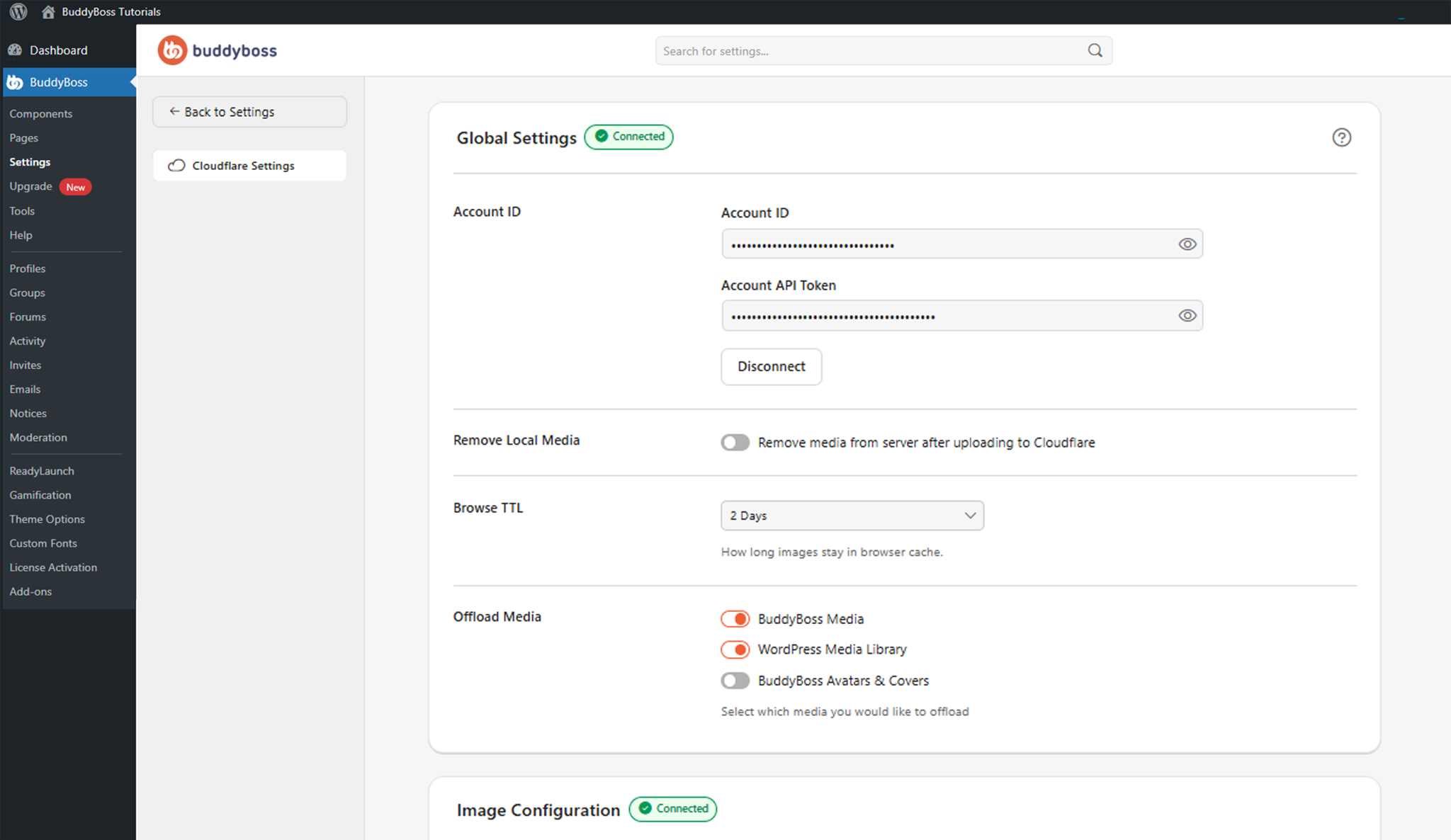
The status displays Connected once established. Three additional options are available in Global Settings:
- Remove media from server after uploading to Cloudflare: Automatically removes local files after successful upload to reduce server storage usage.
- Browse TTL: Sets how long images remain cached in the visitor’s browser. Options: 2 Days, 1 Week, 1 Month, 1 Year.
- Offload Media: Select which media types to offload – BuddyBoss Media, WordPress Media Library, and BuddyBoss Avatars & Covers.
Image Configuration
Connect Cloudflare Images by entering your Key Token and Signed Token, then click Connect.
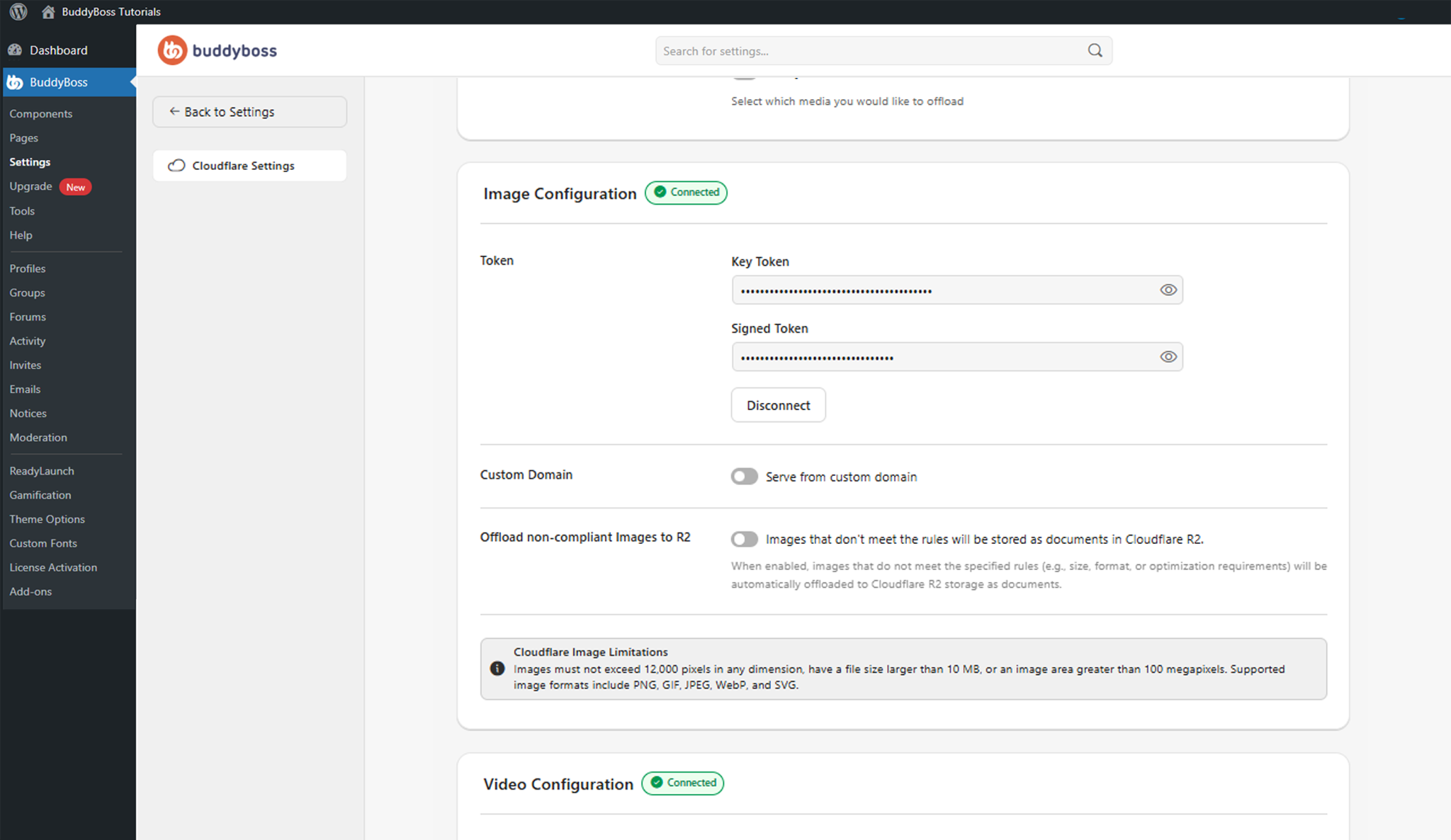
Additional options include enabling Serve from custom domain and toggling Images that don’t meet the rules will be stored as documents in Cloudflare R2 to handle images exceeding Cloudflare’s limits (max 12,000px dimension, 10 MB, 100 megapixels; PNG, GIF, JPEG, WebP, SVG).
Video Configuration
Connect Cloudflare Stream by entering your Stream API Token, then click Connect.
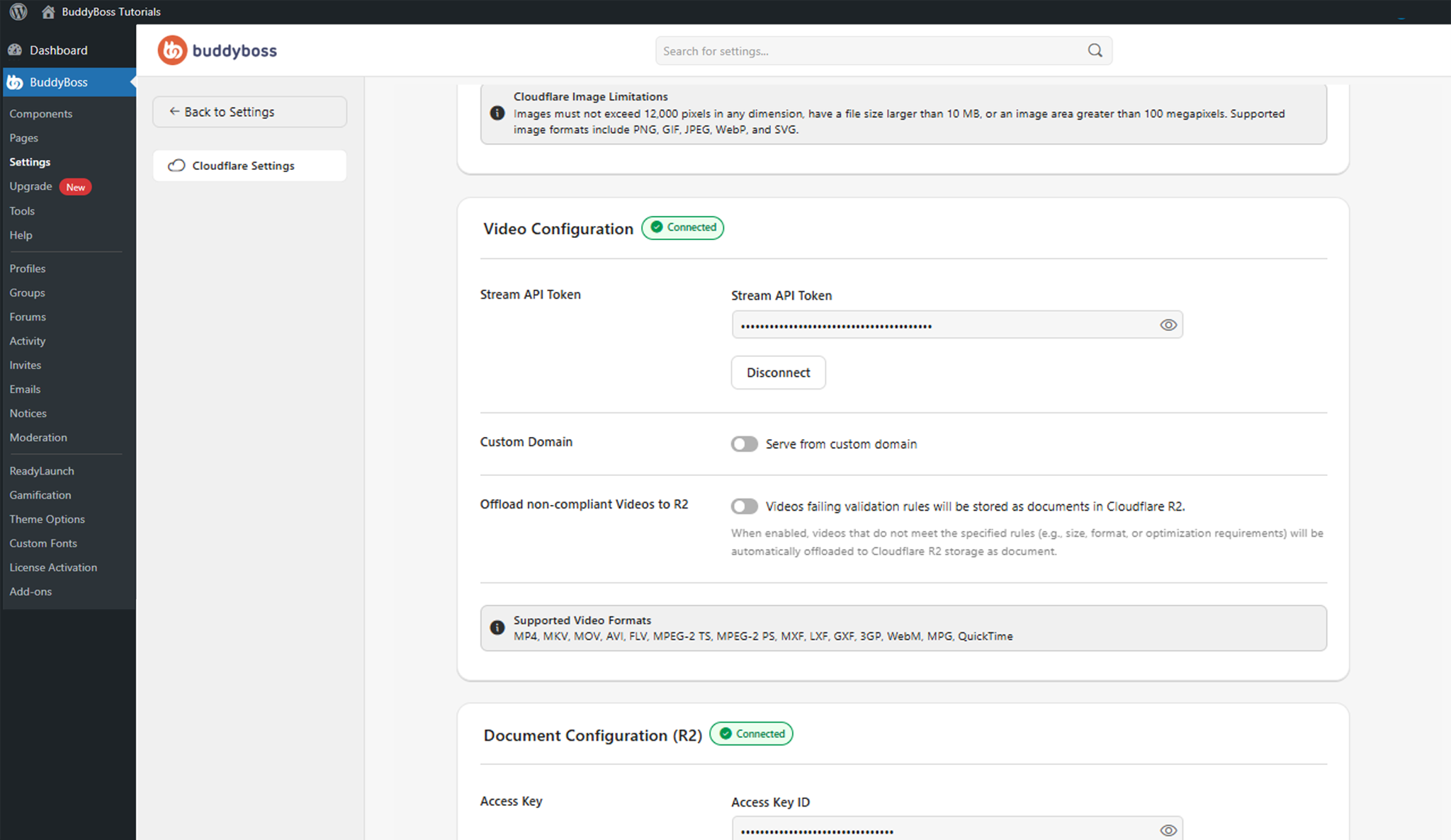
Additional options include enabling Serve from custom domain and toggling Videos failing validation rules will be stored as documents in Cloudflare R2 for unsupported formats. Cloudflare Stream supports MP4, MKV, MOV, AVI, FLV, WebM, MPG, QuickTime, and several broadcast formats.
Document Configuration (R2)
Connect Cloudflare R2 by entering your Access Key ID and Secret Access Key, then click Connect.
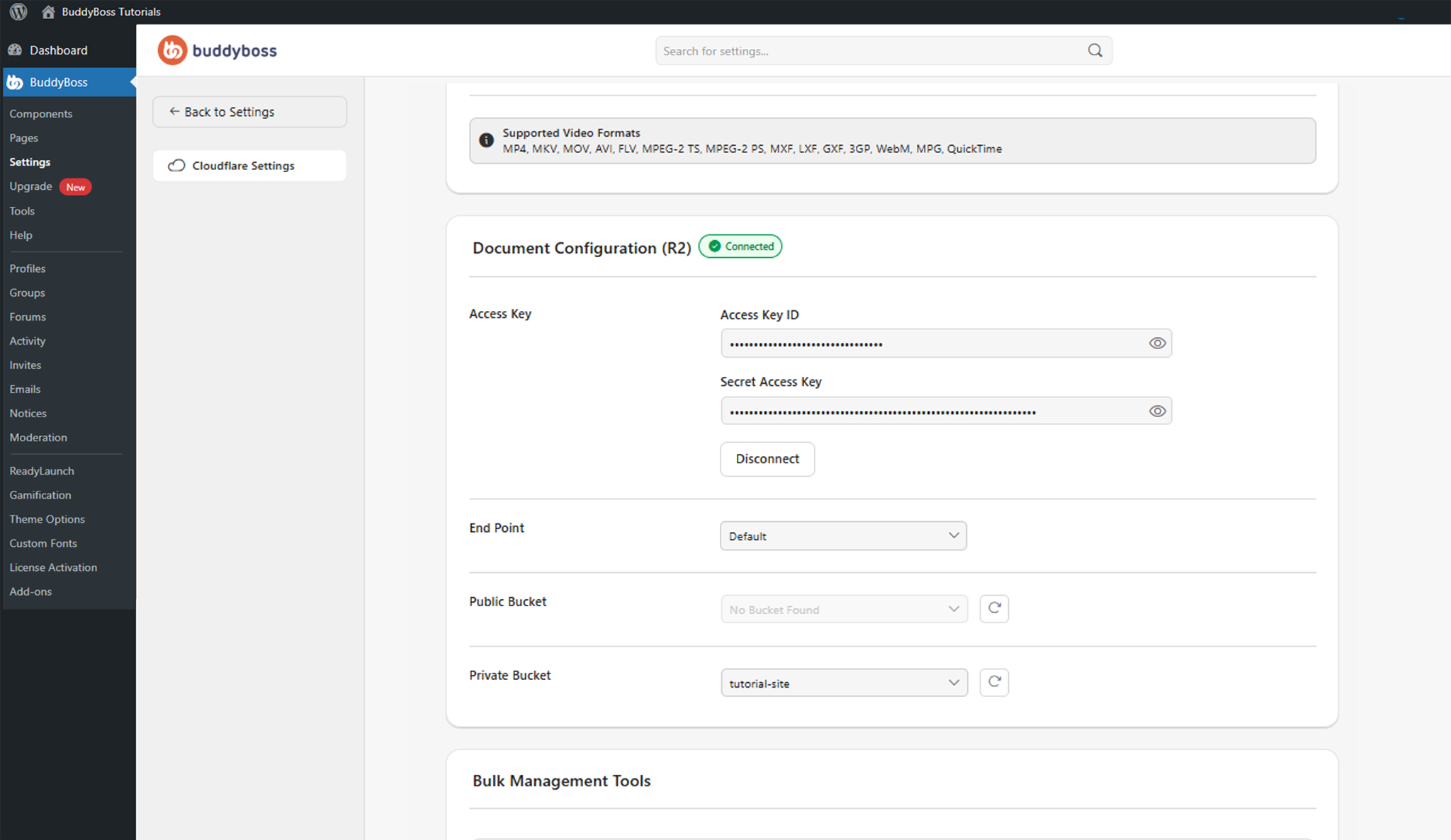
After connecting, configure the End Point (Default or EU), and select your Public Bucket (for publicly accessible files) and Private Bucket (for protected files) from their respective dropdowns.
Bulk Management Tools
The Bulk Management Tools section provides four tools for managing existing files.
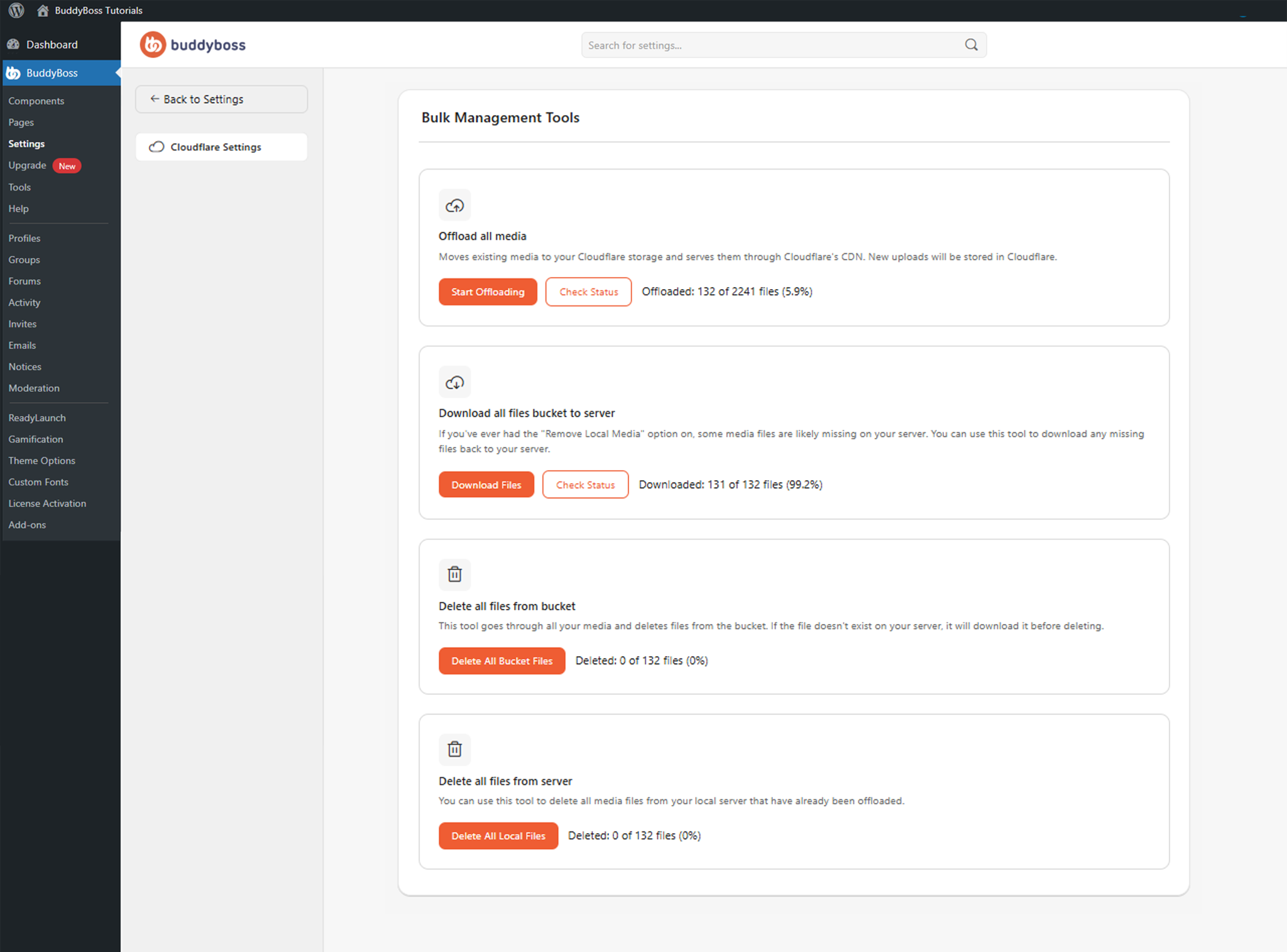
Use Check Status to monitor progress on any running operation.
- Start Offloading: Uploads existing server media files to Cloudflare storage.
- Download Files: Downloads files from Cloudflare storage back to your local server, useful if files were previously removed locally.
- Delete All Bucket Files: Removes all files stored in your Cloudflare bucket. Files may be downloaded locally first if they don’t exist on the server.
- Delete All Local Files: Removes local files that have already been offloaded to Cloudflare. Use carefully if you rely on local backups.
© 2026 BuddyBoss LLC. All Rights Reserved. | buddyboss.com