Introduction
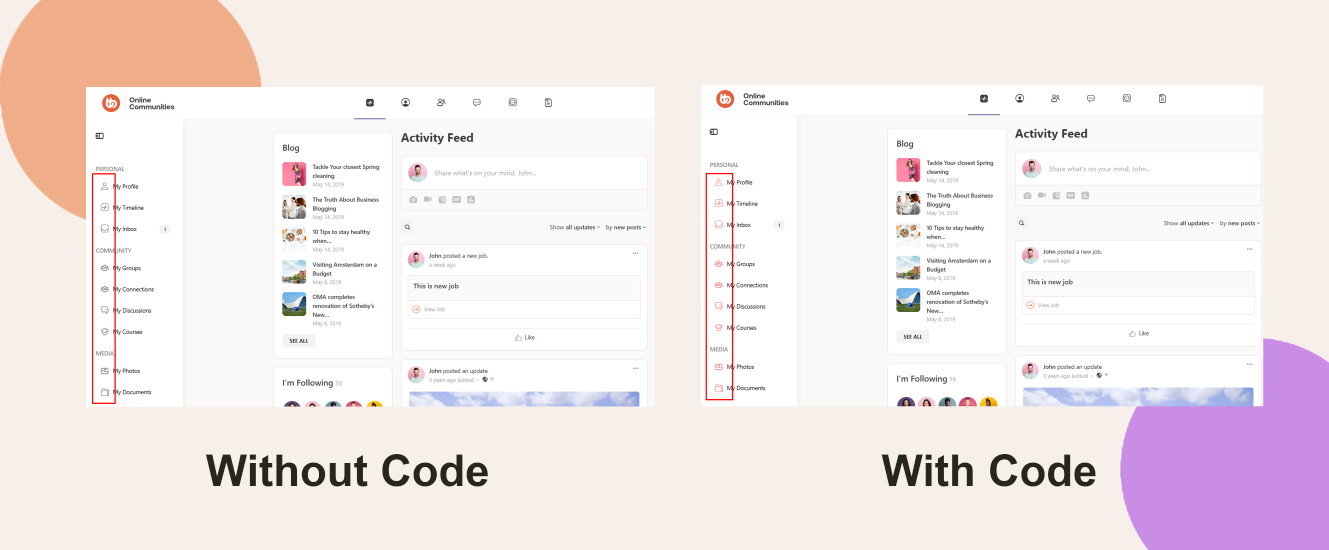
Updating the icon color in the BuddyPanel can help align your site’s sidebar navigation with your brand’s color scheme and enhance visual clarity. Although the BuddyBoss Theme does not include a built-in setting for this, you can apply a simple CSS snippet to customize it.
Custom Workaround
To change the color of the icons within the BuddyPanel:
- In your WordPress Dashboard, go to BuddyBoss > Theme Options.
- Scroll to the Custom Codes section and toggle Enable CSS.
Append the following CSS code (replace red with your preferred color):
.bb-template-v2 .buddypanel-menu > li > .bb-menu-item > i:not(.bb-icon-angle-down) {

  color: red;

}- Click Save Changes.
/for
Troubleshooting and FAQs
Q: The icon color didn’t change—what should I do?
A: Clear your site and browser cache, and ensure the CSS was added and saved correctly.
Q: Will this affect dropdown arrows or other icons?
A: No. The selector specifically excludes .bb-icon-angle-down icons (e.g., dropdown arrows), so only main icons are affected.