
Introduction
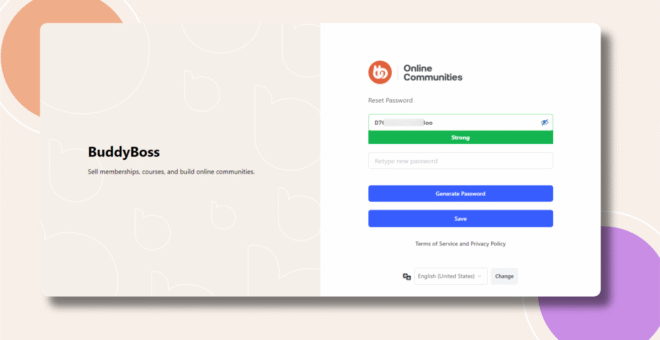
BuddyBoss does not provide a built-in option to force password masking on the Reset Password page. You can ensure the password field is always hidden (masked) by adding a small custom function to your active theme. This guide explains how to force password field masking on the reset password page.
Custom Workaround
- Go to Appearance > Theme Editor in your WordPress admin dashboard.
- Under Select theme to edit, choose your active theme (preferably a BuddyBoss Child Theme), then click Select.
- From the Theme Files list, click Theme Functions (functions.php).
- Paste the following code just before the closing PHP tag (?>):
function bb_hook_enqueue_scripts() { ?>
    <script>
        document.addEventListener("DOMContentLoaded", (event) => {
            setTimeout(() => {
                document.getElementById('pass1').type = 'password';
            }, 200);
        });
    </script>
<?php }
add_action( 'login_enqueue_scripts', 'bb_hook_enqueue_scripts', 1 );
- Click Update File to save your changes.
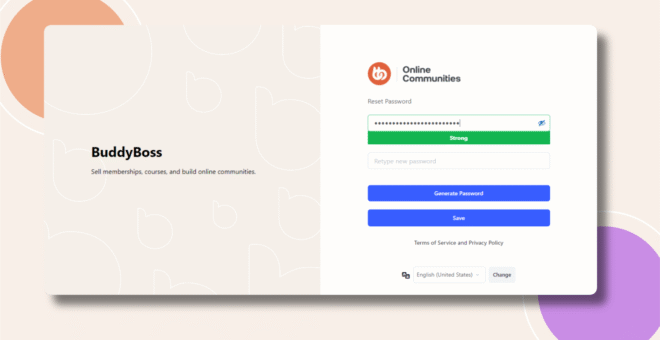
After implementing this code, the password field on the reset password page will always appear masked, enhancing security for users entering new passwords.
Screenshots
Without Code:
With Code:
Troubleshooting and FAQs
Q: The password field is still showing in plain text.
A: Make sure the element ID is pass1 (WordPress default). If you are using a custom template, inspect the password field to verify the ID and update the code accordingly.
Q: Will this affect other login pages?
A: No. This script only targets the password field on the reset password page.
Q: How can I remove this behavior later?
A: Remove the code from functions.php and save the file.
Q: Who can I contact for assistance if this doesn’t work?
A: Please review the BuddyBoss Support Policy or consult a developer for custom troubleshooting.