The Foxly Unique Group Invitation Links plugin for BuddyBoss simplifies the process of inviting new members to specific groups using unique, shareable invite links. This is particularly useful for community administrators who want to streamline the onboarding process and automate group membership, especially for private or invite-only groups.
With this plugin, users who register via the unique invitation link will automatically be added to the specified group, eliminating the need for manual approvals or group invitations.
Key Features:
Unique Invitation Links: Users can register and automatically join specific BuddyBoss groups via a unique group invitation link.
Auto-Group Join: Once users register through the provided link, they are automatically added to the group.
License Management: Plugin updates and support are managed via license activation.
How to Install the Plugin and Activate the License
Step 1: Install the Plugin
Download the Foxly Unique Group Invitation Links plugin from your purchase source.
Log into WordPress Dashboard and go to Plugins > Add New.
Click Upload Plugin, choose the .zip file, and click Install Now.
After installation, click Activate to activate the plugin.
Step 2: Activate the License Key
To fully enable the plugin’s features and receive updates and support, follow these steps:
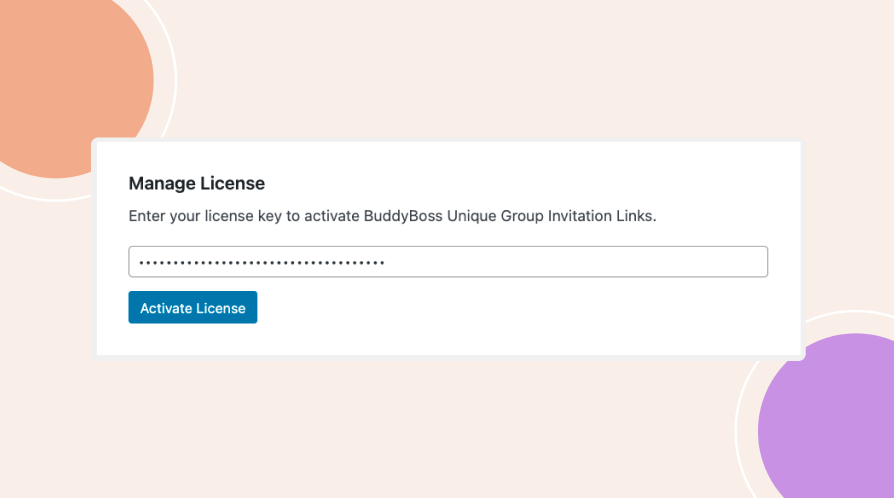
After activating the plugin, go to BuddyBoss > Groups Invite Links > Manage License.
Enter the license key provided during your purchase.
Click Activate License.
Configuring the Plugin and Enabling Unique Invite Links
Step 3: Enable Unique Invitation Links
Once the license is activated, go to BuddyBoss > Groups Invite Links > Settings.
Locate the option for Enable Unique Invite Links and toggle it on.
Ensure that the license is activated before enabling this option.
Save your settings.
How to Get and Use Group Invitation Links
Step 4: Generate a Group Invitation Link
After setting up the plugin, group owners can generate a group invitation link that allows new users to automatically join the group upon registration:
Navigate to the group that you own by going to BuddyBoss > Groups.
Select the group and go to Manage > Details.
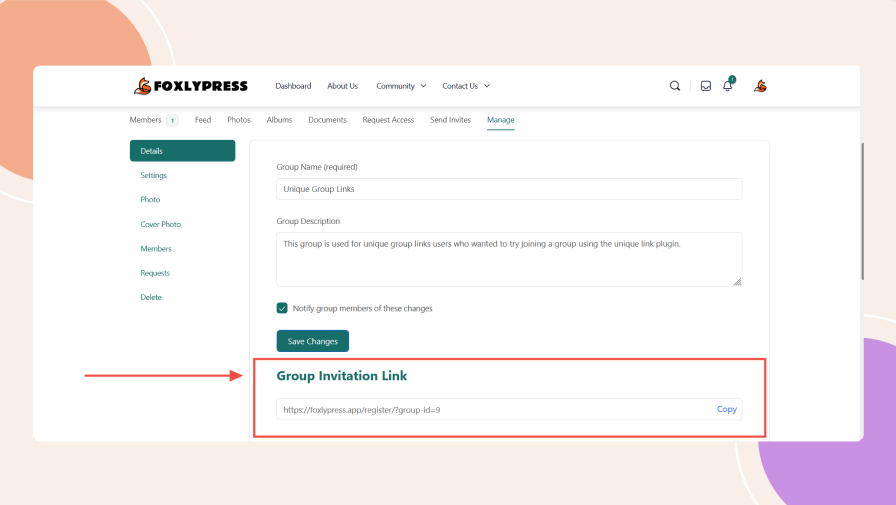
Under the Details tab, you will find the Group Invitation Link.
Copy the link to share with others.
Step 5: Share the Group Invitation Link
Share this unique link with those you want to invite to your group.
When users register for an account via this link, they will automatically be added to the designated group.
Benefits:
Automated Group Membership: Users are automatically added to the group when they register via the unique link.
Simplified Group Management: No need for manual approvals or sending individual invites.
Seamless Onboarding: The process is easy for both admins and users, making group membership hassle-free.
Boost Group Growth: Having a unique link associated with each group incentivizes group organizers to share their groups with their followers via email newsletters, social networks, or other mediums. Since new users who join the BuddyBoss community through the link are added to the group automatically, it encourages more active sharing. This approach also empowers users to invite their friends to the platform, leveraging influencer marketing to accelerate group growth.
The Foxly Unique Group Invitation Links plugin enhances group management for BuddyBoss, helping admins efficiently invite and onboard new members without additional steps or approvals. Additionally, it provides a powerful way to grow groups and communities by encouraging sharing and influencer-driven outreach.
Screenshots
For further setup and usage tutorials, refer to the official documentation of Foxly Unique Group Invitation Links for BuddyBoss
This integration is developed and maintained by FoxlyPress, LLC. It is the responsibility of their developers to keep the integration updated to ensure it works with the latest versions of BuddyBoss products and addresses major security concerns.
We use cookies to improve your experience on our site. By using our site, you consent to our cookie policy.
This website uses cookies
Websites store cookies to enhance functionality and personalise your experience. You can manage your preferences, but blocking some cookies may impact site performance and services.
Essential cookies enable basic functions and are necessary for the proper function of the website.
Name
Description
Duration
Geolocation Config
This cookie is used to store the consent settings based on the visitor's location.
30 days
Cookie Preferences
This cookie is used to store the user's cookie consent preferences.
30 days
CloudFlare provides web performance and security solutions, enhancing site speed and protecting against threats.
These cookies are needed for adding comments on this website.
Name
Description
Duration
comment_author
Used to track the user across multiple sessions.
Session
comment_author_email
Used to track the user across multiple sessions.
Session
comment_author_url
Used to track the user across multiple sessions.
Session
Google reCAPTCHA helps protect websites from spam and abuse by verifying user interactions through challenges.
Google Tag Manager simplifies the management of marketing tags on your website without code changes.
Stripe is a payment processing platform that enables businesses to accept online payments securely and efficiently.
Contains custom information set by the web developer via the _setCustomVar method in Google Analytics. This cookie is updated every time new data is sent to the Google Analytics server.
2 years after last activity
__utmx
Used to determine whether a user is included in an A / B or Multivariate test.
18 months
_ga
ID used to identify users
2 years
_gali
Used by Google Analytics to determine which links on a page are being clicked
30 seconds
_ga_
ID used to identify users
2 years
_gid
ID used to identify users for 24 hours after last activity
24 hours
_gat
Used to monitor number of Google Analytics server requests when using Google Tag Manager
1 minute
_gac_
Contains information related to marketing campaigns of the user. These are shared with Google AdWords / Google Ads when the Google Ads and Google Analytics accounts are linked together.
90 days
__utma
ID used to identify users and sessions
2 years after last activity
__utmt
Used to monitor number of Google Analytics server requests
10 minutes
__utmb
Used to distinguish new sessions and visits. This cookie is set when the GA.js javascript library is loaded and there is no existing __utmb cookie. The cookie is updated every time data is sent to the Google Analytics server.
30 minutes after last activity
__utmc
Used only with old Urchin versions of Google Analytics and not with GA.js. Was used to distinguish between new sessions and visits at the end of a session.
End of session (browser)
__utmz
Contains information about the traffic source or campaign that directed user to the website. The cookie is set when the GA.js javascript is loaded and updated when data is sent to the Google Anaytics server
6 months after last activity
Clarity is a web analytics service that tracks and reports website traffic.
Indicates whether MUID is transferred to ANID, a cookie used for advertising. Clarity doesn't use ANID and so this is always set to 0.
Session
CLID
Identifies the first-time Clarity saw this user on any site using Clarity.
12 months
_clsk
Connects multiple page views by a user into a single Clarity session recording.
12 months
_clck
Persists the Clarity User ID and preferences, unique to that site is attributed to the same user ID.
12 months
SourceBuster is used by WooCommerce for order attribution based on user source.
Name
Description
Duration
sbjs_current_add
Timestamp, referring URL, and entry page for your visitor’s current visit to your store
session
sbjs_migrations
Technical data to help with migrations between different versions of the tracking feature
session
sbjs_session
The number of page views in this session and the current page path
30 minutes
sbjs_udata
Information about the visitor’s user agent, such as IP, the browser, and the device type
session
sbjs_first
Traffic origin information for the visitor’s first visit to your store (only applicable if the visitor returns before the session expires)
session
sbjs_current
Traffic origin information for the visitor’s current visit to your store
session
sbjs_first_add
Timestamp, referring URL, and entry page for your visitor’s first visit to your store (only applicable if the visitor returns before the session expires)
session
Marketing cookies are used to follow visitors to websites. The intention is to show ads that are relevant and engaging to the individual user.
OptinMonster is a powerful lead generation tool that helps businesses convert visitors into subscribers and customers.