
Introduction
You can embed live streams from YouTube or Vimeo directly into your LearnDash courses on BuddyBoss. By using the block editor, you’ll place a video block on your course page that plays your live stream in real time.
Embed Live Stream in a Course
- In your WordPress admin, go to LearnDash LMS > Courses and select the course you want to add a live stream to.
- Click the ➕ icon to add a new block.
- Search for and select the YouTube (or Video) block.
- Paste your live stream URL (YouTube or Vimeo) into the block.
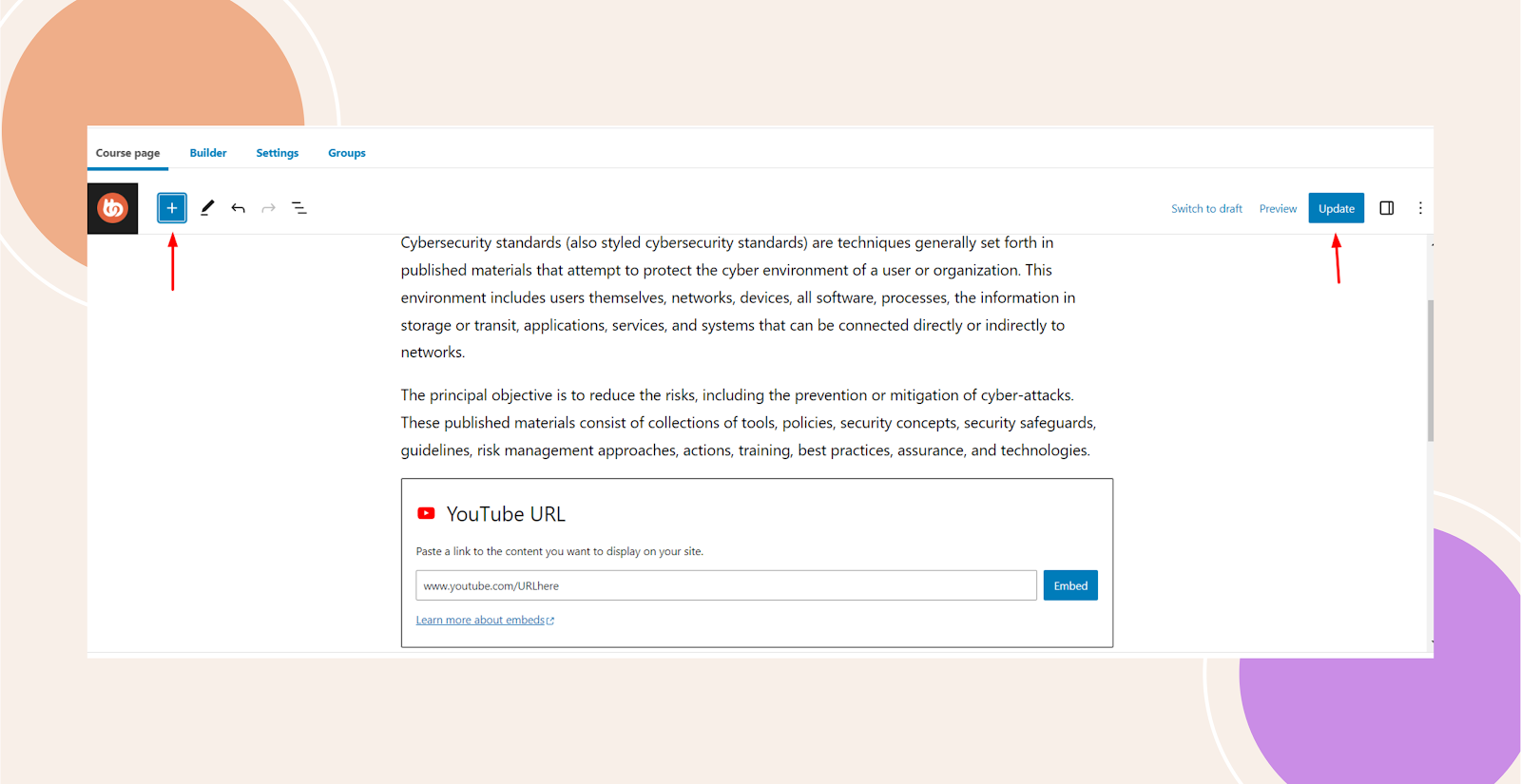
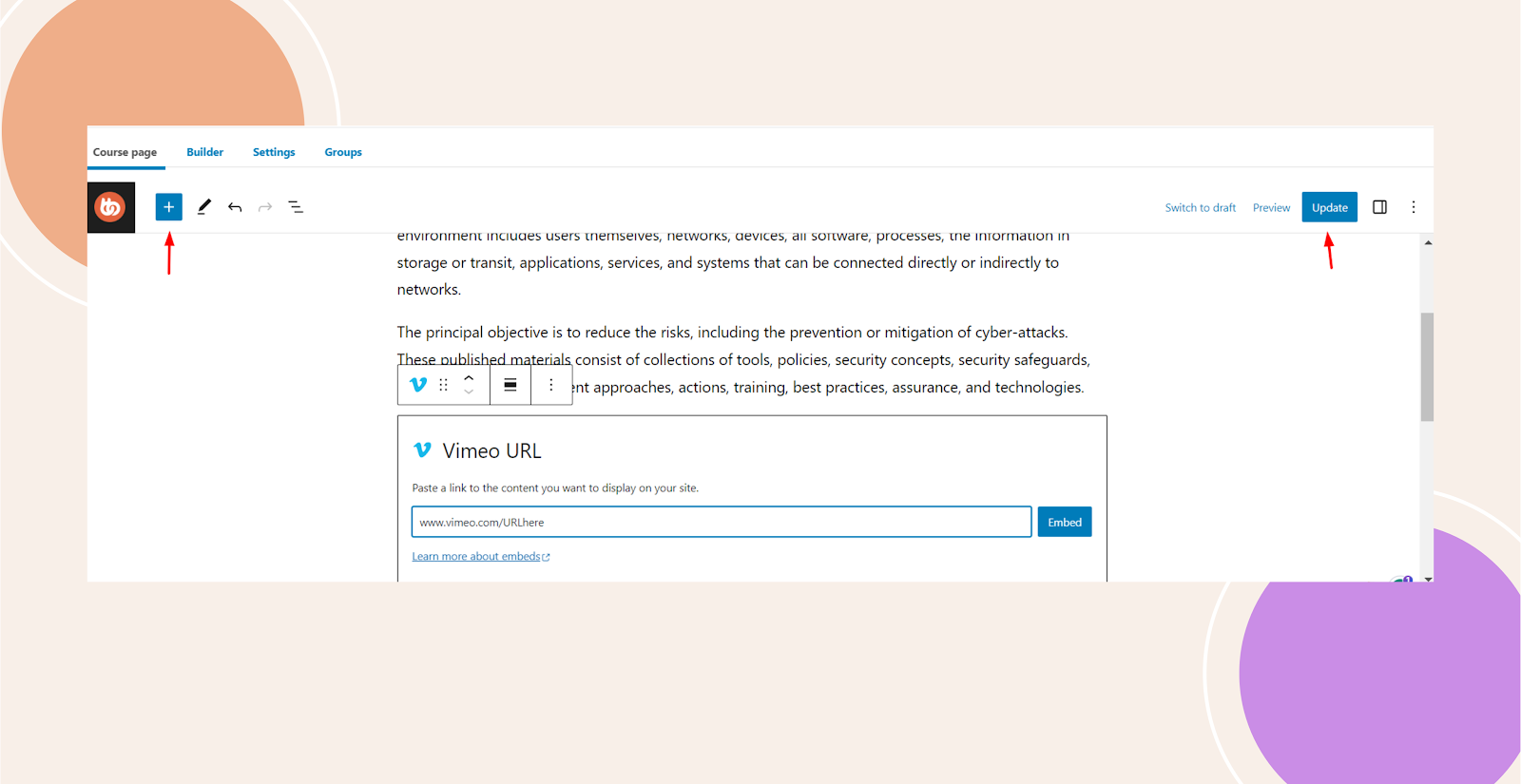
- Click Update to save the course.
Troubleshooting and FAQs
Q: My embedded live stream isn’t playing—what should I check?
A: Make sure your YouTube/Vimeo privacy settings allow embedding, and that you’ve pasted the correct live stream URL (not the general watch page link).