
REQUIRES: PRO PLAN OR HIGHER • Last updated: Mar 12, 2026 • ~3 min read
The Zoom Gutenberg Blocks integration allows you to create and manage Zoom meetings and webinars directly from Gutenberg blocks using a Zoom Server-to-Server OAuth connection. This manual walks you through connecting your Zoom account, setting up the notification URL, and disconnecting the integration.
Connecting Zoom
To use Zoom Gutenberg blocks, first create a Server-to-Server OAuth App in your Zoom account. Then navigate to your WordPress Dashboard, go to BuddyBoss > Settings > Zoom > Zoom Settings.
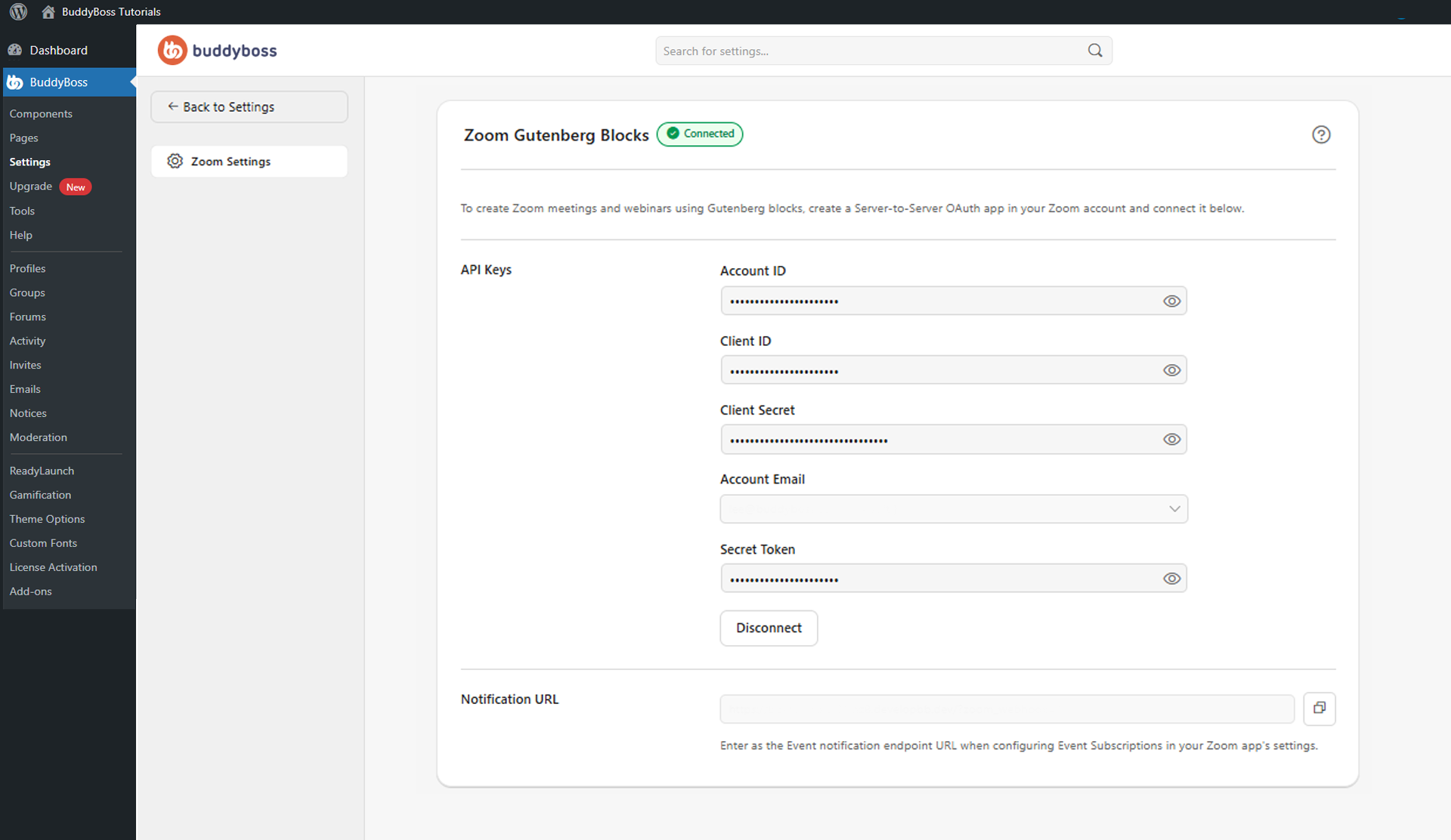
Locate the Zoom Gutenberg Blocks section. Enter the following credentials from your Zoom OAuth app, then click to connect:
- Account ID
- Client ID
- Client Secret
- Secret Token
- Account Email: Select the Zoom account to use from the dropdown.
Once connected, the status indicator displays Connected. To remove the connection, click Disconnect.
Notification URL
BuddyBoss generates a webhook endpoint URL for Zoom Event Subscriptions. Copy the URL from the Notification URL field, then paste it into the Event Notification Endpoint URL field in your Zoom App configuration. This allows Zoom to send real-time event data back to your BuddyBoss site.
© 2026 BuddyBoss LLC. All Rights Reserved. | buddyboss.com