
REQUIRES: PRO PLAN OR HIGHER • Last updated: Mar 12, 2026 • ~3 min read
The Email Invite Settings control how members send invitation emails to new users. You can decide whether members can customize the email subject line, edit the body content, and assign a profile type to invited users. This manual walks you through each setting.
Tutorial Video
Accessing Email Invite Settings
To access these settings, navigate to your WordPress Dashboard, go to BuddyBoss > Settings > Email Invites, then click Email Invite Settings from the left menu.
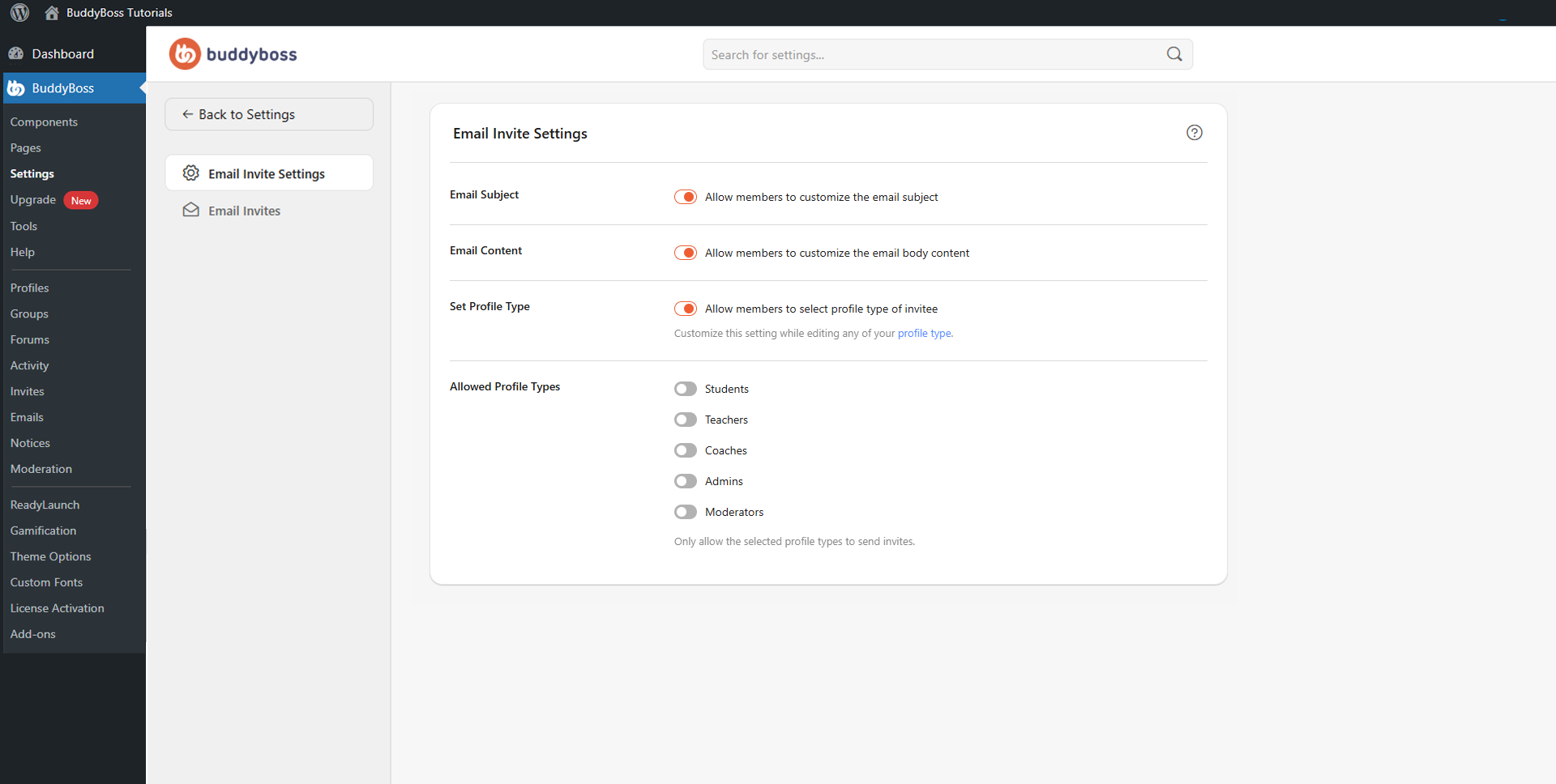
Invitation Customization Options
The following toggles control how much flexibility members have when composing invitation emails:
- Allow members to customize the email subject: When enabled, members can edit the subject line of their invitation emails before sending. When disabled, all invitations use the default system-generated subject.
- Allow members to customize the email body content: When enabled, members can personalize the message inside invitation emails. When disabled, invitations use only the default predefined content.
- Allow members to select profile type of invitee: When enabled, members can assign a profile type to the person they are inviting – useful for communities with multiple member types such as Students, Coaches, or Staff. This setting can be further customized per profile type in Dashboard > BuddyBoss > Profiles > Profile Types.
© 2026 BuddyBoss LLC. All Rights Reserved. | buddyboss.com