
REQUIRES: PRO PLAN OR HIGHER • Last updated: Mar 12, 2026 • ~3 min read
The Animated GIFs settings under Media Uploading allow members to search and insert GIFs from the GIPHY library across profiles, groups, messages, and forums. A valid GIPHY API key is required to activate this feature. This manual walks you through connecting GIPHY and enabling GIF use per area.
Tutorial Video
Accessing Animated GIF Settings
To access these settings, navigate to your WordPress Dashboard, go to BuddyBoss > Settings > Media Uploading, then click Animated GIFs.
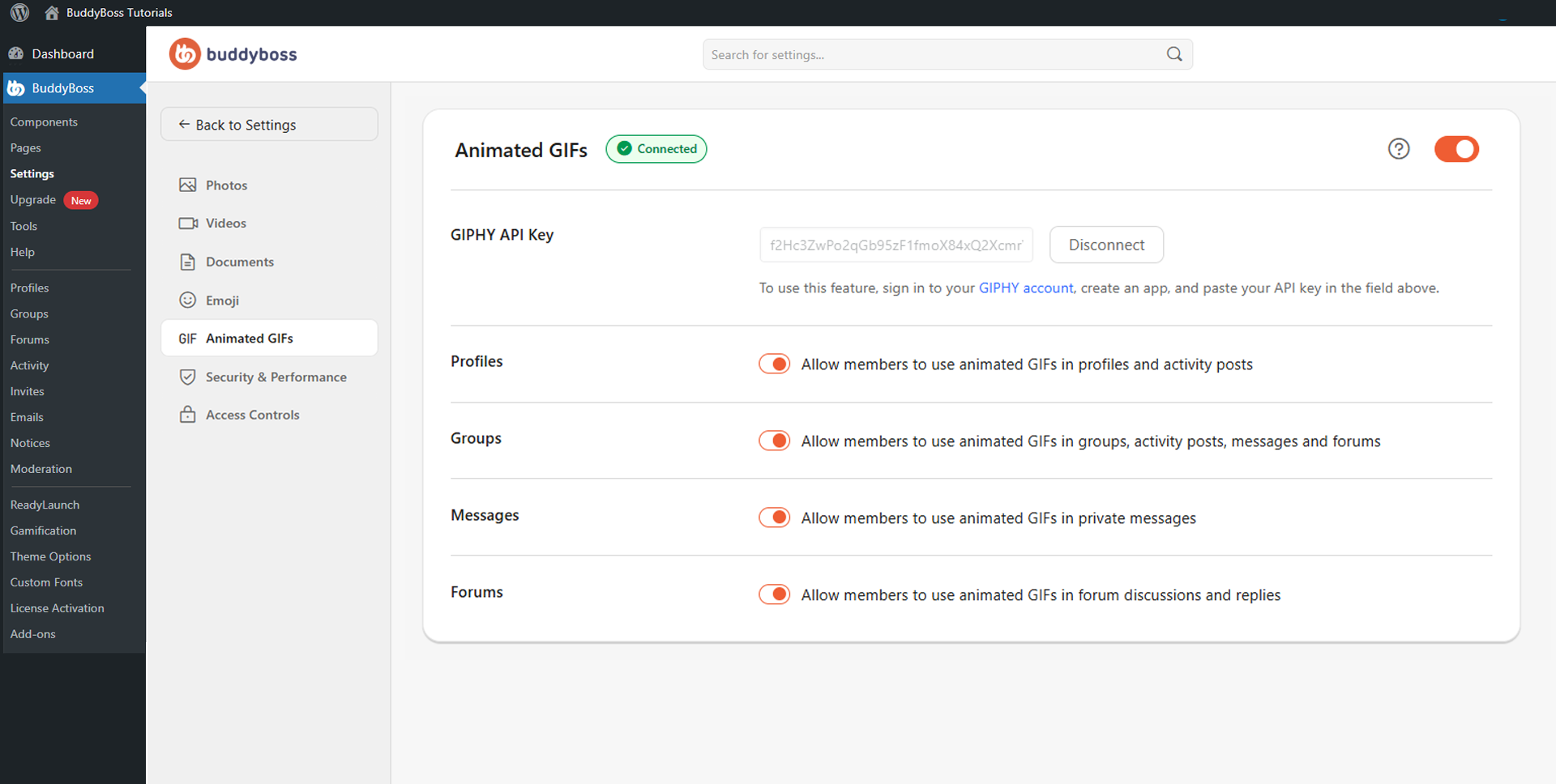
Enable the main Animated GIFs toggle to reveal the GIF configuration settings.
Connecting GIPHY
Sign in to your GIPHY account, create a new app in the GIPHY developer dashboard, and copy the generated API key. Paste it into the GIPHY API Key field. A Connected status will appear beside the section title once the connection is established. Click Disconnect to remove the connection if needed.
GIF Permissions
Toggle each area on or off to control where members can use animated GIFs.
- Profiles: Allows members to use animated GIFs in profile content and activity feed posts.
- Groups: Allows members to use GIFs inside social groups, group activity posts, group messages, and group forums.
- Messages: Allows members to share GIFs in private conversations.
- Forums: Allows members to include GIFs inside forum discussions and replies.
© 2026 BuddyBoss LLC. All Rights Reserved. | buddyboss.com