
REQUIRES: PRO PLAN OR HIGHER • Last updated: Mar 12, 2026 • ~4 min read
The Photos settings under Media Uploading control how members upload and manage photos across profiles, groups, messages, and forums. You can enable photo uploads per area, allow photo albums, and set limits on file size and batch count. This manual walks you through each option.
Tutorial Video
Accessing Photo Upload Settings
To access these settings, navigate to your WordPress Dashboard, go to BuddyBoss > Settings > Media Uploading, then click Photos.
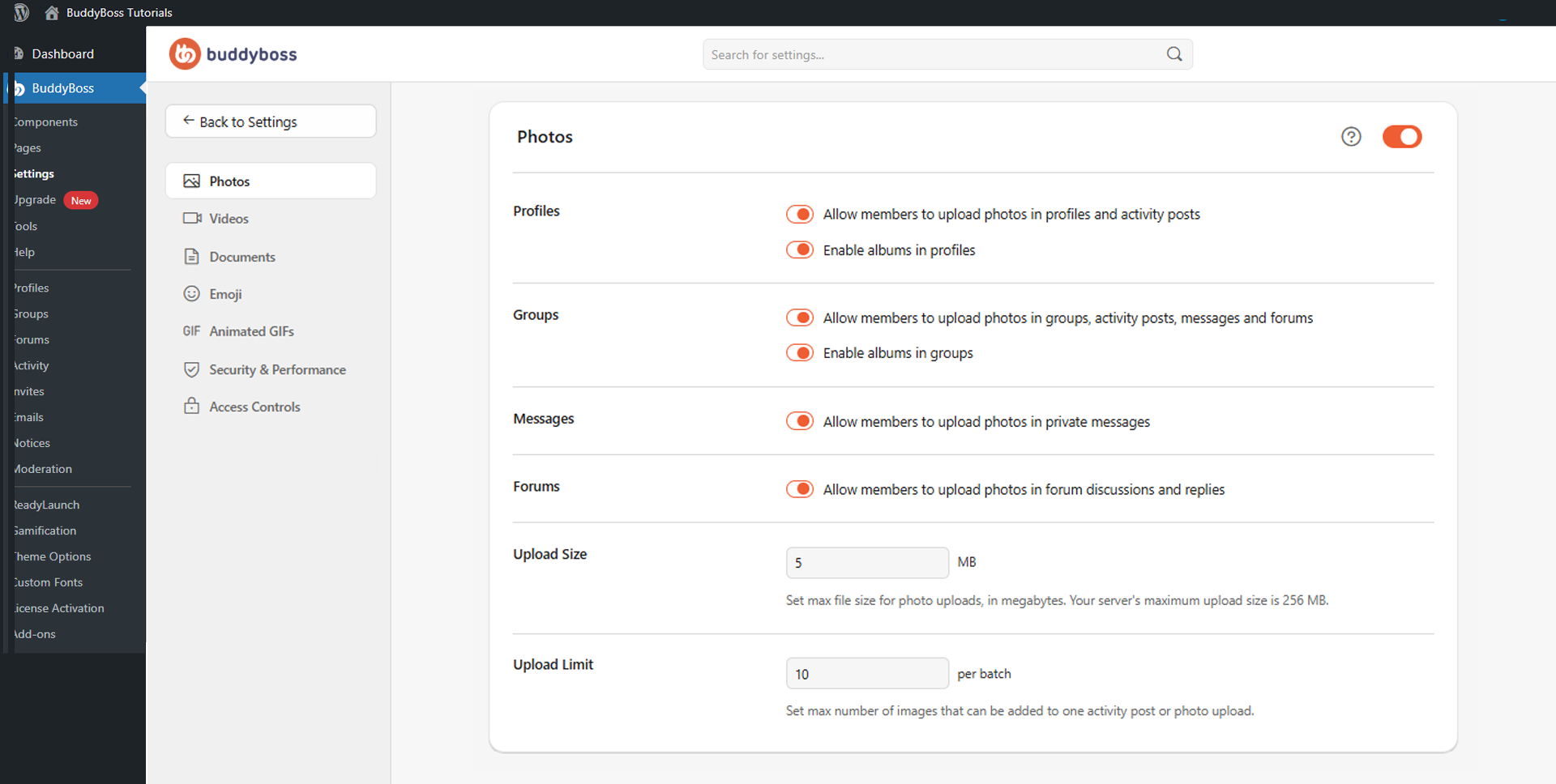
Enable the main Photos toggle to activate photo uploads site-wide and reveal the additional configuration options below it.
Upload Permissions
Toggle each area on or off to control where members can upload photos.
- Profiles: Allows members to upload photos to their profile media section and activity feed posts. Enable Enable albums in profiles to let members organize their profile photos into albums.
- Groups: Allows members to upload photos inside social groups, group activity posts, group messages, and group forums. Enable Enable albums in groups to let group members organize shared photos into albums.
- Messages: Allows members to share photo attachments inside private messages.
- Forums: Allows members to include images inside forum discussions and replies.
- Upload Size: Sets the maximum file size per uploaded image in MB. The value entered cannot exceed your server’s maximum upload size, which is displayed on the settings page for reference.
- Upload Limit: Sets the maximum number of photos members can upload in a single batch across activity posts, profiles, and groups.
© 2026 BuddyBoss LLC. All Rights Reserved. | buddyboss.com