
REQUIRES: PRO PLAN OR HIGHER • Last updated: Mar 12, 2026 • ~5 min read
The Videos settings under Media Uploading control how members upload and share videos across profiles, groups, messages, and forums. You can enable video uploads per area, set size and batch limits, manage allowed file types, and add custom extensions. This manual walks you through each option.
Tutorial Video
Accessing Video Upload Settings
To access these settings, navigate to your WordPress Dashboard, go to BuddyBoss > Settings > Media Uploading, then click Videos.
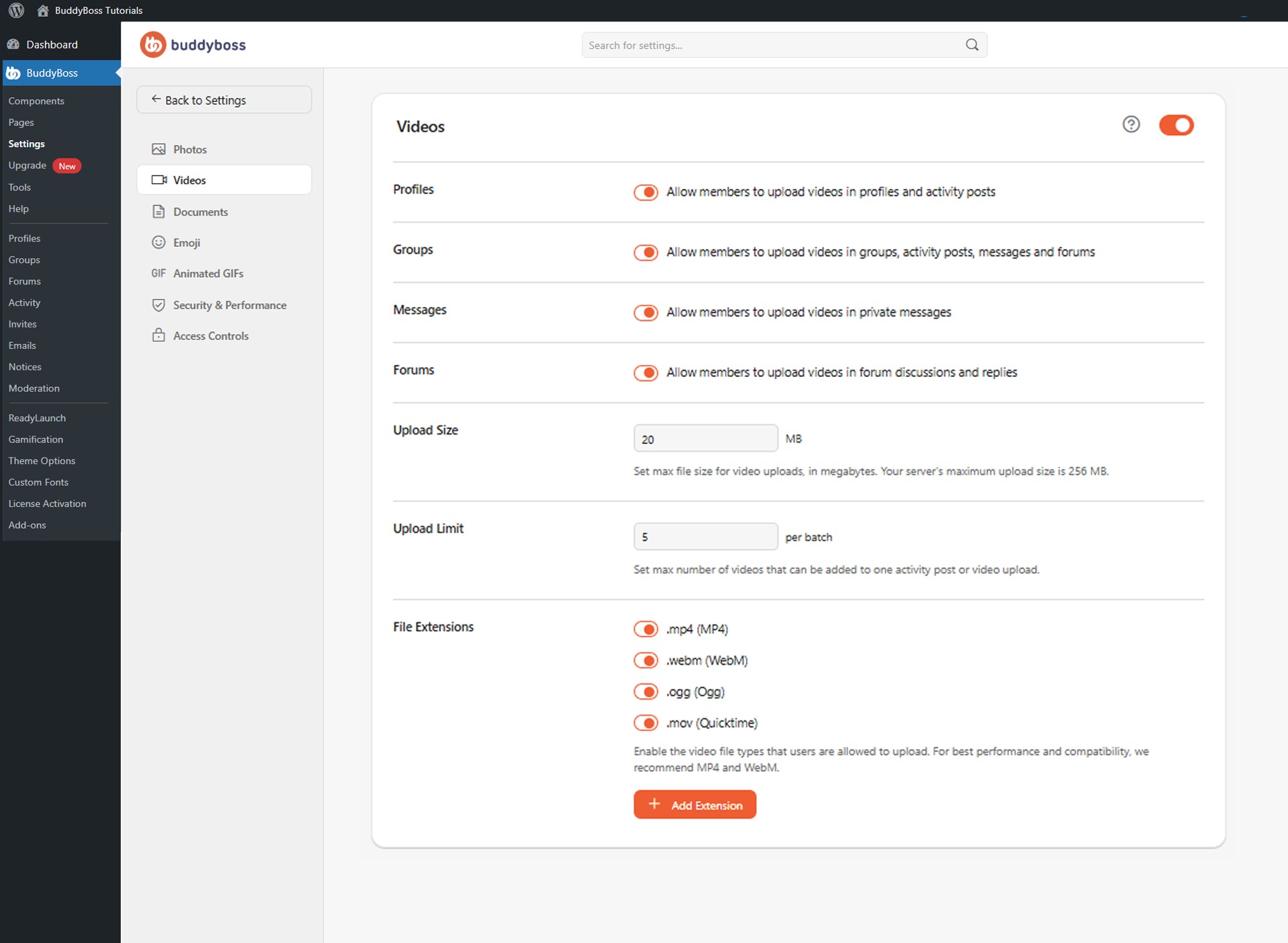
Enable the main Videos toggle to activate video uploads site-wide and reveal the additional configuration options.
FFmpeg for Video Thumbnails
BuddyBoss recommends enabling FFmpeg on your server to automatically generate video thumbnails after uploads. A notice at the top of the Videos settings page will indicate whether FFmpeg is detected. If it is installed on your server but not detected automatically, add the following constants to your wp-config.php file, replacing PATH_OF_BINARY_FILE with the actual server path to each binary:
define( “BB_FFMPEG_BINARY_PATH”, “PATH_OF_BINARY_FILE” );
define( “BB_FFPROBE_BINARY_PATH”, “PATH_OF_BINARY_FILE” );
Contact your hosting provider if you are unsure of the binary paths.
Upload Permissions and Limits
Toggle each area on or off to control where members can upload videos. Click Save Changes when done.
- Profiles: Allows members to upload videos to their profile media section and activity feed posts.
- Groups: Allows members to upload videos inside social groups, group activity posts, group messages, and group forums.
- Messages: Allows members to share video attachments inside private messages.
- Forums: Allows members to include videos inside forum discussions and replies.
- Upload Size: Sets the maximum file size per uploaded video in MB. Cannot exceed your server’s maximum upload size, which is shown on the page for reference.
- Upload Limit: Sets the maximum number of videos members can upload in a single batch across activity posts, profiles, and groups.
File Extensions
The File Extensions section controls which video formats members can upload. Toggle each extension on or off. The default supported types are .mp4, .webm, .ogg, and .mov. BuddyBoss recommends MP4 and WebM for best compatibility and performance. Only enabled file types will be accepted during uploads.
To add a custom file type, click Add Extension. In the popup, enter the Extension without the dot (e.g., avi), a Description for identification, and the correct MIME Type (e.g., video/x-msvideo). Use the MIME Checker to detect the correct MIME type from a sample file if needed. Click Save to add the extension.
© 2026 BuddyBoss LLC. All Rights Reserved. | buddyboss.com