
REQUIRES: PRO PLAN OR HIGHER • Last updated: Mar 12, 2026 • ~3 min read
The Messaging Notifications settings control how members receive alerts for private and group messages. You can choose whether message notifications appear in a member’s notification list and whether email notifications for unread messages are delayed. This manual walks you through each option.
Tutorial Video
Accessing Messaging Notification Settings
To access these settings, navigate to your WordPress Dashboard, go to BuddyBoss > Settings > Private Messaging, then click Messaging Notifications from the left menu.
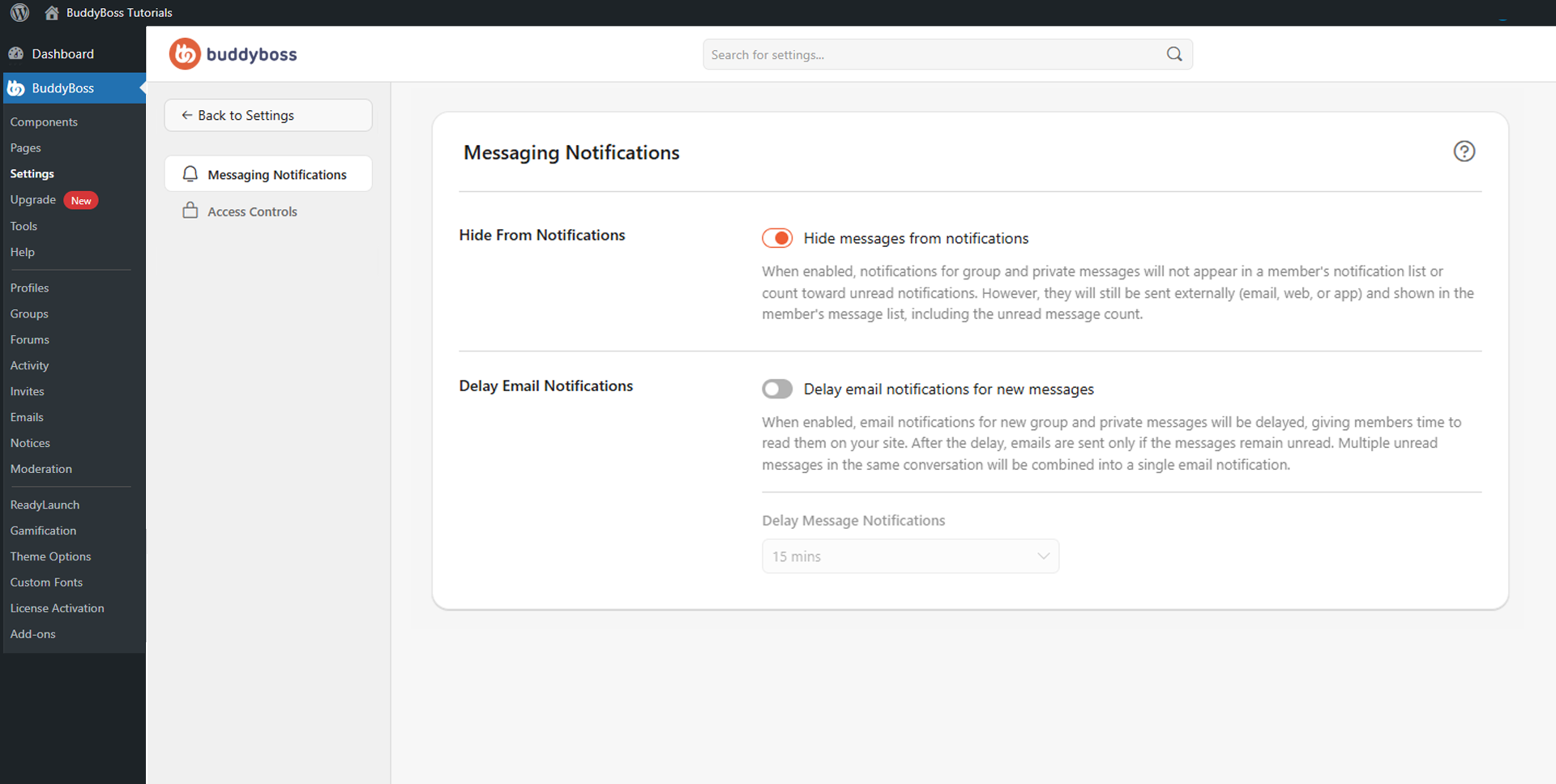
Hide From Notifications
Toggle Hide messages from notifications on to prevent group and private message notifications from appearing in a member’s notification list or counting toward their unread notification total. When enabled, message notifications are still delivered through Email, Web, or App channels, and messages continue to appear in the member’s message list with unread counts intact. This is useful when you want to reduce notification clutter without disabling message alerts entirely.
Delay Email Notifications
Toggle Delay email notifications for new messages on to give members time to read messages on-site before an email alert is sent. Once enabled, use the Delay Message Notifications dropdown to select a delay period. If the member reads the message during the delay, no email is sent. If the message remains unread, a single email is sent after the delay – with multiple unread messages in the same conversation combined into one notification.
© 2026 BuddyBoss LLC. All Rights Reserved. | buddyboss.com