









The BuddyBoss App Build feature allows you to generate native iOS and Android apps using BuddyBoss cloud-based build servers. Each build includes your app’s configuration, branding, and applicable custom code from your connected GitHub repository.
You can generate Test Apps to preview and test your app on mobile devices or Release Apps to prepare your app for submission to the Apple App Store and Google Play Store.
Before You Begin
Before generating an app build, make sure you have completed the required setup under BuddyBoss App > Connect and BuddyBoss App > Configure.
You should also review the following settings:
- App Tab Bar: Configure your app’s navigation under BuddyBoss App > Menus > Tab Bar.
- More Menu: Add menu items under BuddyBoss App > Menus > More Menu.
- Branding: Configure your app icons and splash screens under BuddyBoss App > Branding > Images.
- iOS Devices: Register the devices you want to use for iOS Test Apps.
Note: Changes to app menus and supported website content can be reflected without generating a new build. However, changes to native app assets, such as app icons and splash screens, require a new build.
Register iOS Test Devices
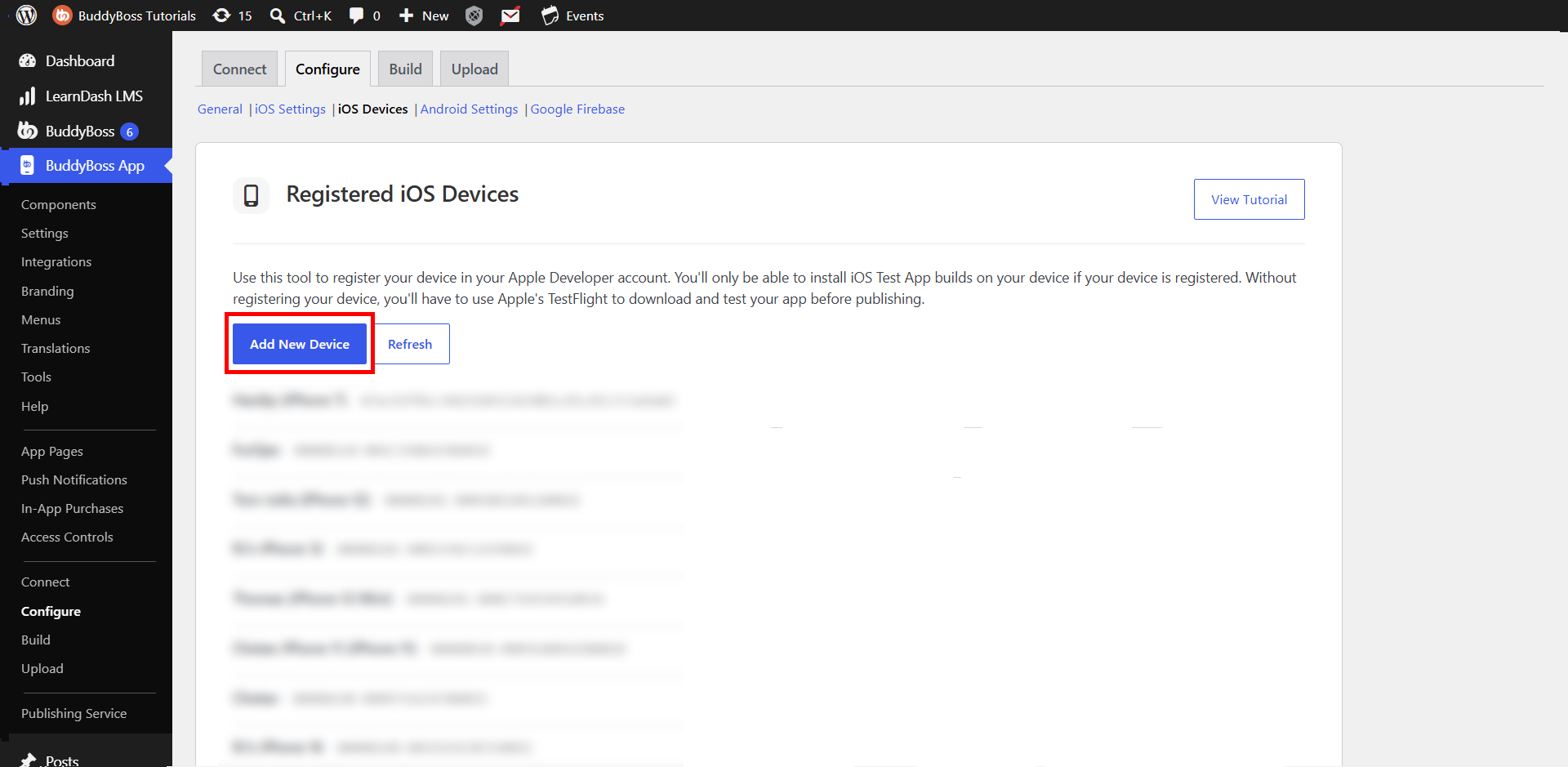
Before generating an iOS Test App, register the Apple devices you want to use for testing.
- In your WordPress Dashboard, navigate to BuddyBoss App > Configure > iOS Devices.
- Click Add New Device.
- Enter a name for the device.
- Scan the provided QR code using your iPhone or iPad.
- Follow the instructions on your device to register its UDID.
- Return to your WordPress Dashboard and click Refresh to confirm that the device appears in the list.
Note: Registering a new iOS device requires generating a new Test App build before the app can be installed on that device. Android Test Apps do not require device registration.
Generate a New App Build
Once your app configuration is complete, you can request a new build.
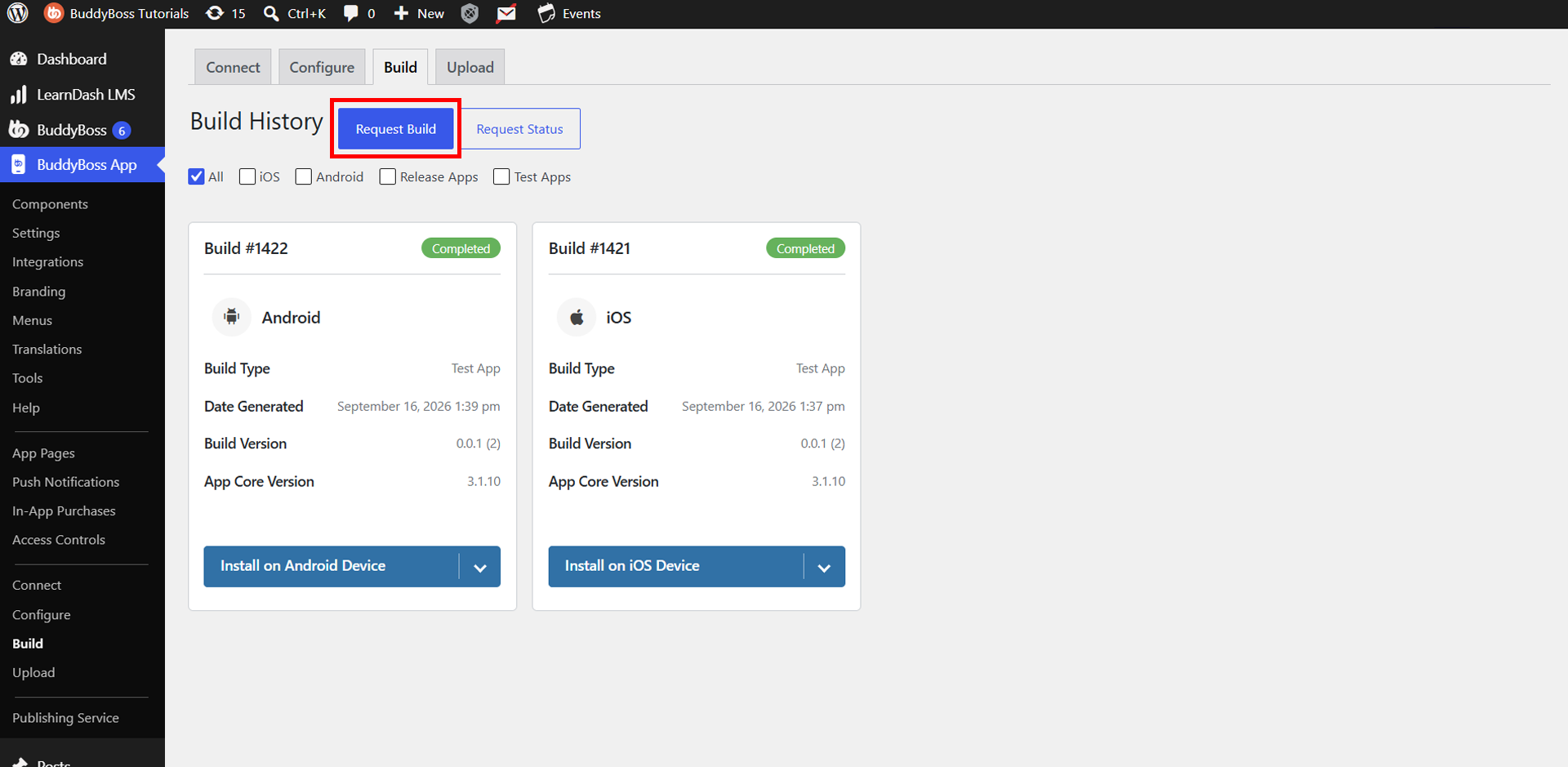
- In your WordPress Dashboard, navigate to BuddyBoss App > Builds.
- Click Request Build.
- Under Step 1: Build Settings, configure the following options.
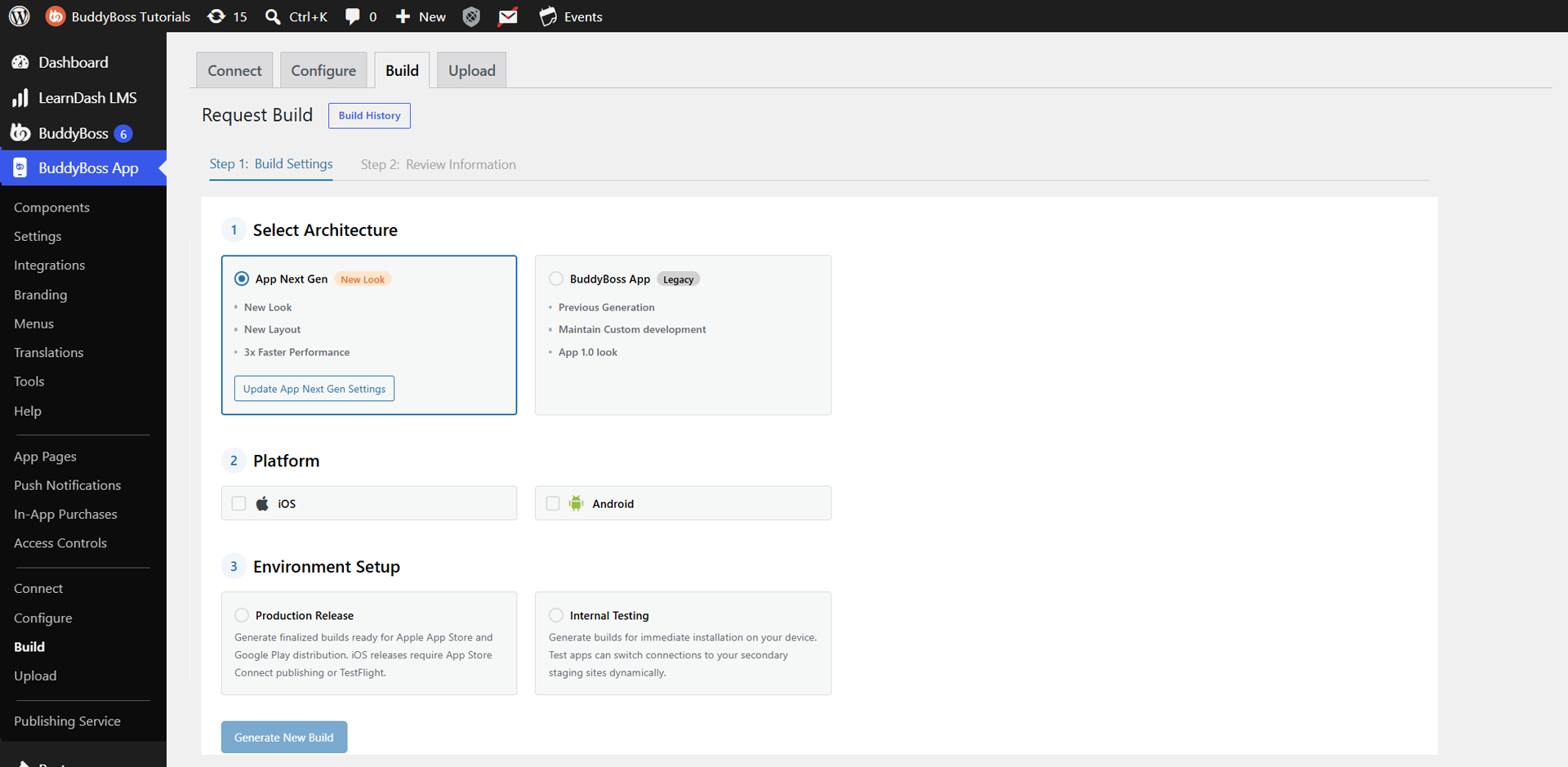
Select Architecture
Choose the app architecture you want to use for your build.
- App Next Gen (New Look): Uses the latest app architecture with a new look, updated layouts, and improved performance.The App Next Gen architecture can only be selected if App Next Gen is enabled under BuddyBoss App > Next Gen in your WordPress Dashboard.
- BuddyBoss App (Legacy): Uses the previous-generation app architecture, maintaining the App 1.0 look and supporting existing custom development.
If you select App Next Gen, you can click Update App Next Gen Settings to review or modify its configuration.
Select Platform
Under Platform, select the operating system for your app build:
- iOS: Generate an app build for Apple devices.
- Android: Generate an app build for Android devices.
You can select one or both platforms based on your requirements.
Select Environment Setup
Under Environment Setup, select the type of build you want to generate.
- Production Release: Generates finalized builds ready for Apple App Store and Google Play distribution. iOS releases require App Store Connect publishing or TestFlight.
- Internal Testing: Generates builds for immediate installation on your devices. Test apps can switch connections to your secondary staging sites dynamically.
- Click Generate New Build to proceed.
- Under Step 2: Review Information, review your selected architecture, platforms, and environment settings.
- Confirm the build information and submit your build request.
BuddyBoss cloud-based build servers will process your request using the latest stable public BuddyBoss App version and any applicable connected custom code.
Note: Build availability and monthly allowances depend on your BuddyBoss App plan.
Check Your App Build Status
After submitting your build request, you can monitor its progress from your WordPress Dashboard.
- Navigate to BuddyBoss App > Builds > Build History.
- Locate your requested build.
- Review the build status to check its progress.
- Click Recheck Status Now to refresh the build status, if available.
Build generation typically takes approximately 15–60 minutes, although processing times may vary.
Once the build is complete, the available download or installation options will appear in the build details.
Install or Download Your App Build
After your build is complete, you can install or download it depending on the platform and build type.
Test Apps
Test Apps allow you to preview your app before submitting it to the app stores.
- iOS Test App: Click Install Test App and follow the instructions to install it on a registered Apple device.
- Android Test App: Click Install Test App, scan the QR code using your Android device, and follow the installation instructions.
Test Apps are intended for development, testing, and reviewing app changes.
Release Apps
Release Apps are used to prepare your app for distribution through the Apple App Store or Google Play Store.
- iOS Release App: Download the IPA file or upload the build to App Store Connect using the BuddyBoss upload feature.
- Android Release App: Download the AAB file for submission to Google Play Console.
Note: Generating a Release App does not automatically publish your app. You must upload and submit the build to the appropriate app store or use the BuddyBoss Publishing Service.