
REQUIRES: PRO PLAN OR HIGHER • Last updated: Mar 12, 2026 • ~4 min read
The Group Directory settings control how groups are displayed in the directory. You can choose between grid and list layouts, set the default view, configure the grid style, and decide which group details are visible to members. This manual walks you through each setting area.
Tutorial Video
Accessing Group Directory Settings
To access these settings, navigate to your WordPress Dashboard, go to BuddyBoss > Settings > Social Groups, then click Group Directory from the left menu.
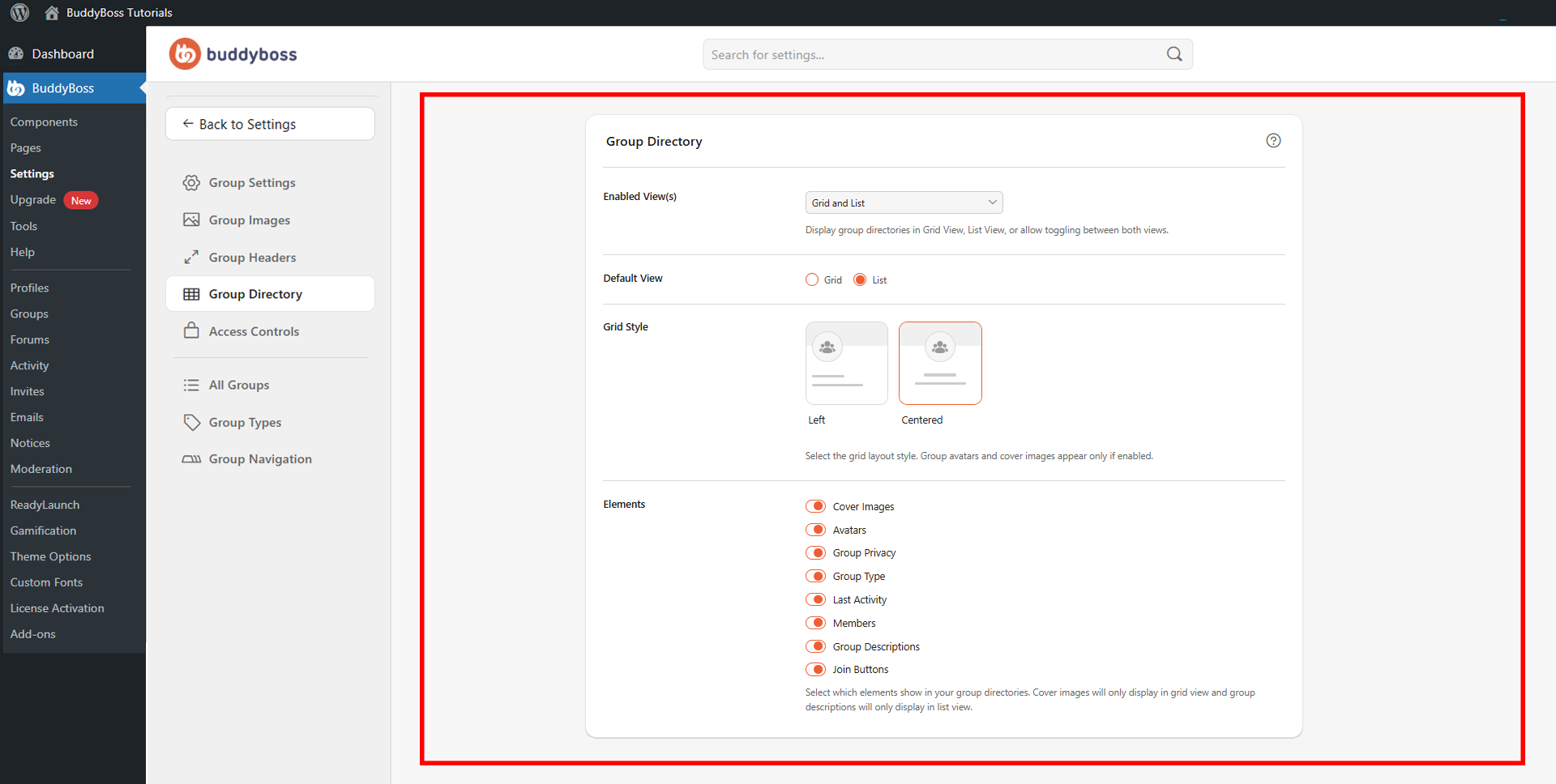
Directory Views
The Enabled View(s) setting determines which layout options are available to members when browsing the directory. The Default View setting determines the initial layout members see when they first visit the directory. The available options are:
- Grid and List: Allows members to toggle between both views.
- Grid: Displays groups in a card-based layout only.
- List: Displays groups in a vertical list format only.
Grid Style
The Grid Style setting controls how content is positioned within each group card in grid view:
- Left: Aligns group content to the left of each card.
- Centered: Centers group content within each card.
Display Elements
The Elements section controls which group details are shown on directory cards. Toggle each item on or off:
- Cover Images: Displays group cover images in grid view only.
- Avatars: Shows group avatars on directory cards.
- Group Privacy: Indicates whether the group is public, private, or hidden.
- Group Type: Shows the group’s assigned category or type.
- Last Activity: Displays the most recent activity timestamp for the group.
- Members: Shows the group’s member count.
- Group Descriptions: Displays the group description in list view only.
- Join Buttons: Shows join or request buttons on group cards so members can act directly from the directory.
© 2026 BuddyBoss LLC. All Rights Reserved. | buddyboss.com