
REQUIRES: PRO PLAN OR HIGHER • Last updated: Mar 12, 2026 • ~3 min read
The Group Headers settings control the layout and visible elements displayed at the top of each group page. You can choose a header style and decide which group details – such as type, description, and organizers – are shown to members. This manual walks you through each option.
Accessing Group Header Settings
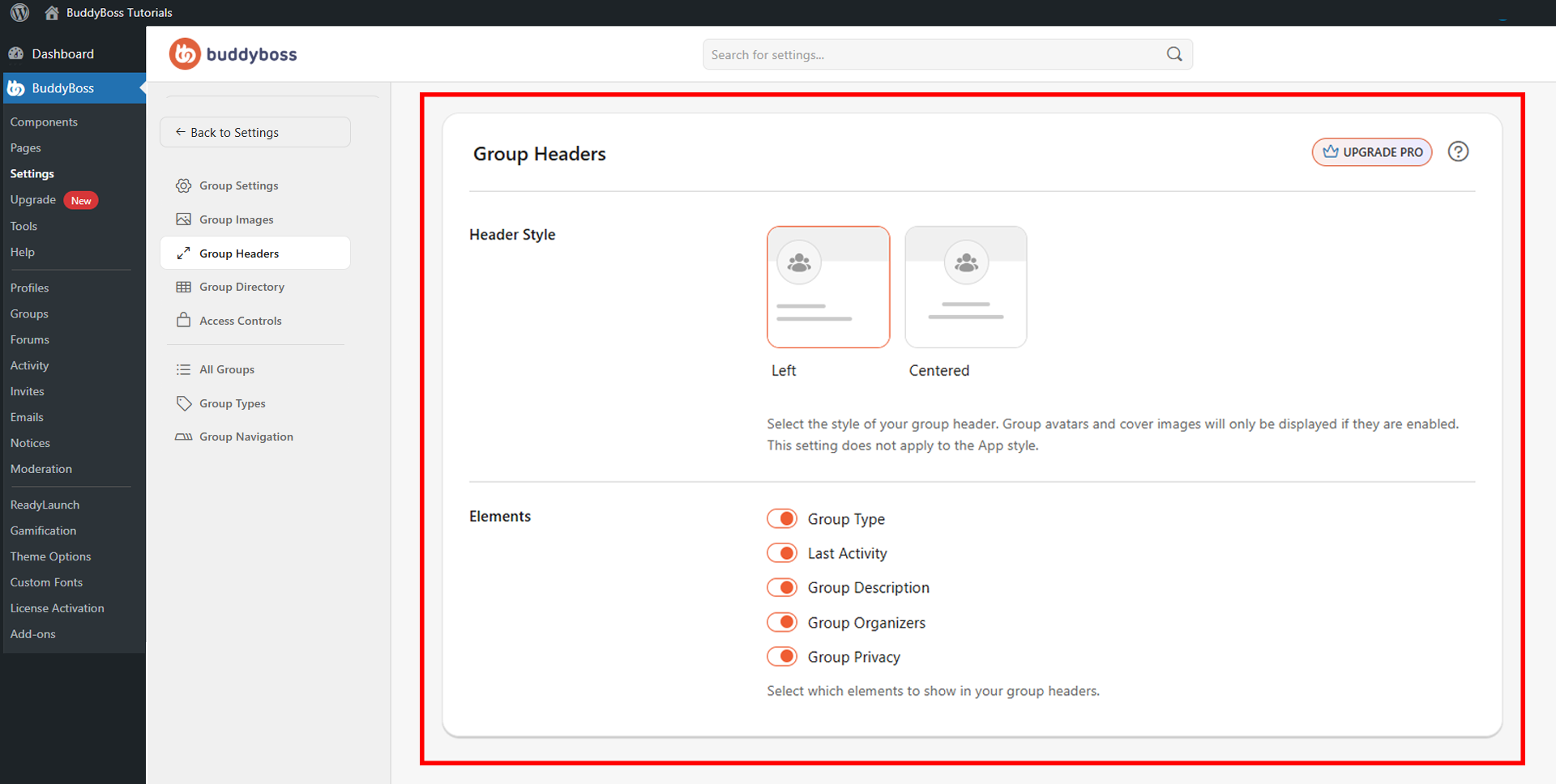
To access these settings, navigate to your WordPress Dashboard, go to BuddyBoss > Settings > Social Groups, then click Group Headers from the left menu.
Header Style
The Header Style setting controls the overall visual layout of the group header. Two options are available:
- Left: Displays the group avatar and details aligned to the left side of the header.
- Centered: Centers the group avatar and information within the header.
Note: Group avatars and cover images will only appear in the header if they are enabled in their respective settings.
Group Header Elements
The Elements section lets you choose which pieces of group information are displayed in the header. Toggle each item on or off:
- Group Type: Shows the group’s category or assigned type.
- Last Activity: Displays the most recent activity timestamp for the group.
- Group Description: Shows the group’s description text.
- Group Organizers: Displays the group’s admins and moderators.
- Group Privacy: Indicates whether the group is public, private, or hidden.
© 2026 BuddyBoss LLC. All Rights Reserved. | buddyboss.com