
Last updated: Mar 12, 2026 • ~4 min read
The Menus settings allow you to manage your community’s navigation by selecting the header menu, enabling and reordering sidebar items, and adding custom sidebar links. This manual walks you through each setting area.
Tutorial Video
Accessing Menu Settings
To access these settings, navigate to your WordPress Dashboard, go to BuddyBoss > Settings > Appearance > click Menus.
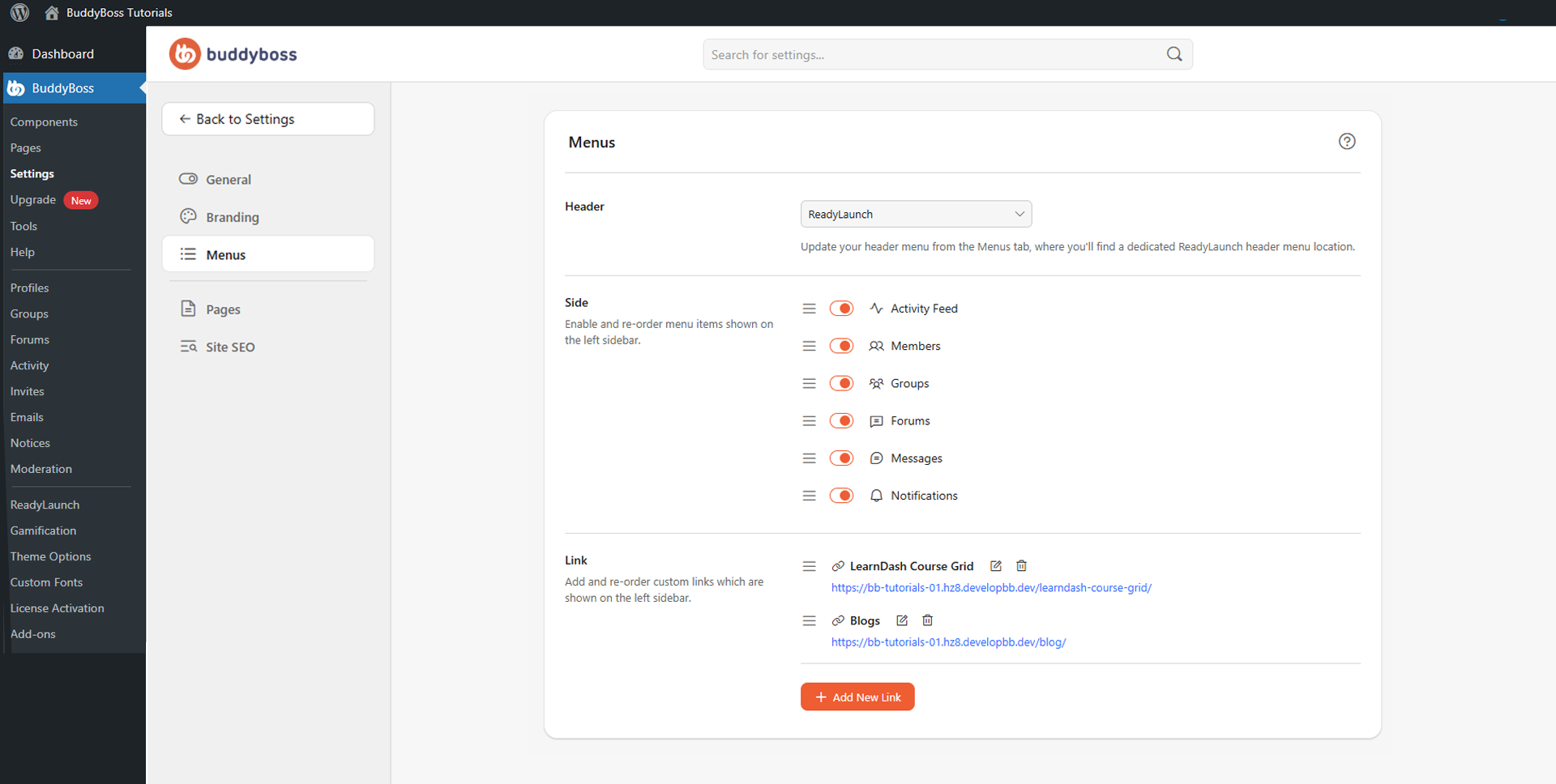
Header Menu
The Header dropdown lets you select which WordPress menu appears in your site’s header. The available options are drawn from your WordPress menus and will vary by site. BuddyBoss recommends using the dedicated ReadyLaunch header menu location, which you can manage in WordPress under Appearance > Menus.
Sidebar Menu Items
The Side section controls which items appear in the left sidebar navigation. Use the toggle next to each item to show or hide it, and drag items to reorder their position. The available sidebar items are:
- Activity Feed
- Members
- Groups
- Forums
- Messages
- Notifications
Custom Sidebar Links
The Link section lets you add custom links to the sidebar – useful for linking to course dashboards, blog pages, landing pages, or external resources. Click Add New Link to open the Add Link popup. Enter a Title (the label members see) and a URL (internal or external), then click Add Link to save. Existing custom links can be dragged to reorder, edited via the edit icon, or removed via the delete icon.
© 2026 BuddyBoss LLC. All Rights Reserved. | buddyboss.com