
REQUIRES: PRO PLAN OR HIGHER • Last updated: Mar 12, 2026 • ~3 min read
The Web Push Notifications settings allow you to connect BuddyBoss with OneSignal to send browser-based push notifications directly to your members’ devices. This delivers real-time alerts for messages, activity updates, group interactions, and other site events. This manual walks you through connecting your OneSignal account and entering the required credentials.
Tutorial Video
Accessing Web Push Notification Settings
To access these settings, navigate to your WordPress Dashboard, go to BuddyBoss > Settings > Notifications, then click Web Push Notifications.
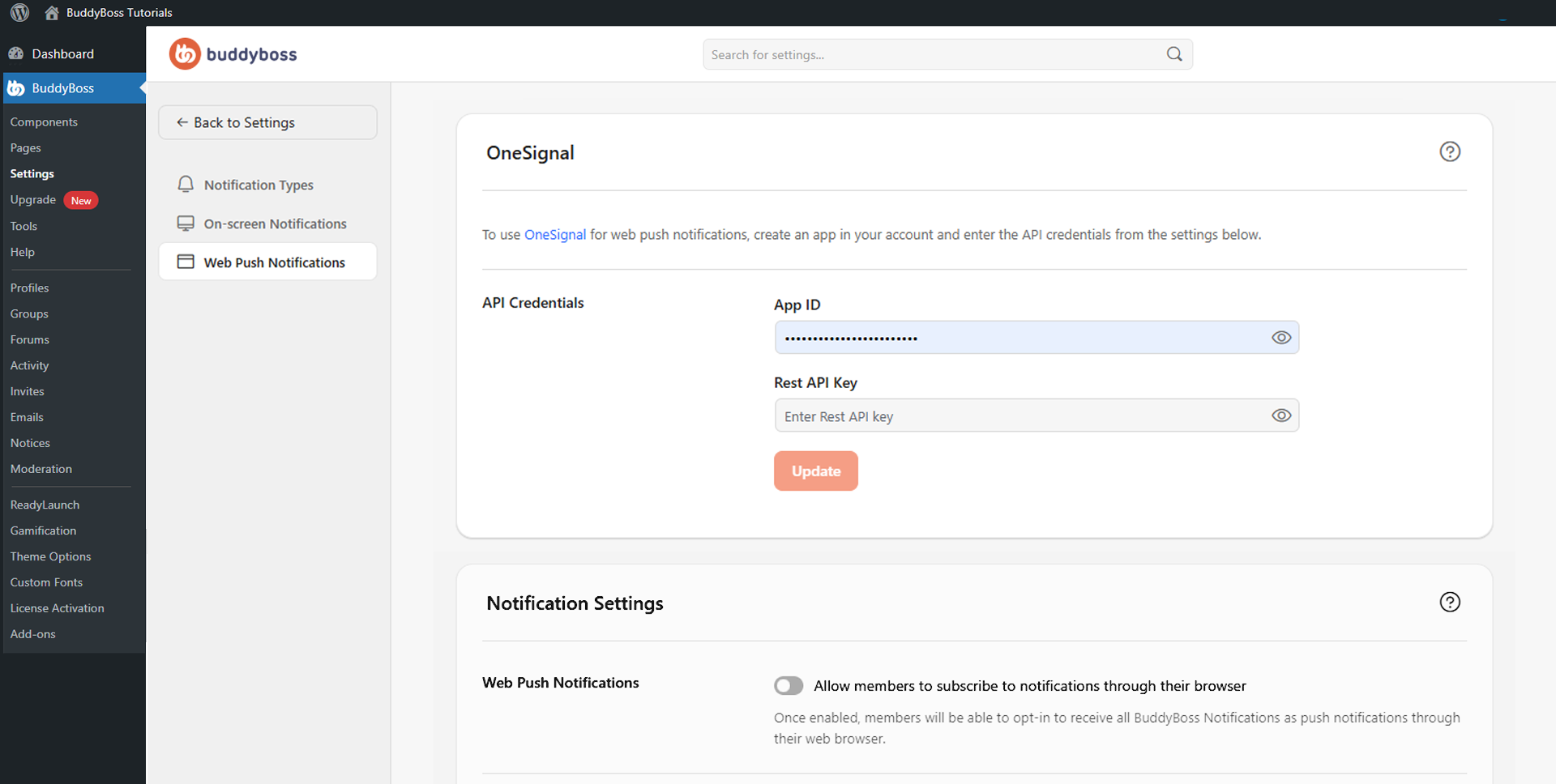
This opens the OneSignal configuration panel where you can enter your API credentials.
Connecting OneSignal
Before configuring BuddyBoss, log in to your OneSignal account and create a new app for your BuddyBoss website. Once the app is created, copy the two API credentials you will need:
- App ID: Identifies the specific OneSignal app connected to your site. Paste this into the App ID field in BuddyBoss.
- REST API Key: Allows BuddyBoss to securely send notification requests to OneSignal. Paste this into the REST API Key field. Keep this key private and do not share it publicly.
Once both credentials are entered, click Update to save. BuddyBoss will attempt to connect to OneSignal and the status will update from Not Connected once the connection is established successfully.
© 2026 BuddyBoss LLC. All Rights Reserved. | buddyboss.com