
REQUIRES: PRO PLAN OR HIGHER • Last updated: Mar 12, 2026 • ~5 min read
The Profile Fields section allows you to build and manage the custom fields that appear on member profiles across your BuddyBoss community. Fields are organized into Field Sets, and each field can be configured with its own type, visibility, and profile type assignment. This manual walks you through managing field sets, adding new fields, and configuring each field’s options.
Tutorial Video
Accessing Profile Fields
To access Profile Fields, navigate to your WordPress Dashboard, go to BuddyBoss > Settings > Member Profile, then click Profile Fields under the Profiles section. The main panel displays all Field Sets.
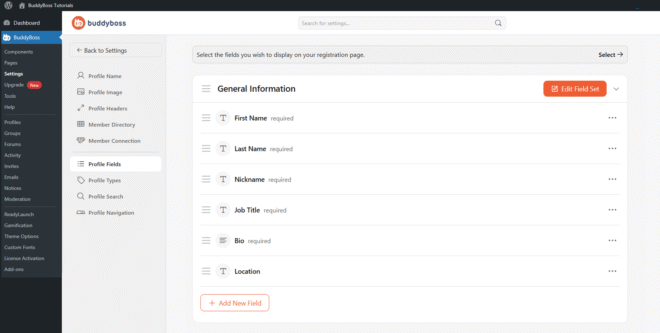
Field Sets
Field Sets group related profile fields together. Each set displays on the profile as a labeled section. You can click Edit Field Set on any existing set to rename it or toggle its repeater setting. To create a new Field Set, click + Add New Field Set at the bottom of the page. When creating or editing a Field Set, the following options are available:
- Name: Enter the label that will display on the profile for this group of fields.
- Repeater (Enabled / Disabled): When enabled, members can add multiple instances of the fields in this set – useful for sections like Work Experience where a member may have more than one entry.
You can also use the top of the page to select which fields appear on your registration page by clicking Select in the banner at the top of the panel.
Adding a New Field
To add a new field to an existing Field Set, expand that set and click + Add New Field. A modal will open where you can configure the field. Each new field requires a Name and a Type. The Type dropdown controls the input format members will use to fill in the field.
Field Types
Multi Fields
- Checkboxes: Allow members to select multiple options from a list.
- Multi Select: A dropdown that permits selecting multiple values.
- Radio Buttons: Allow members to select a single option from a list.
- Dropdown: A single-select dropdown menu.
Single Fields
- Date: A date picker field.
- Number: Accepts numeric input only.
- Website – Allows users to enter a valid URL.
- Paragraph Input – Provides a multi-line text area for longer responses.
- Single Line Input – Accepts short text input (e.g., name or title).
- Phone – Allows users to enter a phone number.
- Gender – Provides predefined gender selection options.
- Social Network – Allows users to enter their Social Network link.
- Profile Type – Allows users to select their Profile Type.
Field Configuration Options
Each field includes additional configuration options below the Name and Type selections:
- Placeholder Text (Optional): Text that appears inside the input field when it is empty, to guide members on what to enter.
- Instructions (Optional): Helper text that appears below the input field to provide context or examples for how members should respond.
- Profile Types: Select which profile types this field is available to – All Profile Types, Selected Profile Types, or No Profile Type Users.
- Visibility: Set who can see this field on the member’s profile – Public, All members, My connections, or Only me. You can also choose to Allow members to override the visibility or Enforce Visibility site-wide.
- Make this field required: When checked, members must fill in this field before saving their profile.
Once all options are configured, click Save to add the field to the set.
© 2026 BuddyBoss LLC. All Rights Reserved. | buddyboss.com