
Last updated: Mar 12, 2026 • ~4 min read
The Ranks settings allow you to create achievement levels for members based on points earned. Each rank has a custom name, icon, required point threshold, and optional content unlock for social groups or LearnDash courses. This manual walks you through creating and configuring ranks.
Accessing Rank Settings
Navigate to your WordPress Dashboard, go to BuddyBoss > Settings > Gamification, then click Ranks from the left panel.
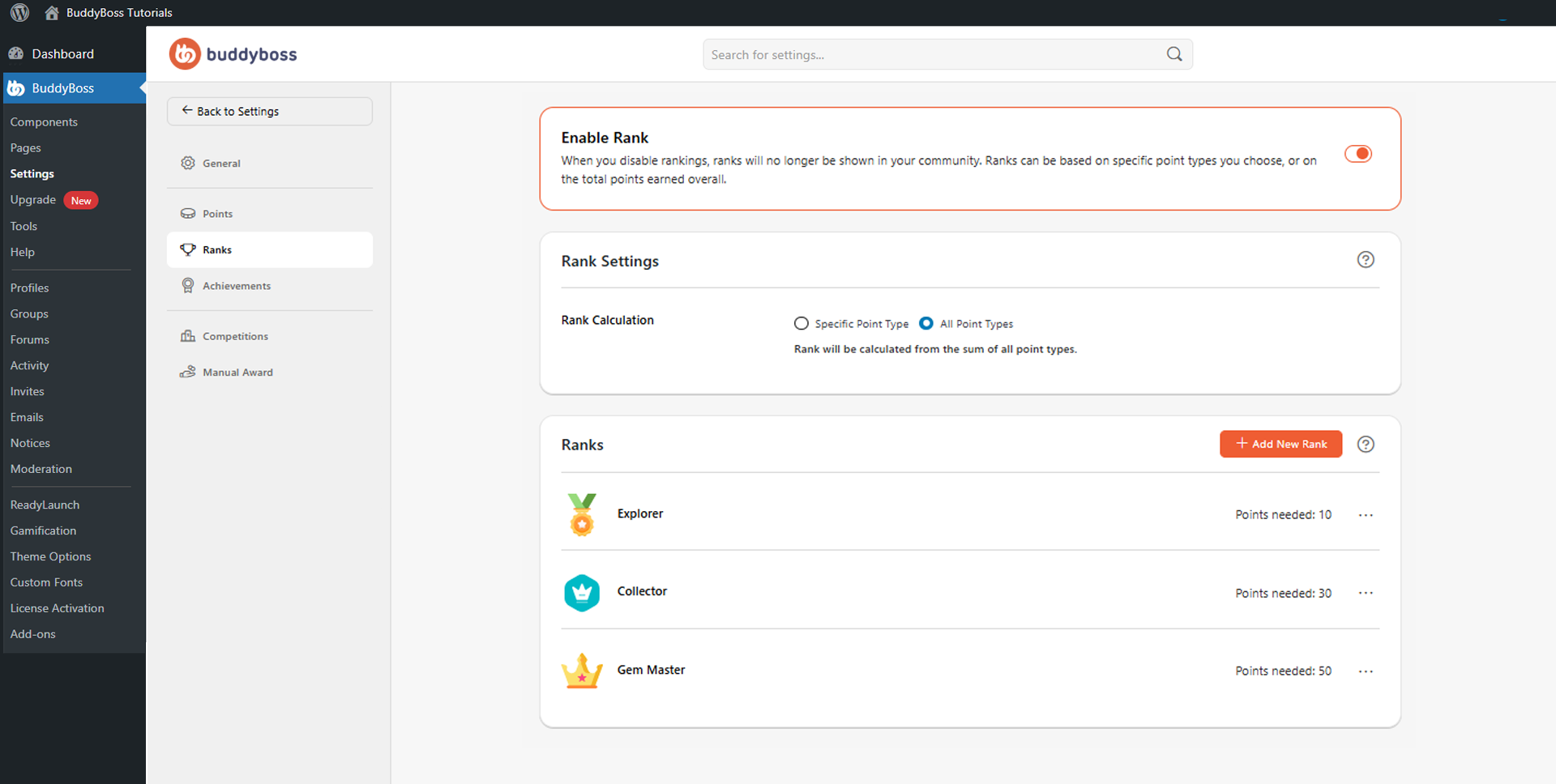
The Ranks section lists all existing rank levels, showing each rank’s icon, name, required points, and a three-dot menu for additional actions.
Creating a New Rank
Click Add New Rank to open the creation form. Configure the following fields, then click Save to add the rank to the progression system.
- Rank Name: The title members see after unlocking the rank (e.g., Explorer, Collector, Gem Master).
- Rank Icon: Select an icon from the library or click Upload Custom Icon to use your own image. BuddyBoss recommends at least 150 × 150px, 1:1 ratio, PNG or JPG.
- Points Needed: The number of points a member must earn to unlock this rank. Higher values create more challenging milestones.
- Unlock Content: Optionally grant access to additional content when the rank is reached. Choose from None, Unlock social group access, or Unlock LearnDash course.
© 2026 BuddyBoss LLC. All Rights Reserved. | buddyboss.com