
REQUIRES: PRO PLAN OR HIGHER • Last updated: Mar 12, 2026 • ~5 min read
Group Types allow you to organize your community by categorizing groups – for example, Clubs or Meetups. They improve filtering in the Group Directory, enhance member navigation, and let you apply specific permissions and behaviors per group category. This manual walks you through enabling group types, creating new ones, configuring their settings, and managing existing types.
Tutorial Video
Enabling Group Types
Navigate to WordPress Dashboard > BuddyBoss > Settings > Social Groups. Click Group Types on to activate the feature.
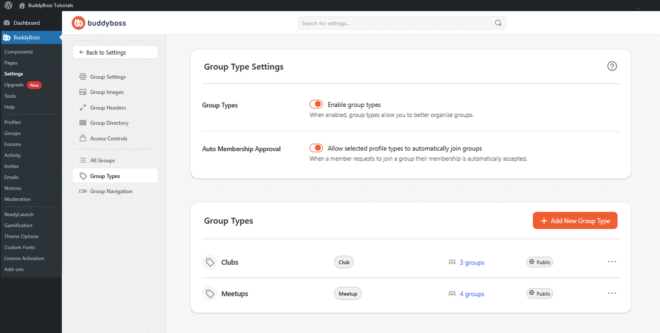
You can also enable Auto Membership Approval to automatically approve membership requests for selected profile types.
Creating a Group Type
Click Add New Group Type to open the creation form. Each group type requires three labels:
- Name: The internal name for the group type.
- Singular Label: The label used for a single group of this type (e.g., Club).
- Plural Label: The label used for multiple groups of this type (e.g., Clubs).
You can also optionally customize the role labels used within this group type – defining singular and plural names for Organizers, Moderators, and Members specific to this group type.
Directory, Access, and Display Settings
Each group type has additional settings that control how it appears in the directory and who can interact with groups of this type:
- Display this group type in “Types” filter in Groups Directory: Allows members to filter the directory by this type.
- Hide all groups of this type from Groups Directory: Completely removes these groups from public directory listings.
- Members already in a group of this type can’t be invited to another: Restricts members to a single group within this type.
- Profile Type Invites: Controls who can send join requests to groups of this type – All Profile Types, Selected Profile Types, or None.
- Profile Type Joining: Controls who can join private groups of this type without approval – All Profile Types, Selected Profile Types, or None.
- Visibility: Sets the default group visibility for this type – Public or Private.
- Label Color: Select Default or Custom to visually distinguish this group type in the directory.
Click Save to create the group type.
Managing Existing Group Types
From the Group Types panel you can view all created types. Click the three-dot menu next to any group type to Edit its settings or Delete it entirely.
© 2026 BuddyBoss LLC. All Rights Reserved. | buddyboss.com