














Introduction
Seeing errors like getimagesize() or exif_imagetype() when loading profile pages usually means PHP can’t open or read image files. This often happens because the server is blocking those core functions, due to disabled PHP settings, restrictive file permissions, or connection refusals.
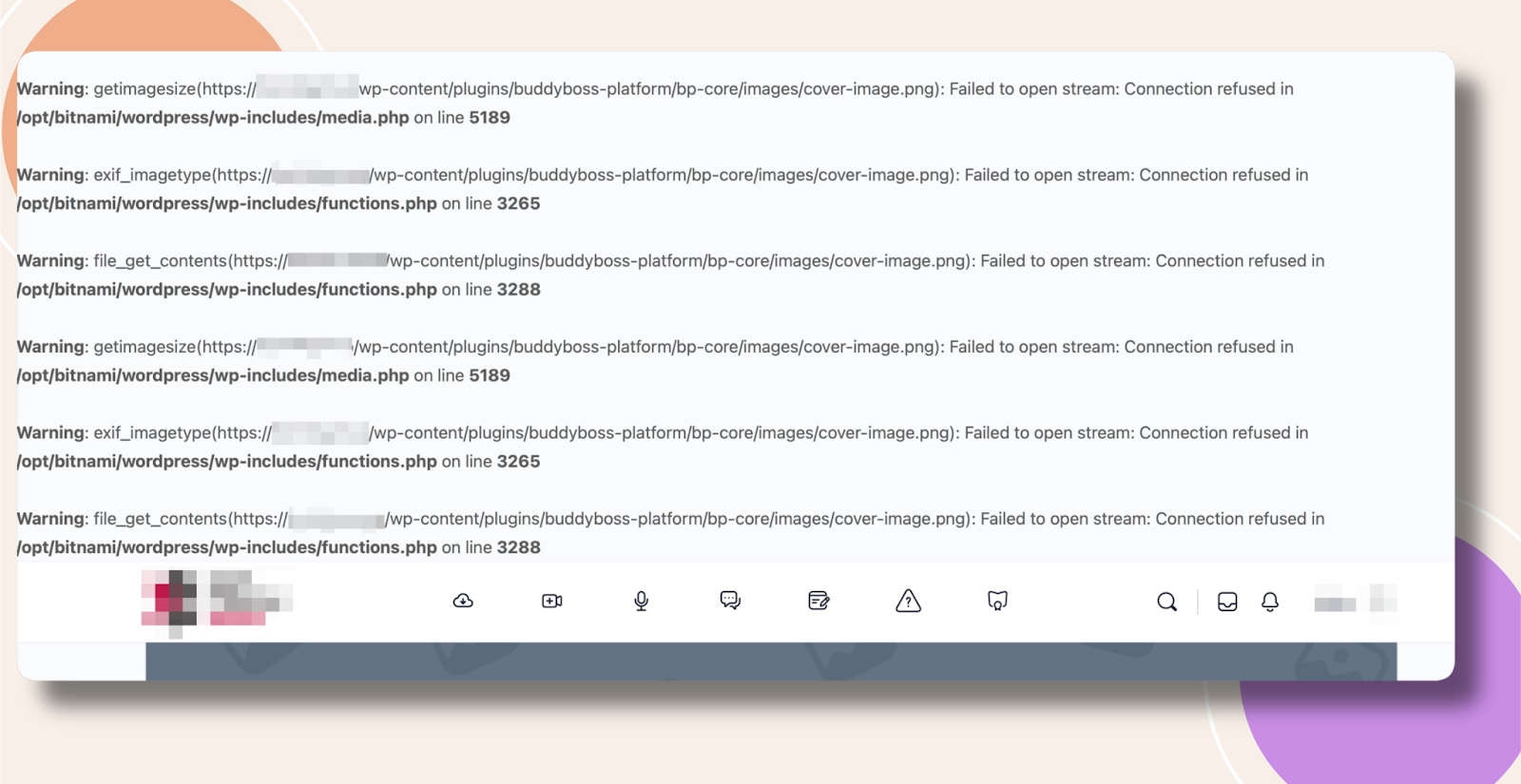
Disable WordPress Debugging
For a quick, temporary workaround, turn off WordPress debugging so the errors are hidden:
- Edit your site’s wp-config.php (in the WordPress root folder).
- Locate the line: define( ‘WP_DEBUG’, true );
- Change it to:define( ‘WP_DEBUG’, false );
- Save the file and re-upload it to your server.
For more on debugging in WordPress, see:
https://wordpress.org/support/article/debugging-in-wordpress/
Troubleshooting and FAQs
Q: I still see errors after disabling debug—what should I check?
A: Ensure you edited the correct wp-config.php (in your site’s root) and cleared any server or browser cache. Also verify that no other debug constants (like WP_DEBUG_LOG) are forcing error output.
Q: What file permissions should I use for images?
A: Typically, files should be 644 and directories 755 so PHP can read them. Misconfigured permissions can also lead to these errors.
Q: Who should I contact for further assistance?
A: Reach out to your hosting support team—they can adjust server settings, PHP configurations, and file permissions to permanently resolve the issue.