














The BuddyBoss Android Test App Builds allow you to install and test your BuddyBoss App directly on an Android device before preparing a release build for Google Play. Test builds are useful for reviewing your app’s branding, navigation, content, features, and customizations during development.
By installing a Test App Build on your Android device, you can preview changes and perform quality assurance before moving forward with your production release.
Filtering Android Test Builds
- Go to BuddyBoss App > Builds > Build History.
- Use the filters at the top to select Android and Test App, then locate your completed build.
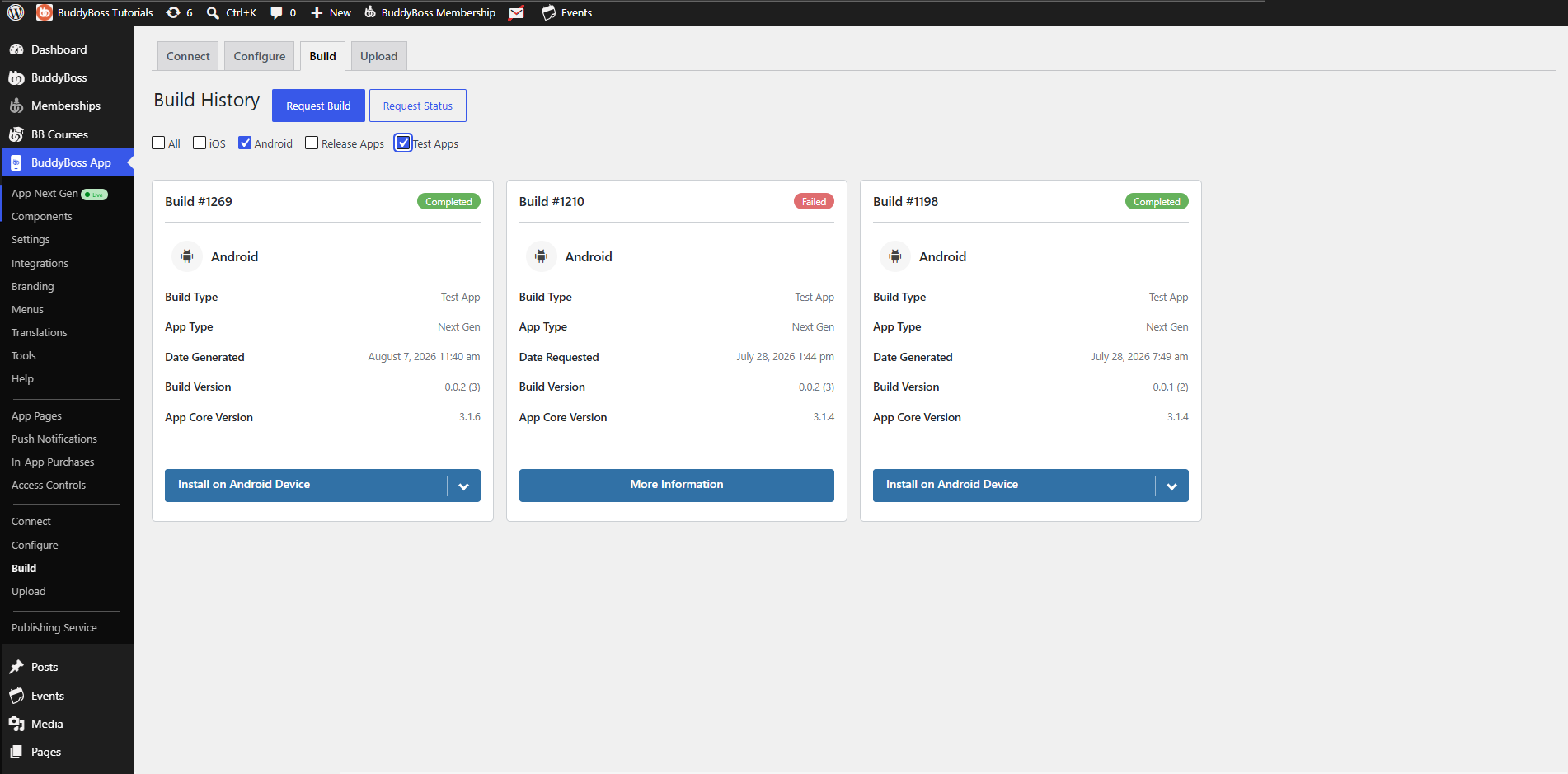
To check your build status of any build you can visit Buddyboss app > builds you will notice each card represent different build attempts within each card you will notice certain information for your reference such as:
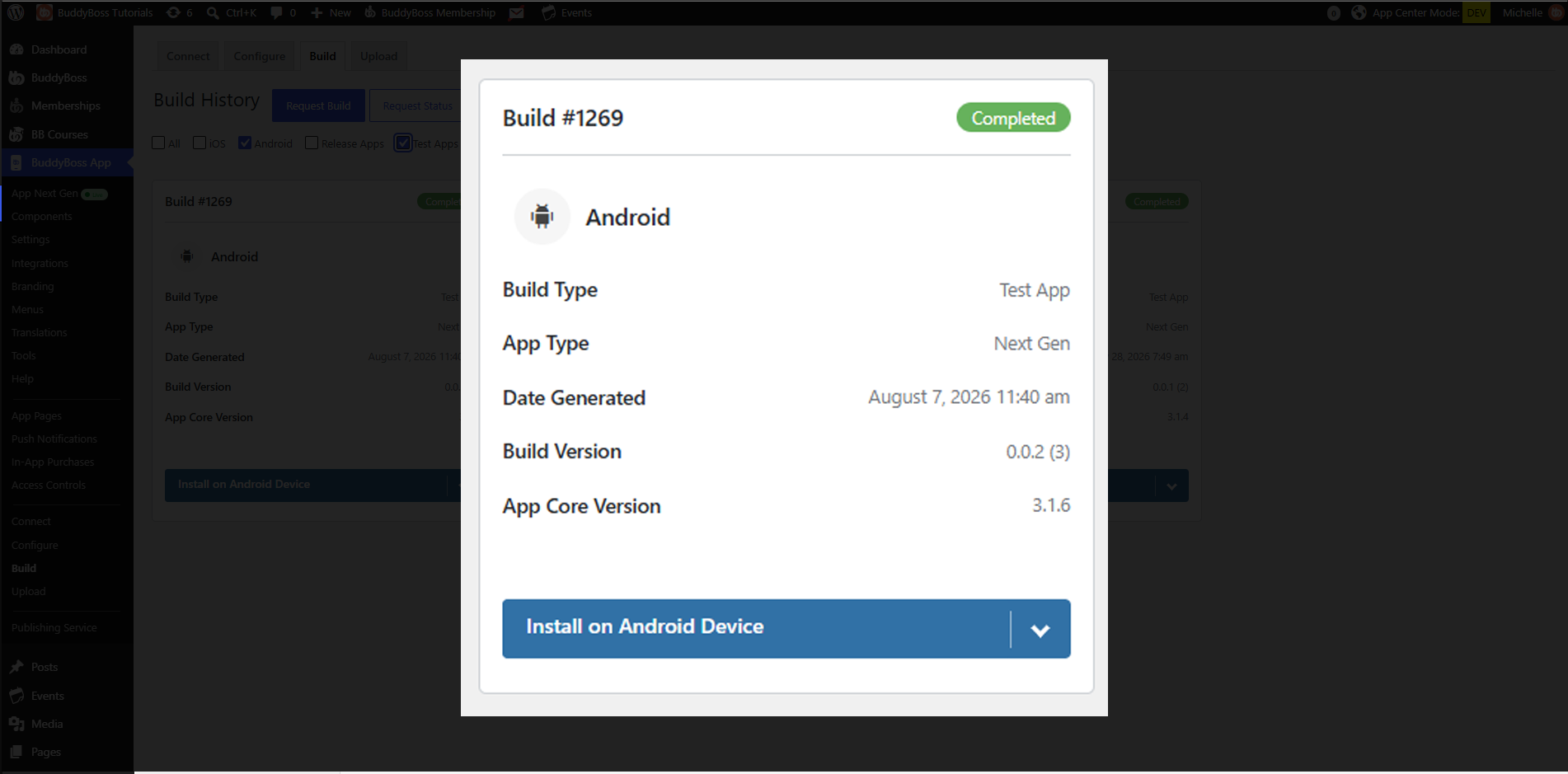
- Build number
- Status
- Build type
- App Type
- Date Generated
- Build Version
- App Core Version
- Download/Install Button
Installing the Test App via QR Code
- Click Install Test App on your chosen build.
- Scan the displayed QR code with your Android device’s camera.
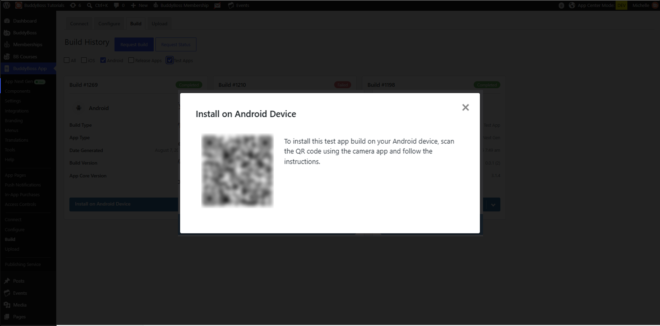
- On your device’s browser, tap Download Application.
- When prompted, tap Install and then Open.
Your Android Test App is now installed. You can switch between connected sites or deploy custom code changes without needing a new build. Continue testing UI flows, integrations, and custom development directly on your device.