BUDDYBOSS WEB

Your community, courses and memberships on your own website.

BUDDYBOSS APP

Your own branded app on iOS and Android.

DONE FOR YOU

We build, launch and run it for you.

BuddyBoss website and mobile app

Web + App Done For You

$4,999 flat

Web Scale + Done For You Web

App Launch + Done For You App

PRICING

Web Pricing

Launch, Scale and Done For You Web.

From

$199

first year

App Pricing

Solo, Launch and Done For You App.

From

$499

first year

SITE + APP

Web + App Done For You

Your site and your app, built and run for you.

$4,999

flat, never rises

How to Fix Missing Search Component in the BuddyBoss Header

Updated

Introduction

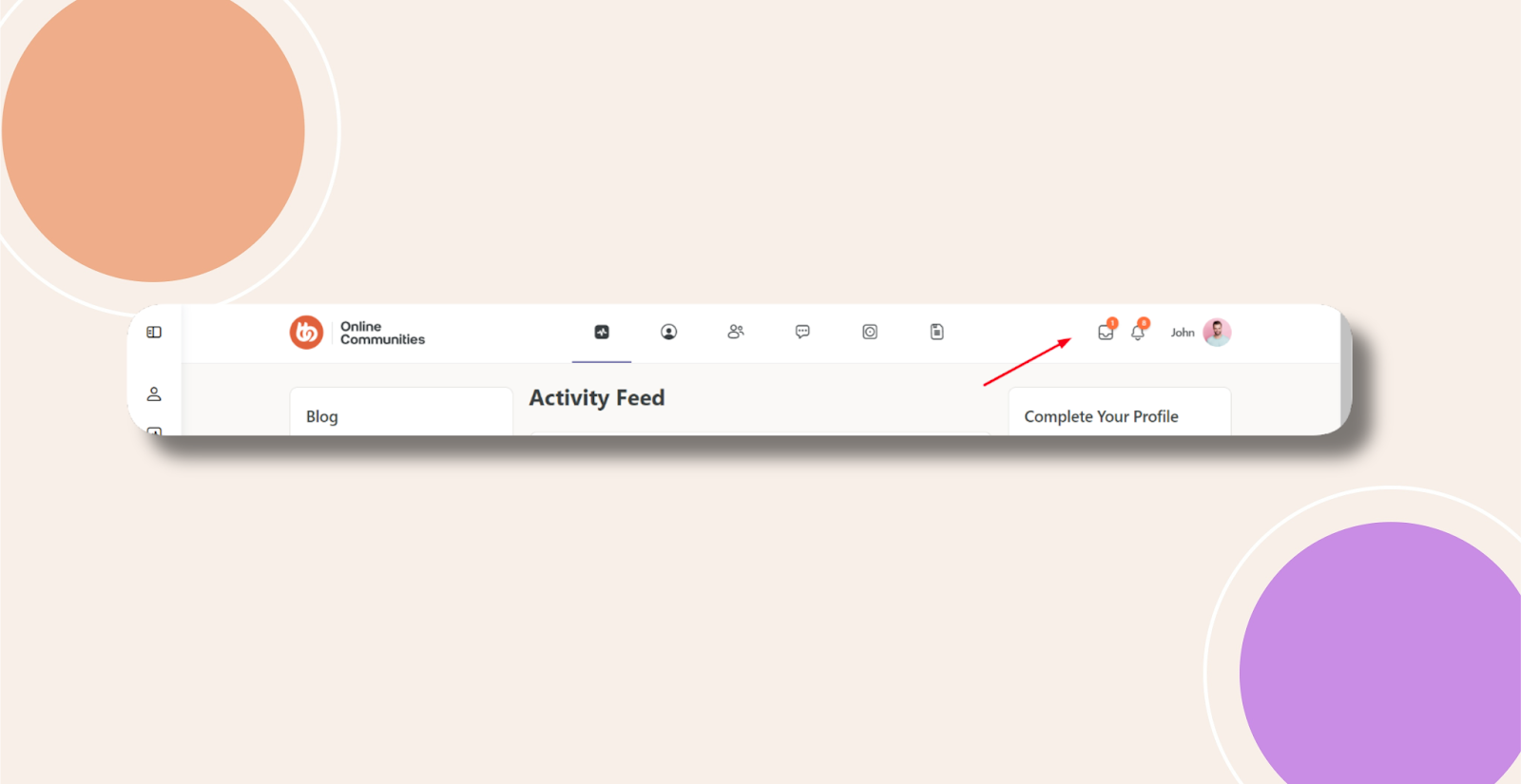
If you’ve enabled Network Search under BuddyBoss Dashboard → Components but the search icon still doesn’t appear in your site’s header, it means the theme’s header settings need to be updated to include the Search component.

Enable Search in Theme Options

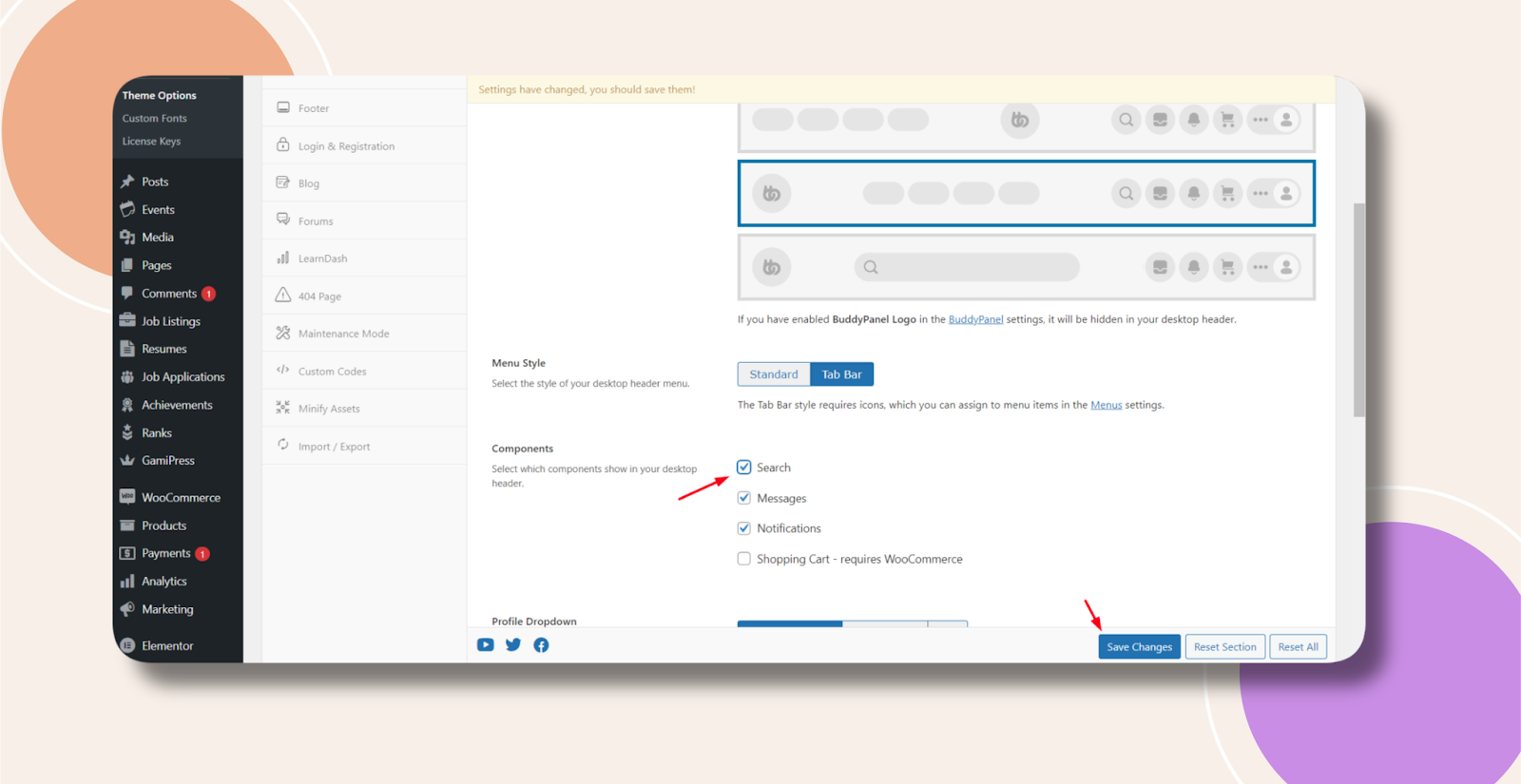
  1. In WordPress, go to BuddyBoss Dashboard > Theme Options > Header.
  2. Under Components, toggle Search to Enabled.
  3. Click Save Changes.

Once saved, the search icon will display in your site’s header alongside the other header components.

Troubleshooting and FAQs

Q: I enabled Search but still don’t see the icon—what now?
A: Clear any caching plugins or your browser cache, then reload the site.

Q: My header layout looks broken after enabling Search—how can I fix it?
A: Check for CSS conflicts in your child theme or custom styles.

Was this article helpful?

Subscribe to Our Newsletter

This field is for validation purposes and should be left unchanged.
This field is hidden when viewing the form

Can’t find the answer you’re looking for?

Our support team is here to help with anything the docs don’t cover.