















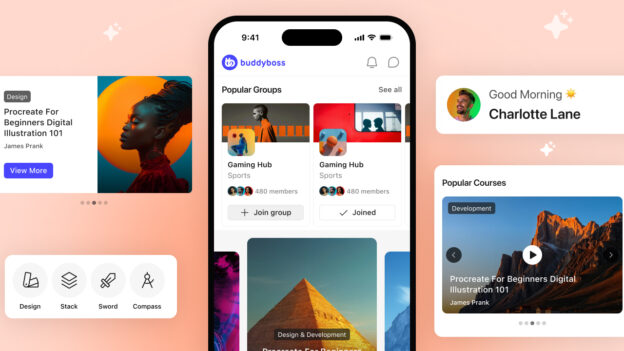
BuddyBoss App Blocks are native mobile content elements that you add directly to App Pages inside the BuddyBoss Next Gen App. The latest update adds four new blocks: Image Carousel, Video Carousel, Icons Block, and Profile Card. Each is designed exclusively for the mobile app and can be fully customized without writing code. These blocks require the BuddyBoss Next Gen App.
With this release, App Pages becomes something bigger than a settings screen. It becomes a native page builder for your BuddyBoss App, where every block you place creates a personalized, dynamic experience for each of your members.
App Pages as a Native Page Builder for Your Mobile App
The idea behind App Pages is simple: you should be able to design your app experience the same way you design a web page. Pick a block, configure it, publish. No code, no developer handoff, no waiting.
If that sounds familiar, it should. App Pages is built on the native WordPress block editor, Gutenberg. Whether you have embraced Gutenberg fully or you are still warming up to it, the block editor is the future of WordPress. At BuddyBoss, we are building on that foundation and extending it into the mobile app experience. The same block-based workflow you use to build web pages now powers your app screens too.
With the four new blocks shipping in BuddyBoss App v3.1.0, that vision takes a significant step forward. You can now build carousels that showcase your content, navigation rows that guide members to the right areas, and personalized profile cards that adapt to each member’s progress.
Note: These new App Blocks are available exclusively in the BuddyBoss Next Gen App. If you have not enabled Next Gen yet, you can do so from your BuddyBoss App settings.
Watch the full walkthrough to see all four blocks in action:
Why Your App Home Screen Needs to Do More Than Display Content
Most mobile app home screens do one thing: they show a static list of content. Every member sees the same layout, the same order, the same blocks. It works. But it doesn’t engage.
Here is the problem with a static home screen. There is no variety. A member who logs in on Monday sees the same screen on Friday. There is no reason to explore because nothing has changed. There is no personalization. A new member who hasn’t completed their profile gets the same experience as someone who’s been active for six months. And there is no engagement hook. Nothing on the screen says “this is for you” or “you haven’t finished this yet.”
Dynamic content changes that equation. When your home screen pulls in fresh courses, rotates featured content, and shows each member a profile completion tracker tied to their own progress, the app starts to feel alive. Members open it more often because there is always something new. They engage more deeply because the content feels relevant. And they complete more actions because the app is actively guiding them.
That is what these new App Blocks are designed to do.
The App Blocks You Already Have
Before this update, BuddyBoss App Pages already supported a solid set of native blocks: Courses, Discussions, Forums, Groups, Members, Activity, Notifications, Quick Links, and H5P. These blocks let you surface core community and learning features directly on your app screens. See the full list of supported App Blocks.
Here is what just landed.
Four New BuddyBoss App Blocks Available Now
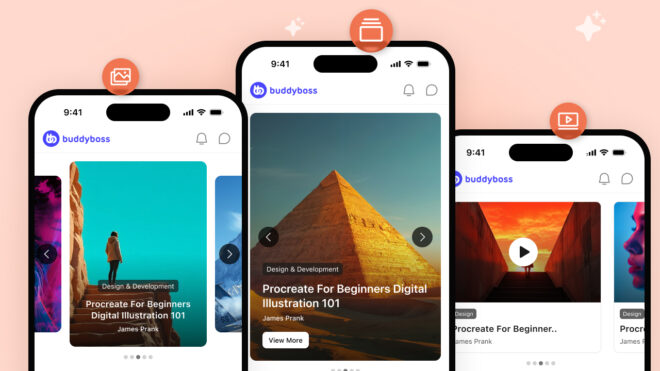
Image Carousel
The Image Carousel lets you create a swipeable series of visual cards, each linking to a destination of your choice. Think featured courses, upcoming events, or promotional banners that rotate through your most important content.
You get five layout styles to choose from: Standard, Full Width, Split, Center, and Card. Each can be set to Small, Medium, or Large display sizes, giving you control over how prominent the carousel appears on the page.
Content can be added manually, where you build each card with its own image, heading, body text, metadata, and destination link. Or you can switch to Dynamic mode, which automatically pulls content from a post type you select (like Courses or Posts) and maps the fields into the carousel for you.
Each card can link to Custom URLs, App Pages, or Core Pages. And you can fine-tune colors for headings, body text, and backgrounds, with separate Light and Dark mode settings. Behavior controls include Autoplay, Infinite Loop, Navigation Arrows, Pagination, and Block Separator.
Video Carousel
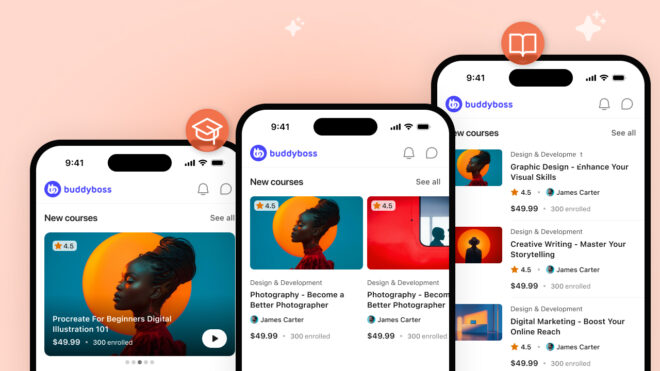
The Video Carousel follows the same structure as the Image Carousel, with the same layout options, styling controls, and behavior settings. The difference is what each card holds: a video instead of an image.
You can embed a video by pasting a YouTube or Vimeo link and clicking “Pull Video,” or upload a video file directly. After saving, you can add a custom thumbnail for each video card.
Inside the app, members tap a video to play it full screen. This makes the Video Carousel ideal for course previews, tutorial libraries, member spotlight reels, or any content where showing beats telling.
Icons Block
The Icons Block creates a swipeable row of icon-based navigation links. Up to 10 icon cards, each with an icon image, a heading label, and a destination link (Custom URLs, App Pages, or Core Pages).
This block is built for fast navigation, not content display. There is no body text and no buttons. It is purely functional: featured areas, quick links to Groups, Courses, or any key section of your app.
You can control heading and background colors, toggle Autoplay, Infinite Loop, and Pagination, and switch between Light and Dark mode. Dark mode customization requires App Next Gen to be enabled.
Profile Card
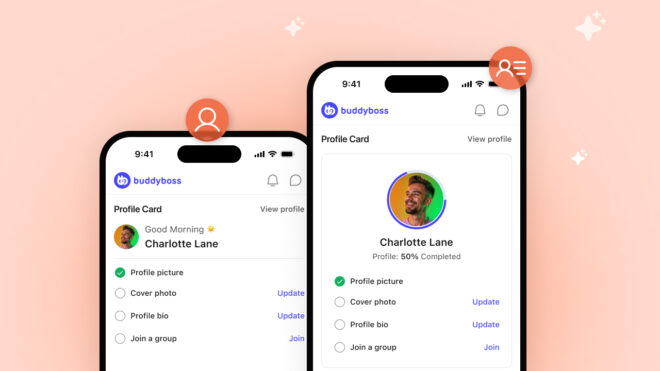
The Profile Card puts personalized member information directly on the app home screen. Choose between two designs:
Greeting Card displays a personalized welcome message with the member’s name and profile photo. It says “welcome back” in a way that feels individual, not generic.
Profile Complete shows the member’s profile photo alongside a completion percentage, with a checklist of items to finish: profile photo, cover image, bio, and joining a group. This is your onboarding nudge, visible every time a member opens the app, gently encouraging them to fill out their profile.
You can also enable the “Hide When Profile 100% Completed” toggle, so the card disappears automatically once a member’s profile is fully complete. No stale onboarding prompts cluttering the screen for members who have already done everything you asked.
Color customization covers heading, body, background, and card background. Dark mode is supported and requires App Next Gen to be enabled.
How to Add App Blocks to Your App Pages
Getting started with the new blocks takes a few minutes:
- Update the BuddyBoss App Plugin in your WordPress admin (Plugins > Updates) to v3.1.0.
- Create a new app build and submit it to the Apple App Store and Google Play Store. Your members will receive the update through their normal app store update process.
- Make sure App Next Gen is enabled in your BuddyBoss App settings.
- Open the App Page where you want to add a block.
- Click Add Block or open the Blocks panel.
- Scroll down to the BuddyBoss App Blocks section.
- Select your block: Image Carousel, Video Carousel, Icons Block, or Profile Card.
- Configure Layout, Content, Colors, and Settings in the right-hand panel.
- Publish. Your members will see the new block the next time they open the app.
Each block’s settings panel follows the same structure: Layout first (choose your style and size), then Content (manual or dynamic), then Colors (light/dark mode and brand matching), then Settings (toggles and behavior controls). Once you’ve set up one block, the rest will feel familiar.
What’s Next for BuddyBoss App Blocks
With Image Carousel, Video Carousel, Icons Block, and Profile Card now available, the App Blocks system continues to grow. More block types are planned to give you even more options for building native app experiences in the future.
We would love to hear what you think. If you have ideas for blocks you would like to see, let us know on our public roadmap. You can also browse the roadmap to see what is coming next for App Blocks.
Frequently Asked Questions
What are BuddyBoss App Blocks?
BuddyBoss App Blocks are native mobile content elements you place on App Pages inside the BuddyBoss App. They let you build custom app experiences, like carousels, navigation rows, and personalized profile cards, without writing code.
Which App Blocks are new in this update?
BuddyBoss App v3.1.0 adds four new blocks: Image Carousel, Video Carousel, Icons Block, and Profile Card. These join existing blocks like Courses, Discussions, Forums, Groups, Members, Activity, Notifications, Quick Links, and H5P.
Do I need App Next Gen to use all the new blocks?
Yes. The four new App Blocks (Image Carousel, Video Carousel, Icons Block, and Profile Card) are available exclusively in the BuddyBoss Next Gen App. Dark mode customization for the Icons Block and Profile Card also requires App Next Gen to be enabled.
How do I add App Blocks to my app home screen?
Update the BuddyBoss App Plugin to v3.1.0 in your WordPress admin, then create a new app build and submit it to the App Store and Google Play. Make sure App Next Gen is enabled. Then open an App Page, click Add Block, and select from the BuddyBoss App Blocks section. Configure the block’s layout, content, colors, and settings, then publish.
Can I use the same blocks on my BuddyBoss website?
App Blocks are designed exclusively for the BuddyBoss mobile app. They appear on App Pages, which are native screens inside the app. Your website uses standard WordPress blocks and page builders.
What is the difference between Manual and Dynamic content mode in the Carousel blocks?
Manual mode lets you build each carousel card individually: add your own image (or video), heading, body text, metadata, and destination link. Dynamic mode automatically pulls content from a post type you select, like Courses or Posts, and maps the fields into carousel cards for you. Manual gives you full control. Dynamic saves time and keeps content fresh automatically.
