














Introduction
Customizing the profile dropdown menu lets you surface any important resources—like a user guide, support portal, or external page—directly to your members. By managing the Profile Dropdown menu in WordPress, you can add, reorder, or remove links as needed without writing any code.
Access the Menus Screen
- In your WordPress admin, go to Appearance > Menus.
Select or Create the Profile Dropdown Menu
- Use the Select a menu to edit dropdown to choose an existing menu assigned to Profile Dropdown, then click Select.
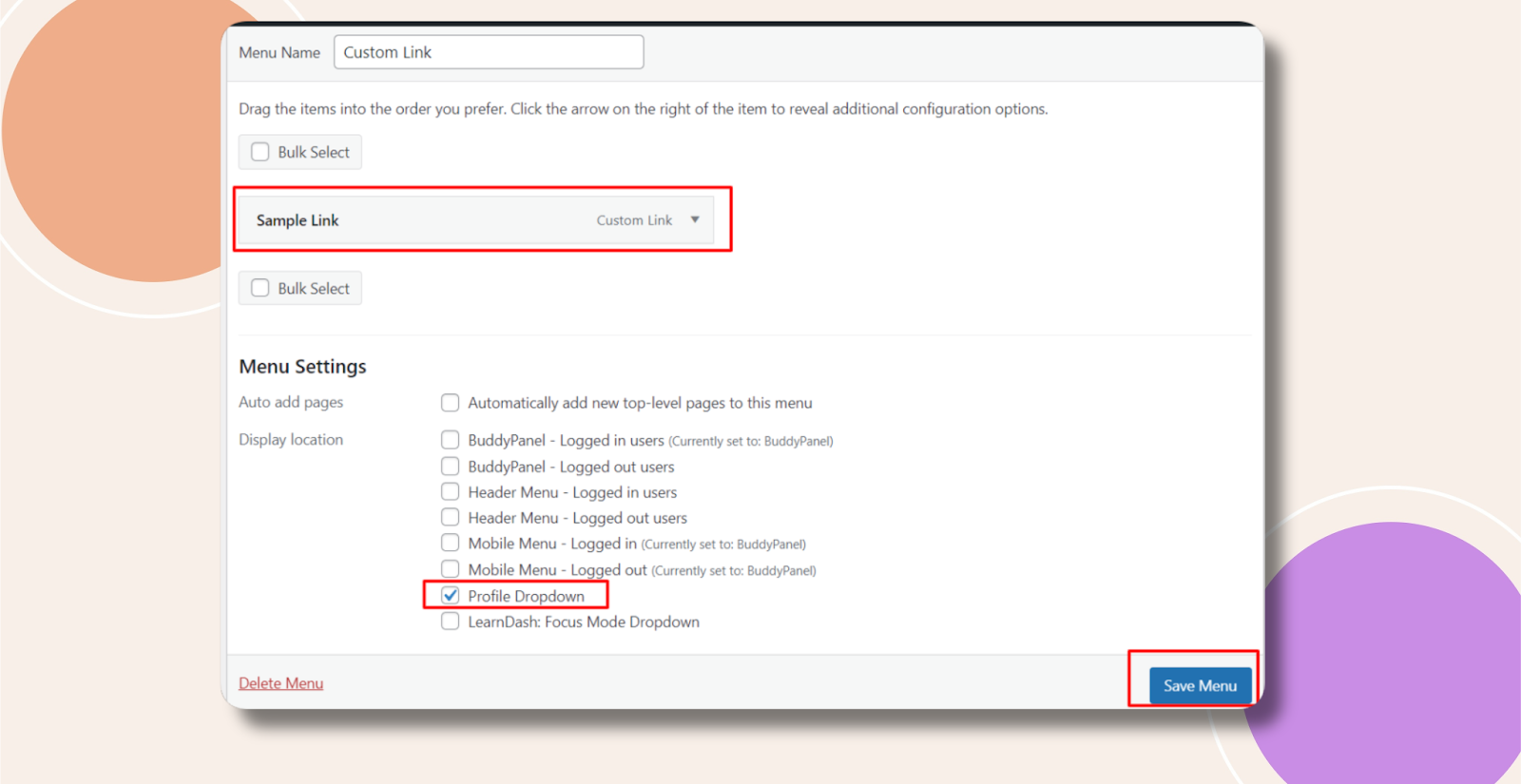
- If no menu exists, click create a new menu, give it a name, click Create Menu, and under Menu Settings > Display location, check Profile Dropdown.
Add Your Custom Link
- In the Add menu items panel, expand Custom Links.
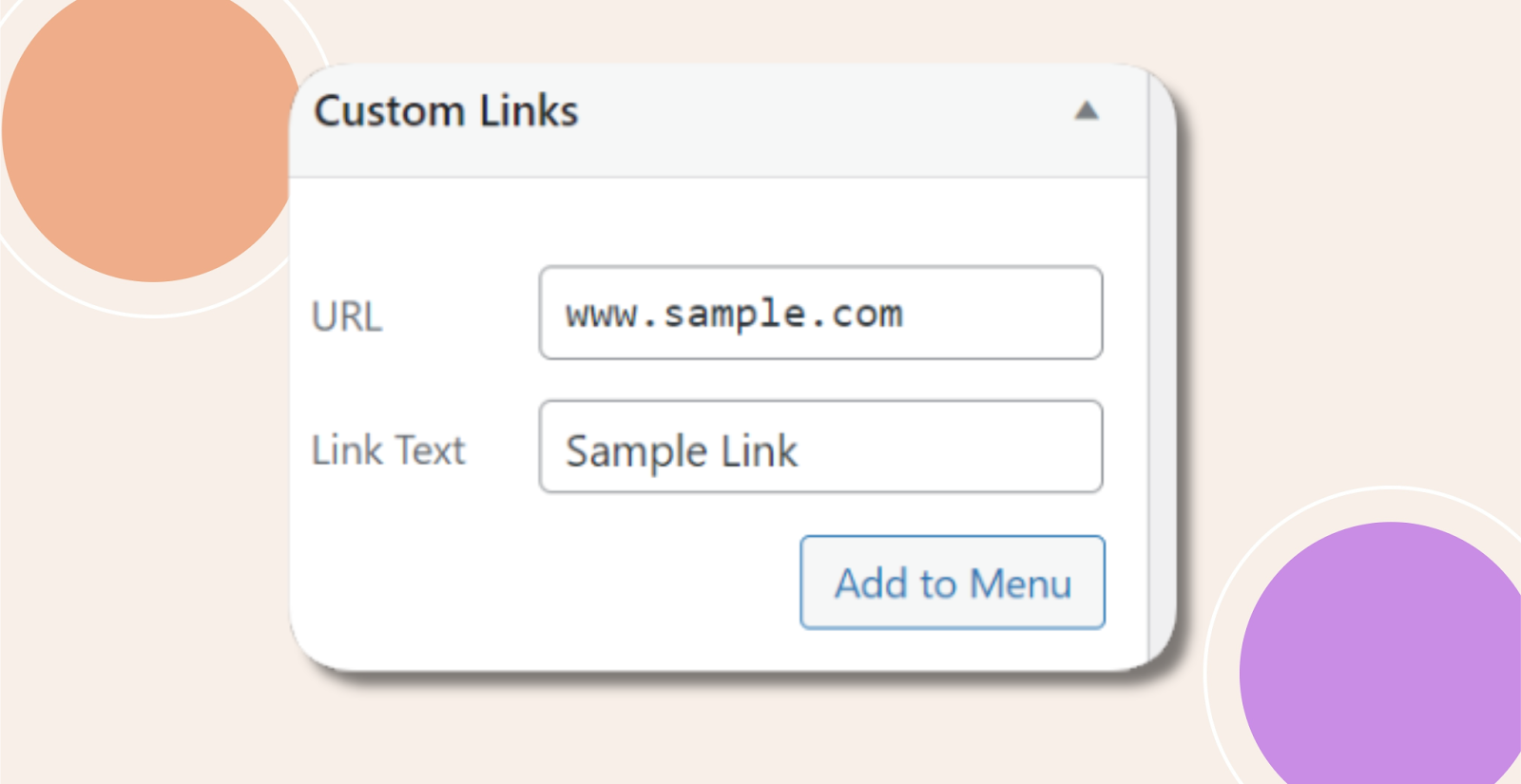
- Enter the URL and Link Text for your new menu item.
- Click Add to Menu.
Position and Save
- Drag the new menu item to your desired position within the menu structure.
- Click Save Menu to apply your changes.
Troubleshooting and FAQs
Q: My custom link doesn’t appear in the dropdown—what should I check?
A:
- Verify the menu you edited is assigned to the Profile Dropdown location under Menu Settings.
- Clear any caching plugins or your browser cache and reload the front end.
Q: I don’t see “Profile Dropdown” under display locations—why?
A: Ensure you have the BuddyBoss Theme activated and updated to the latest version; it registers that menu location.
Q: Can I show different links to different user roles?
A: Yes—install a role-based menu plugin (e.g., Nav Menu Roles) to conditionally display menu items per user role.
Q: How do I remove or reorder menu items later?
A: Return to Appearance > Menus, drag items to reorder or click Remove under any menu item before saving changes.