














Introduction
Configuring the app specific password in BuddyBoss enables you to install apps via third-party developers instead of directly through Apple. This setting ensures that your app installs and updates securely using a unique password generated from your Apple account. Follow these steps to locate, generate, and apply your app specific password in BuddyBoss.
Locate the App Specific Password Setting
- Log into your Dashboard in your WordPress admin.
- Navigate to BuddyBoss App > Configure > iOS Settings.
- Scroll down to the section labeled Upload Configuration.
- In the box, locate the App Specific Password field.
View Tutorial for Detailed Guidance
- Click the View Tutorial button (represented by a magnifying glass icon) in the top right corner.
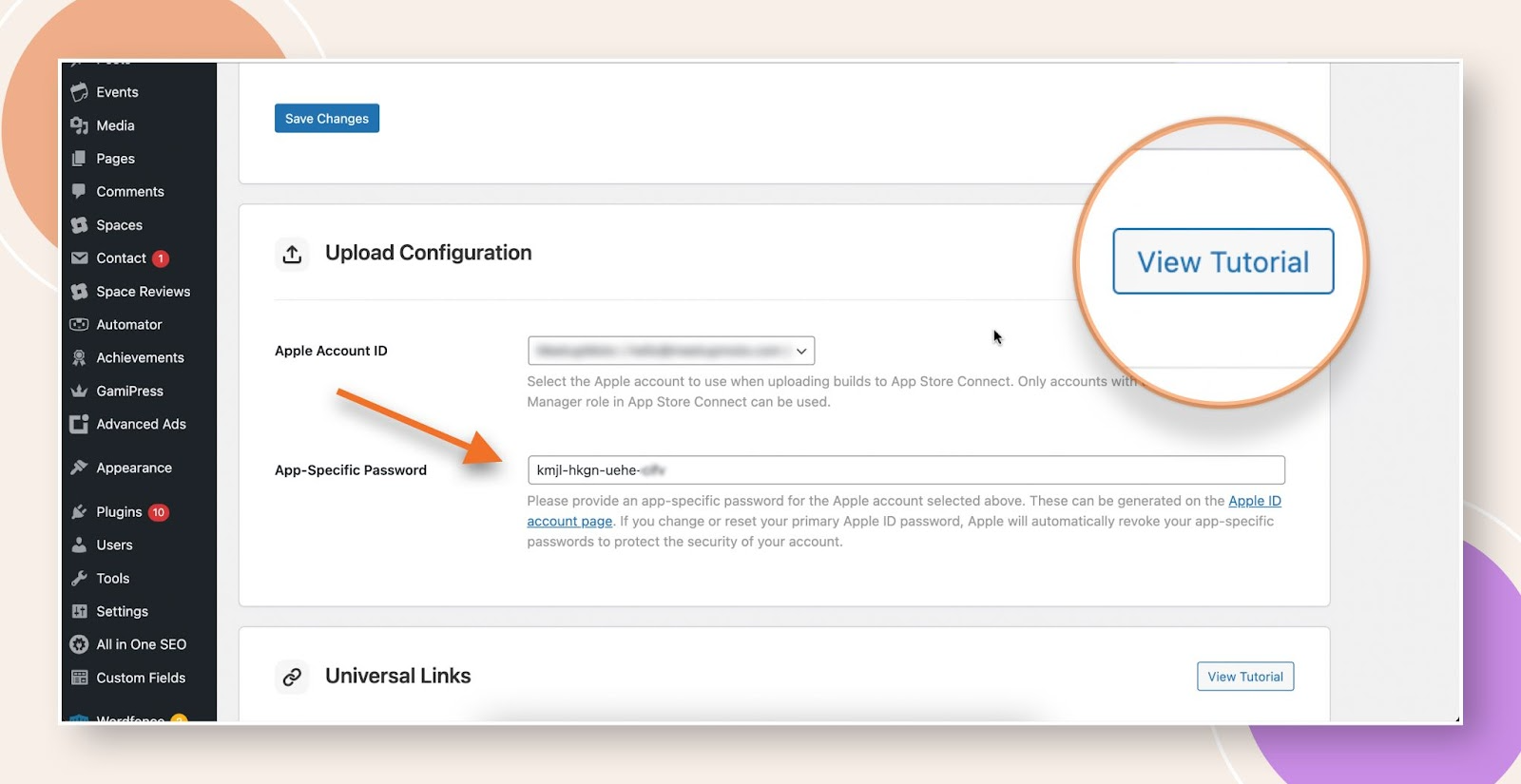
- This will take you to the help document or video guide explaining the App Specific Password setting.
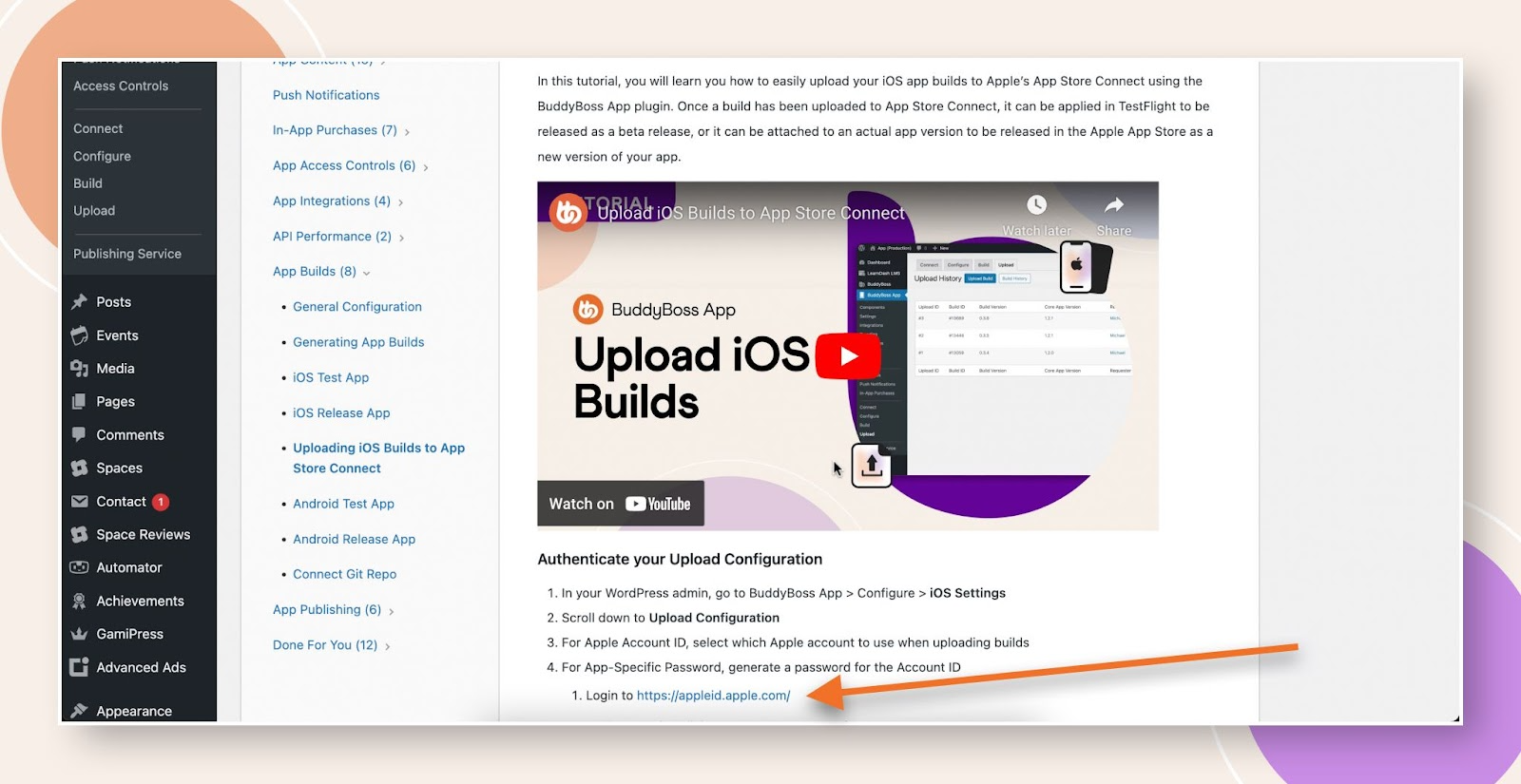
Generate a New App Specific Password
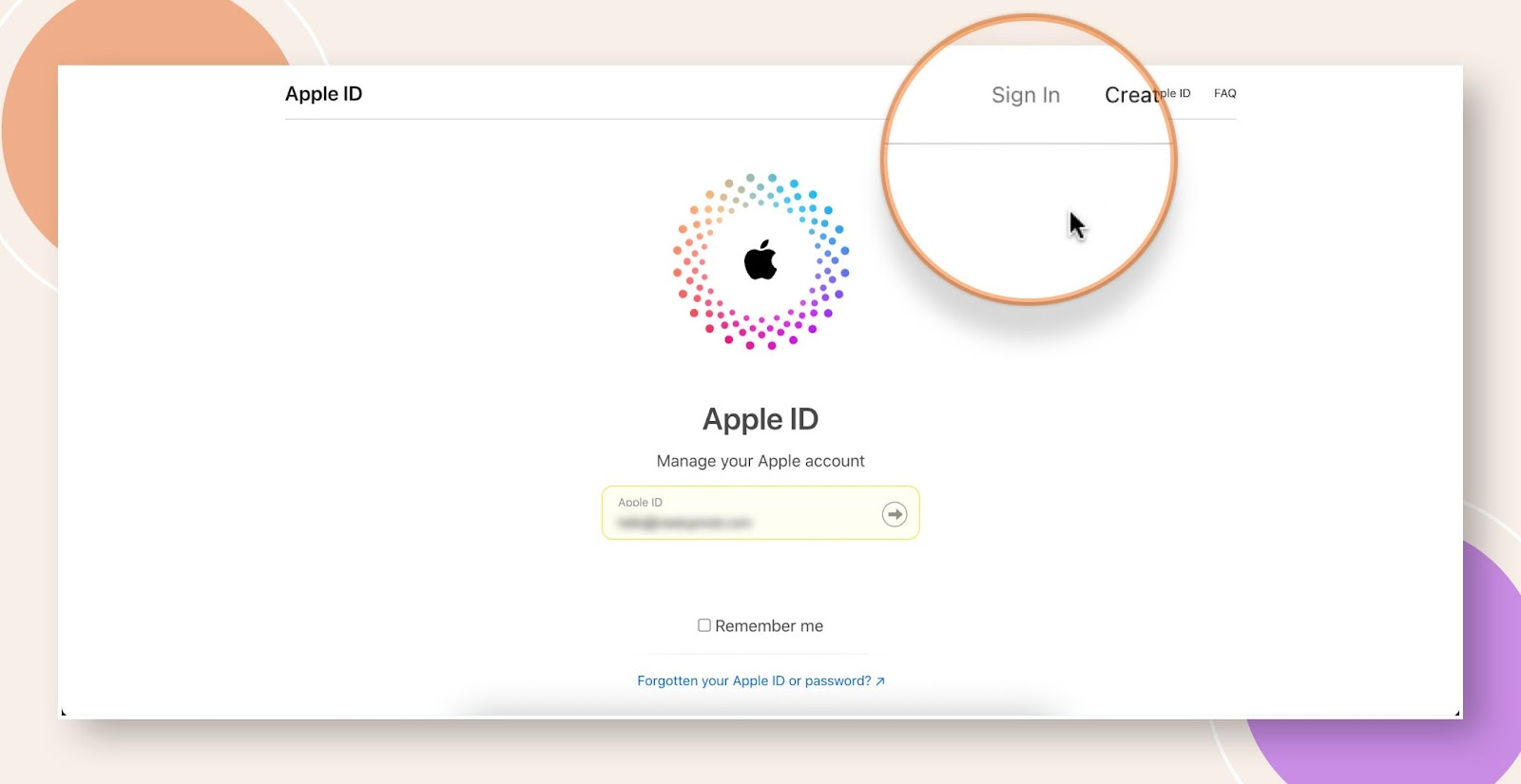
- If needed, visit your Apple Account (via the link provided in the tutorial) using the Apple ID associated with your app.
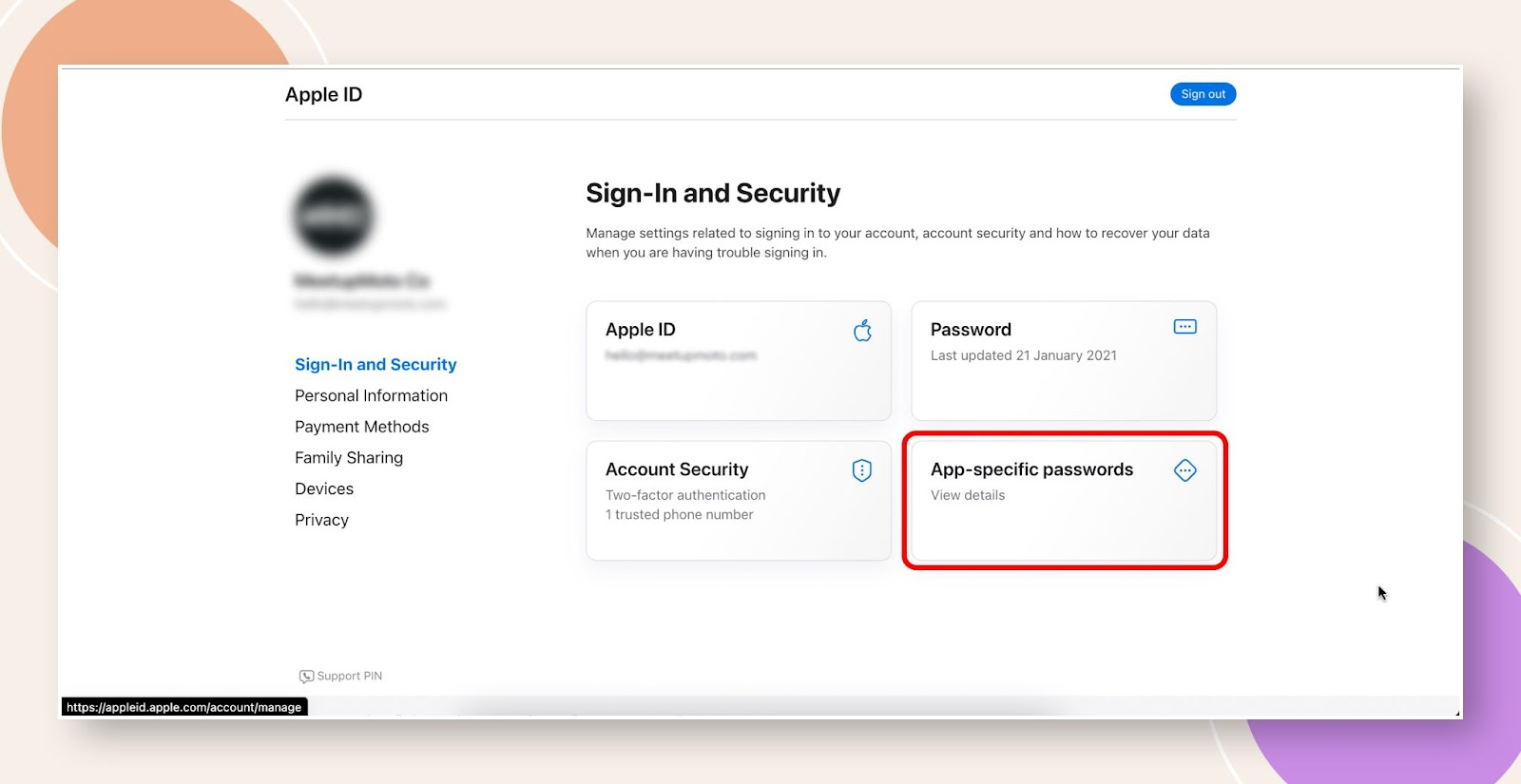
- Once signed in, select the option for App-specific password.
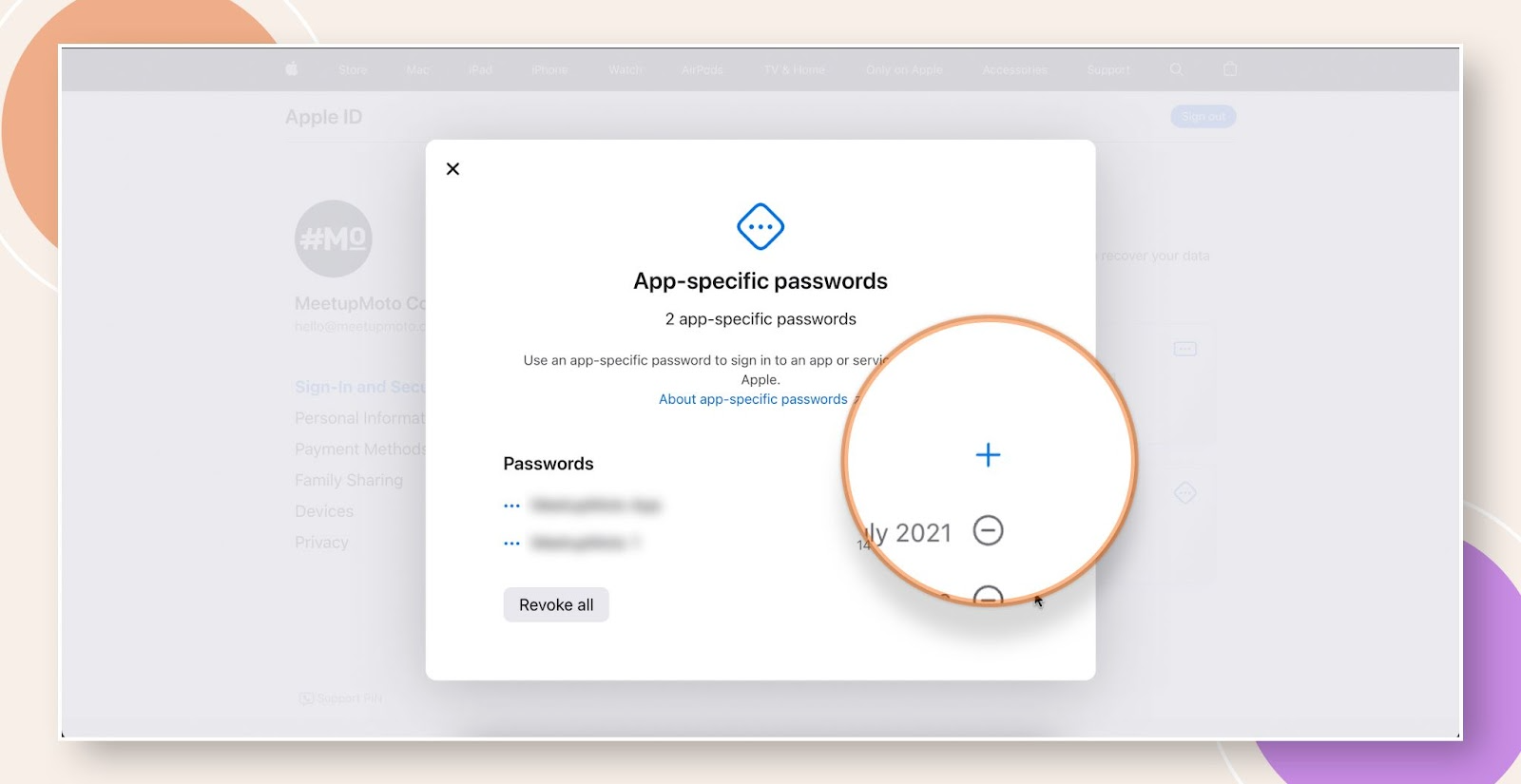
- A key generator will appear; click Add and fill in the required information.
- Copy the newly generated password to your clipboard.
Update the App Specific Password in BuddyBoss
- Return to BuddyBoss App > Configure > iOS Settings.
- Paste the new password into the App Specific Password field.
- Click Save Settings to apply the changes.
Troubleshooting and FAQs
Q: What if I cannot locate the App Specific Password field?
A: Ensure that you are using the latest version of BuddyBoss. The field is located under Upload Configuration in BuddyBoss App > Configure > iOS Settings. Use the View Tutorial button if additional guidance is needed.
Q: How do I ensure I use the correct Apple ID for generating the password?
A: Sign in with the Apple ID associated with your app. If you have multiple Apple IDs, verify that you are using the one linked to your app for accurate password generation.
Q: What should I do if the generated password isn’t working?
A: Double-check that you have copied the entire password correctly and pasted it into the correct field in your BuddyBoss settings. Re-generate the password if necessary.