














Introduction
Build Error Code E006 with the message
There is an issue with one or more of your uploaded images. Try uploading new images and then sending a new build.
This indicates that one or more of your custom branding images or icons failed validation during the build process. To fix this, remove the problematic assets, re-upload compliant images, and generate a fresh build.
Remove Existing Images and Icons
- In WordPress, navigate to BuddyBoss App > Branding > Images.
- For each section—Home Screen, Login Screen, Register Screen, Launch Screen, App Icons, Android Adaptive Icon, and Android Notification Icon—click Remove Image.
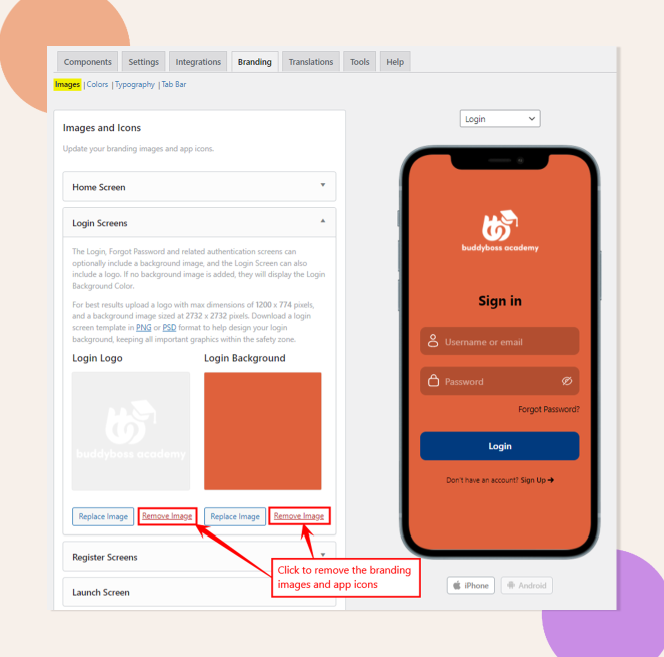
- Click Save Changes to confirm removal.
Re-add Supported Images
- On the same Branding > Images page, upload new images and icons in .PNG or .JPG format that meet the required dimensions and size limits.
- Click Save Changes to register the updated assets.
Request a New Build
- Go to BuddyBoss App > Build.
- Review Information, verify that your newly added images display correctly.
- Click Send Build Request to generate a new build with the updated branding assets.
Do I Need to Generate a New Build?
Yes. A new build is required to embed the corrected images into your app package.
Troubleshooting and FAQs
Q: My images are PNG/JPG but still cause E006, why?
A: Ensure filenames contain no spaces or special characters, confirm the files aren’t corrupted, and that they adhere to BuddyBoss’s dimension requirements.
Q: The error persists, what else can I try?
A: Clear any caching plugins or CDN caches, then repeat the removal and re-add steps. If it still fails, contact BuddyBoss Support with your build log details.