
REQUIRES: PRO PLAN OR HIGHER • Last updated: Mar 12, 2026 • ~2 min read
The Group Avatar settings control how group profile images are displayed across your community. You can enable group avatars and set a default image for groups that have not uploaded their own. This manual walks you through each option.
Tutorial Video
Accessing Group Avatar Settings
To access these settings, navigate to your WordPress Dashboard, go to BuddyBoss > Settings > Social Groups >, then click Group Images from the left menu.
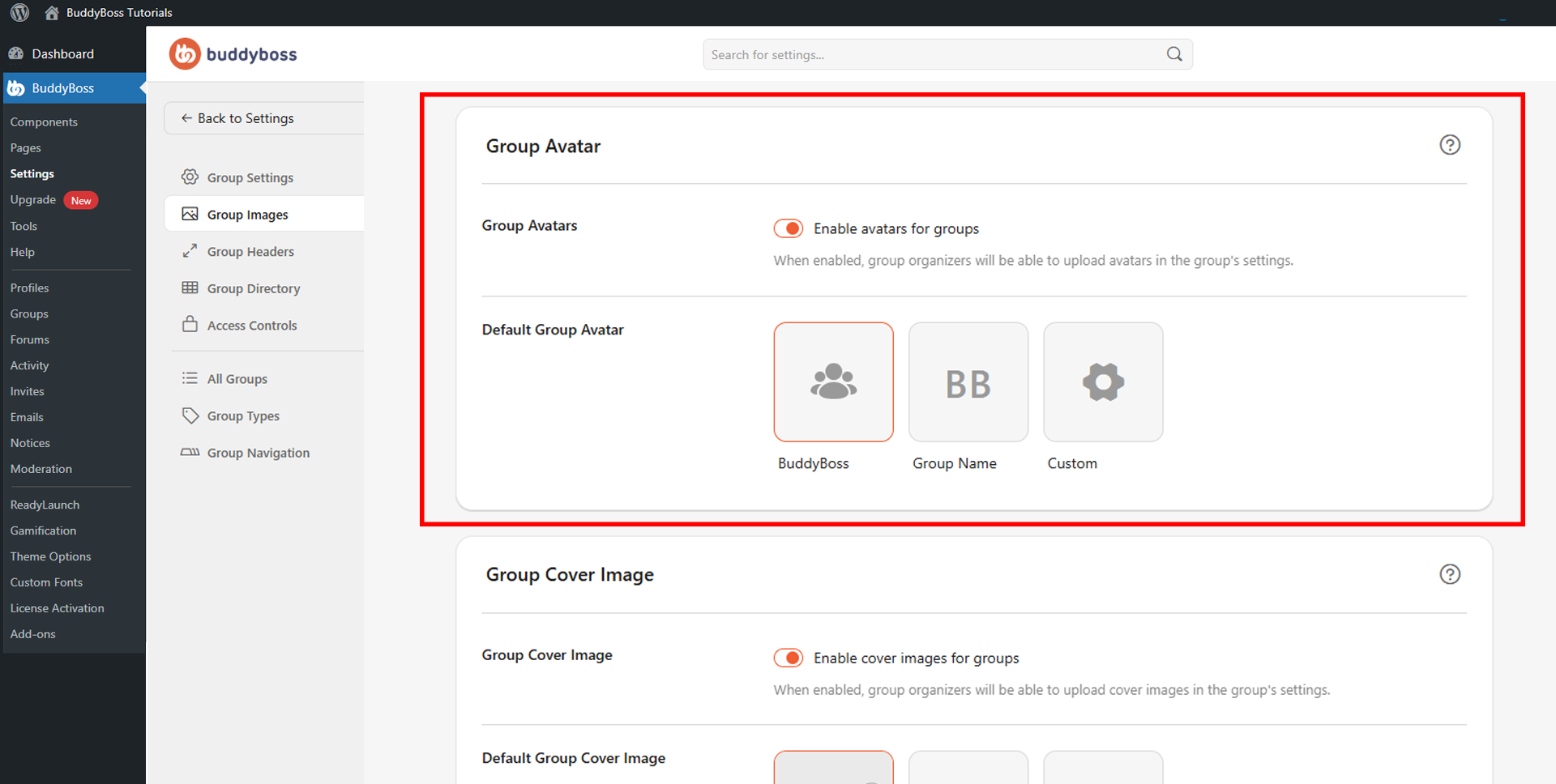
Enable Group Avatars
Toggle Enable avatars for groups on to activate group avatars. When enabled, group organizers can upload a custom avatar from the group’s settings page, giving each group a unique visual identity across the community.
Default Group Avatar
The Default Group Avatar setting determines what image is shown for groups that have not uploaded their own avatar. Select from the available options:
- BuddyBoss: Displays a generic BuddyBoss group icon.
- Group Name: Displays initials generated from the group name.
- Custom: Upload your own default image to display for groups without a custom avatar.
© 2026 BuddyBoss LLC. All Rights Reserved. | buddyboss.com