
REQUIRES: PRO PLAN OR HIGHER • Last updated: Mar 12, 2026 • ~3 min read
The Profile Avatar settings control how member profile images work across your community. You can choose between avatar systems, allow or restrict uploads, enable Gravatars, and set a default avatar for members who have not uploaded a profile image. These settings affect both the web and BuddyBoss App experiences. This manual walks you through each configuration option.
Tutorial Videos
Accessing Profile Avatar Settings
To access these settings, navigate to your WordPress Dashboard, go to BuddyBoss > Settings > Member Profiles, then click Profile Image from the left menu.
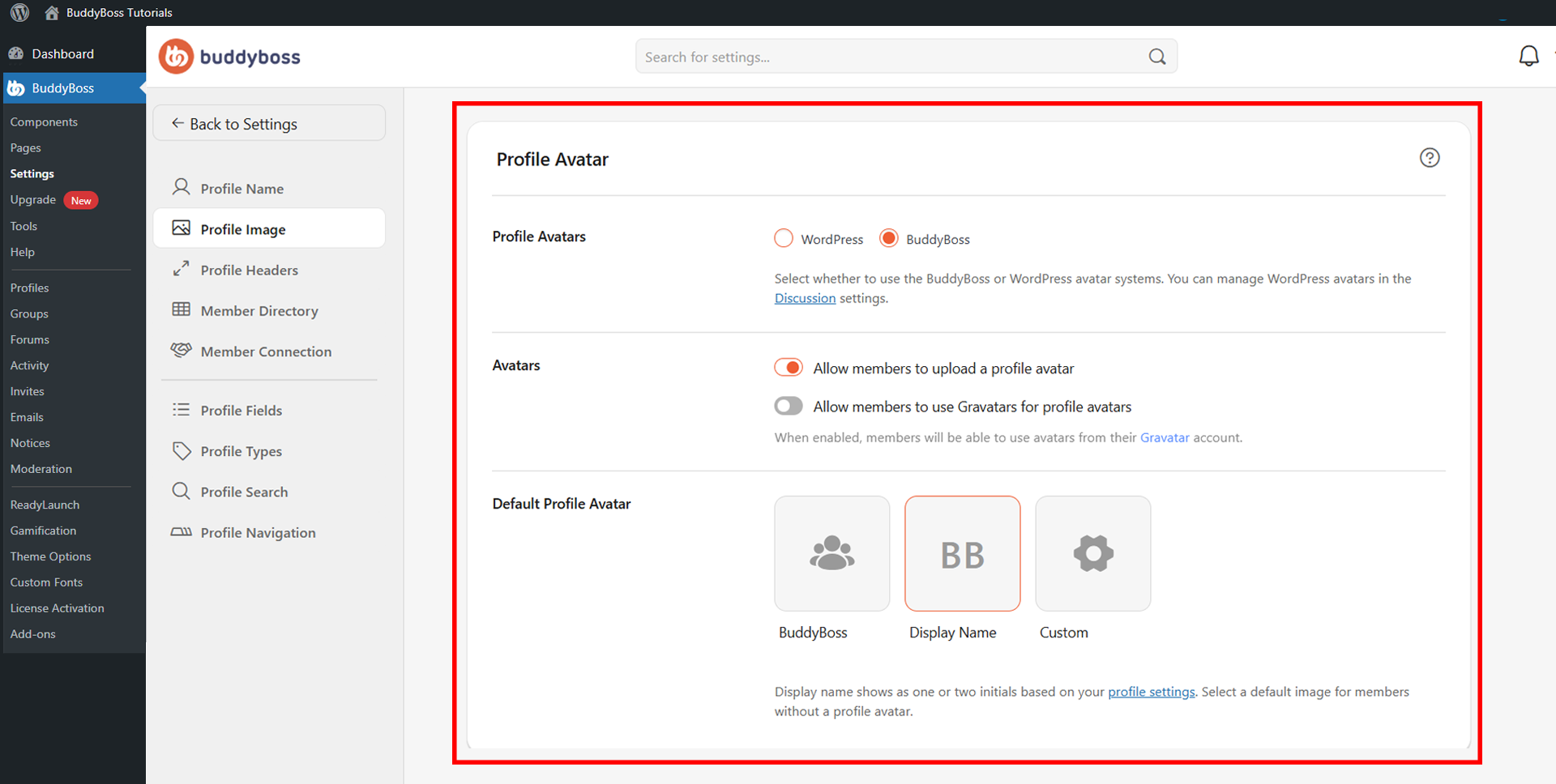
Profile Avatars
In the Profile Avatars section, select which avatar system your community will use.
The two available options are:
BuddyBoss: Uses the BuddyBoss native avatar upload system. Recommended for community sites as it gives members more direct control over their profile images without relying on external services.oss displays a social preview card showing how your content will look when shared publicly, including the Open Graph image, site title, description, and shared URL.
WordPress: Uses the default WordPress avatar system, which is Gravatar-based.
Avatars
The Avatars section lets you control how members set their profile images. When both upload and Gravatar options are enabled, members can choose between uploading their own image or syncing their Gravatar.
Allow members to use Gravatars for profile avatars: Allows members to sync their Gravatar image as their profile photo.} | {site_title}.
Allow members to upload a profile avatar: Enables members to upload a custom profile image directly from their device.
Default Profile Avatar
The Default Profile Avatar setting determines what image is shown for members who have not uploaded a profile photo.
Scroll to this section and select from the available options:
- BuddyBoss: Displays the default generic BuddyBoss avatar image.
- Display Name: Shows the member’s initials as their avatar – a clean, modern fallback when no image has been uploaded.
- Custom: Upload your own default image to display for members without a profile photo.
Once you have made your selections.
© 2026 BuddyBoss LLC. All Rights Reserved. | buddyboss.com