
REQUIRES: PRO PLAN OR HIGHER • Last updated: Mar 12, 2026 • ~3 min read
The Profile Cover settings allow members to personalize their profiles by uploading a cover image that appears at the top of their profile page. You can enable or disable this feature, adjust cover image dimensions, and set a default cover for members who have not uploaded one. This manual walks you through each option.
Tutorial Video
Accessing Profile Cover Settings
To access these settings, navigate to your WordPress Dashboard, go to BuddyBoss > Settings > Member Profiles, click Profile Image from the left menu, then scroll to the Profile Covers section.
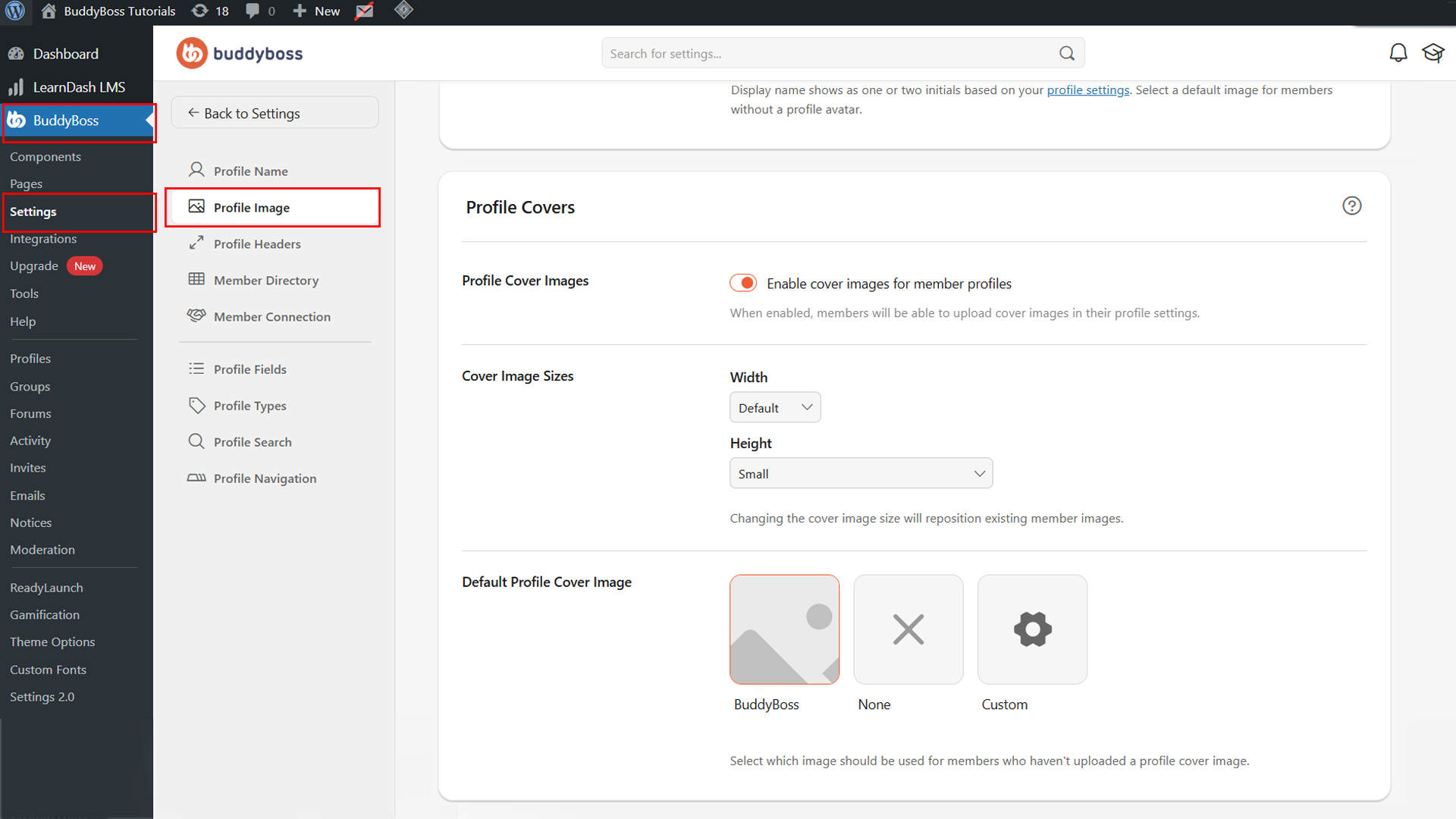
Enable Profile Cover Images
Toggle the Enable cover images for member profiles switch to turn the feature on. When enabled, members can upload a cover image that displays at the top of their profile page, improving personalization and visual identity across your community. When disabled, no cover image area will appear on member profiles.
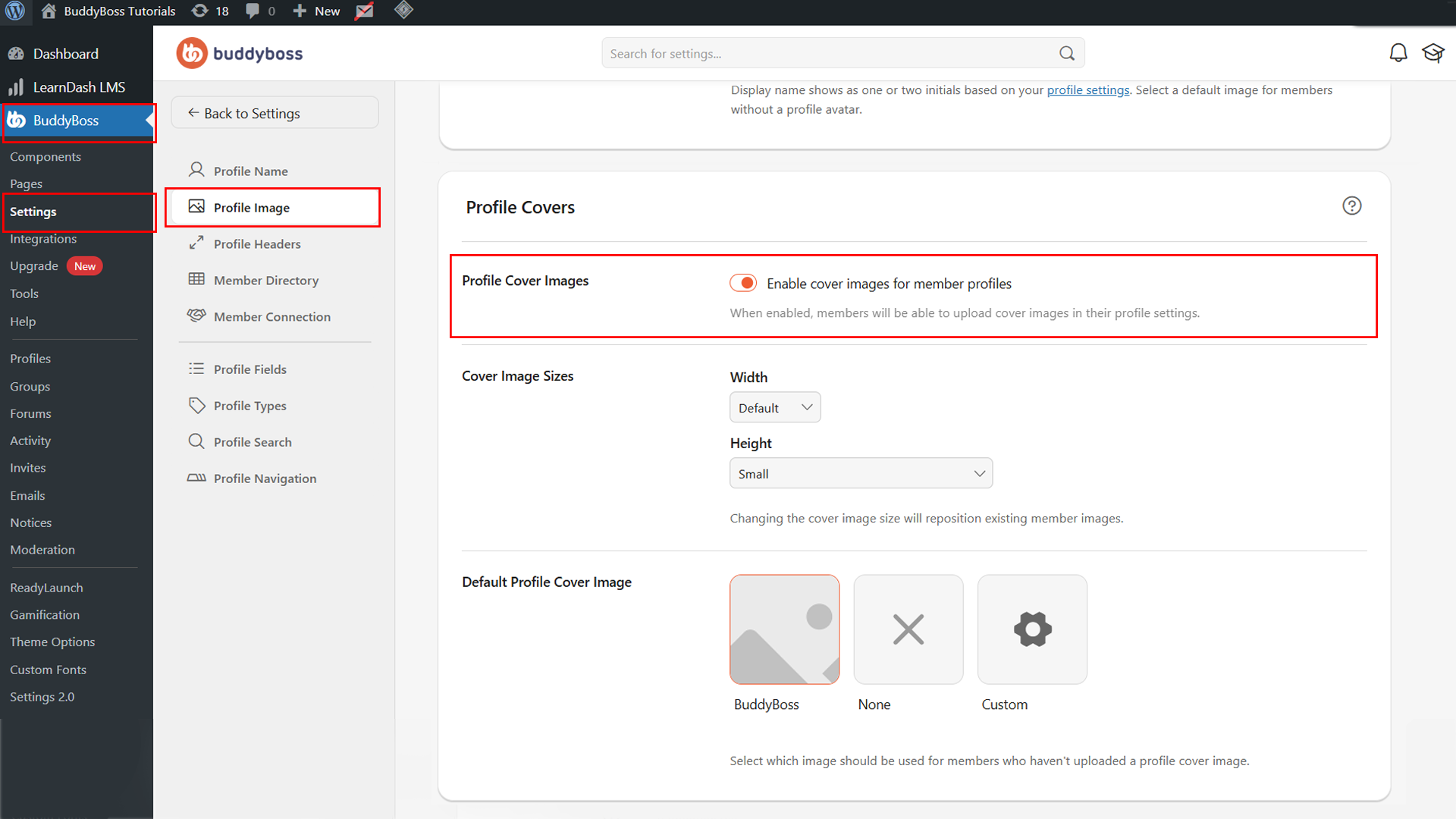
Cover Image Size
In the Cover Image Sizes section, use the Width and Height dropdowns to set the dimensions for cover images across member profiles. Adjusting these values ensures a consistent design across different devices and layouts. Note that changing these values will reposition existing cover images on all member profiles.
© 2026 BuddyBoss LLC. All Rights Reserved. | buddyboss.com