
REQUIRES: PRO PLAN OR HIGHER • Last updated: Mar 12, 2026 • ~3 min read
The Profile Navigation Ordering settings allow you to control the order and visibility of tabs shown on member profiles. You can reorder tabs using drag-and-drop and toggle individual tabs on or off. This manual walks you through each setting.
Tutorial Video
Accessing Profile Navigation Settings
Navigate to your WordPress Dashboard, go to BuddyBoss > Member Profiles, then click Profile Navigation.
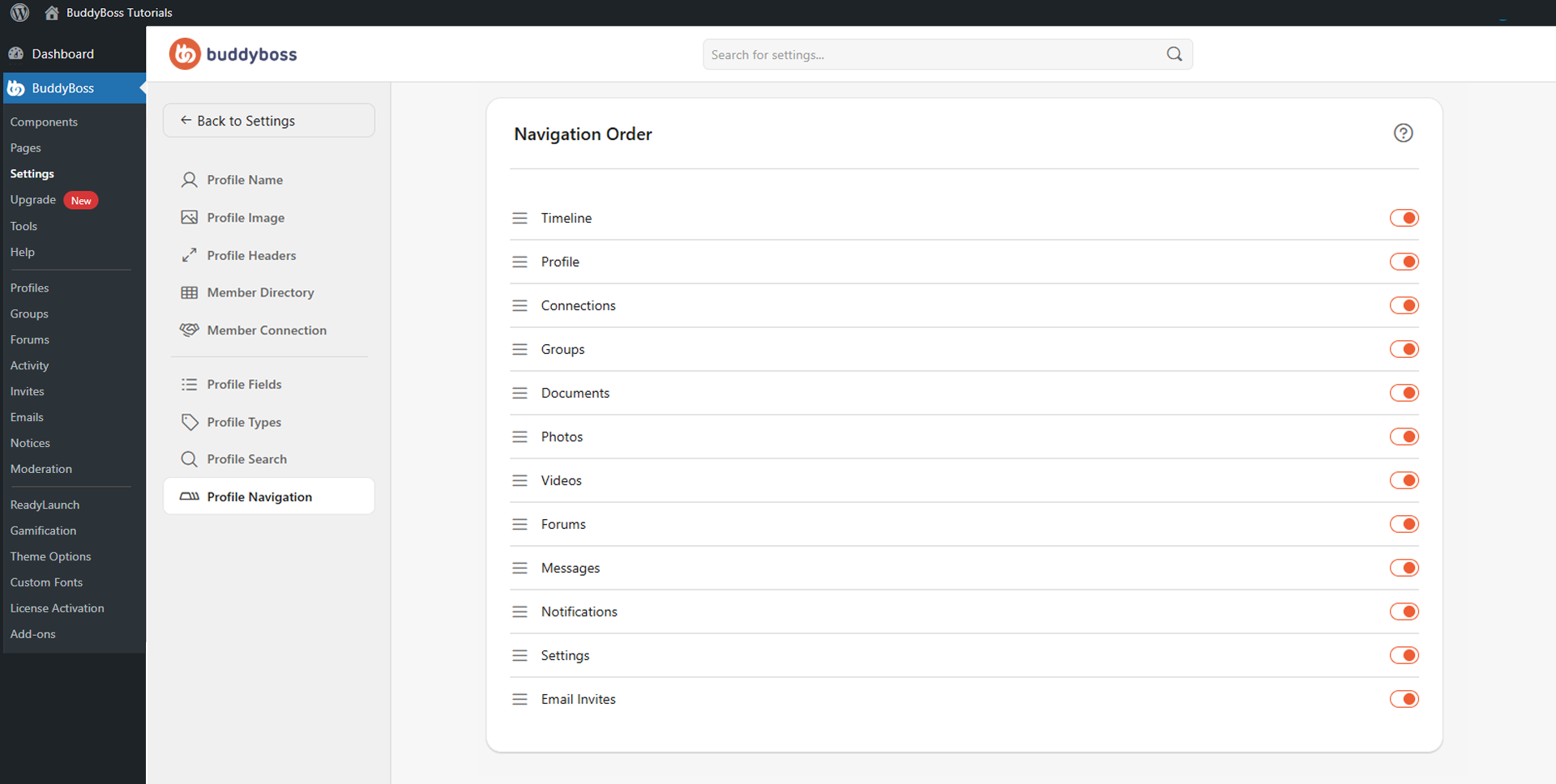
The Navigation Order section lists all available profile tabs.
Reordering and Toggling Tabs
Each tab has a drag handle on the left for reordering and a toggle on the right to show or hide it on member profiles. Drag a tab to your preferred position and release to save the new order. The changes apply immediately to member profiles. The available tabs are:
- Timeline: Member activity updates and interactions.
- Profile: Profile information and custom profile fields.
- Connections: Friendships and social connections.
- Groups: Groups the member belongs to.
- Documents: Uploaded documents and shared files.
- Photos: Photos and image uploads.
- Videos: Uploaded videos and video content.
- Forums: Forum discussions and replies.
- Messages: Private conversations.
- Notifications: Member alerts and notifications.
- Settings: Account and profile preferences.
- Email Invites: Invitation functionality for members.
© 2026 BuddyBoss LLC. All Rights Reserved. | buddyboss.com