
REQUIRES: PRO PLAN OR HIGHER • Last updated: Mar 12, 2026 • ~4 min read
The reCAPTCHA Settings control where Google reCAPTCHA appears across your site and how it behaves. You can enable it for specific pages, configure a bypass URL, set the display language, resolve plugin conflicts, and exclude specific IP addresses. This manual walks you through each setting.
Tutorial Video
reCAPTCHA Settings
Navigate to your WordPress Dashboard, go to BuddyBoss > Settings > reCAPTCHA.
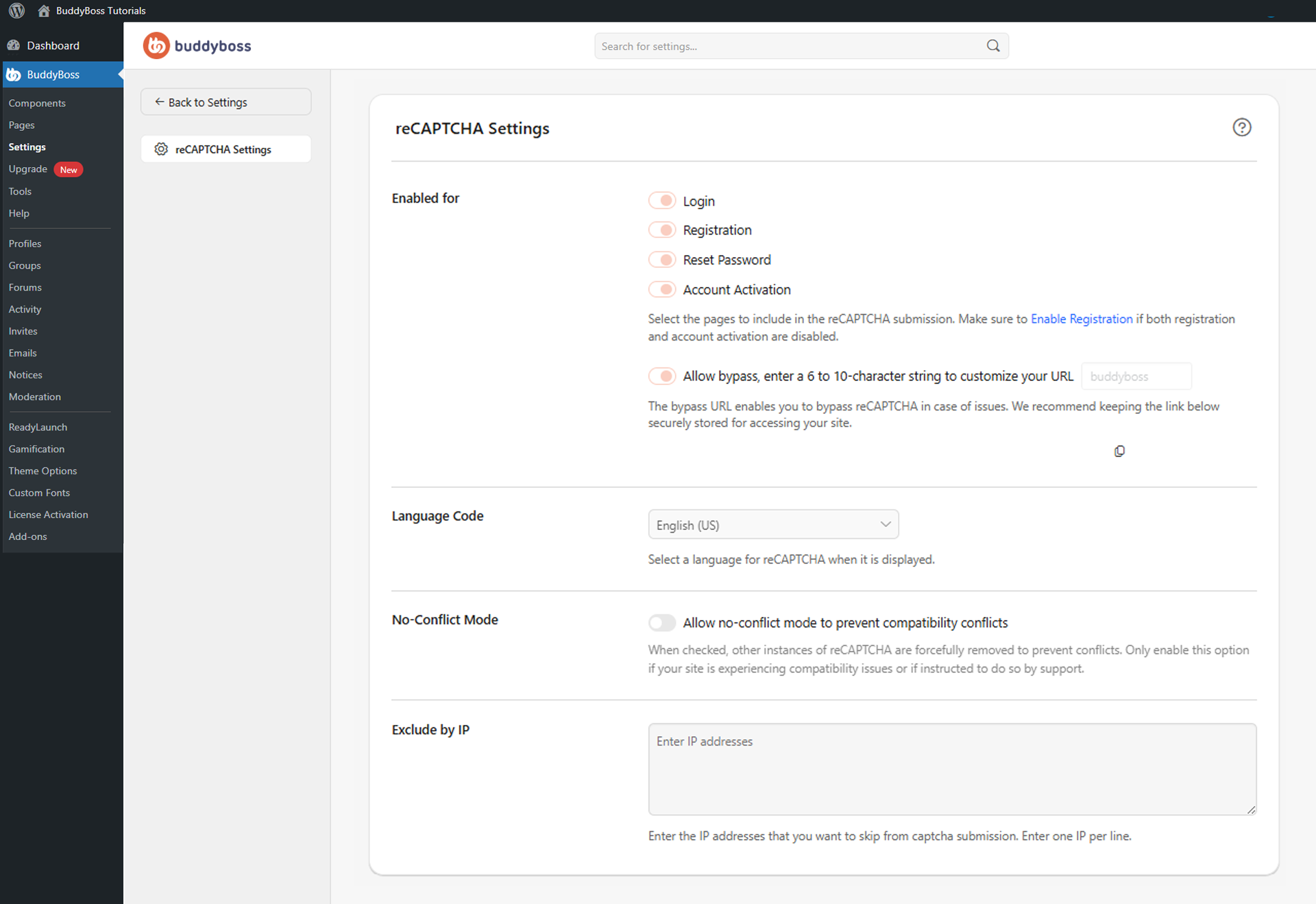
Configure the settings below.
- Enabled for: Toggle reCAPTCHA on or off for each page – Login, Registration, Reset Password, and Account Activation. Enable Registration if both Registration and Account Activation are disabled.
- Allow bypass: Enable this and enter a 6–10-character custom string to generate a bypass URL for emergency administrator access without reCAPTCHA. Store this URL securely.
- Language Code: Select the language in which reCAPTCHA displays to users (e.g., English (US)).
- No-Conflict Mode: When enabled, forcefully removes other reCAPTCHA instances loaded by plugins or themes to prevent compatibility conflicts. Only enable if experiencing issues or advised by support.
- Exclude by IP: Enter IP addresses (one per line) that should bypass reCAPTCHA entirely. Useful for internal teams, administrators, or trusted systems.
To review usage statistics and adjust security settings, click the reCAPTCHA Admin Console link at the bottom of the settings page.
© 2026 BuddyBoss LLC. All Rights Reserved. | buddyboss.com