














Introduction
When using the BuddyBoss publishing service to connect your Android app to Google Play, you might see the error:
Unable to Connect to Your App (Publishing service – Google Play Store)
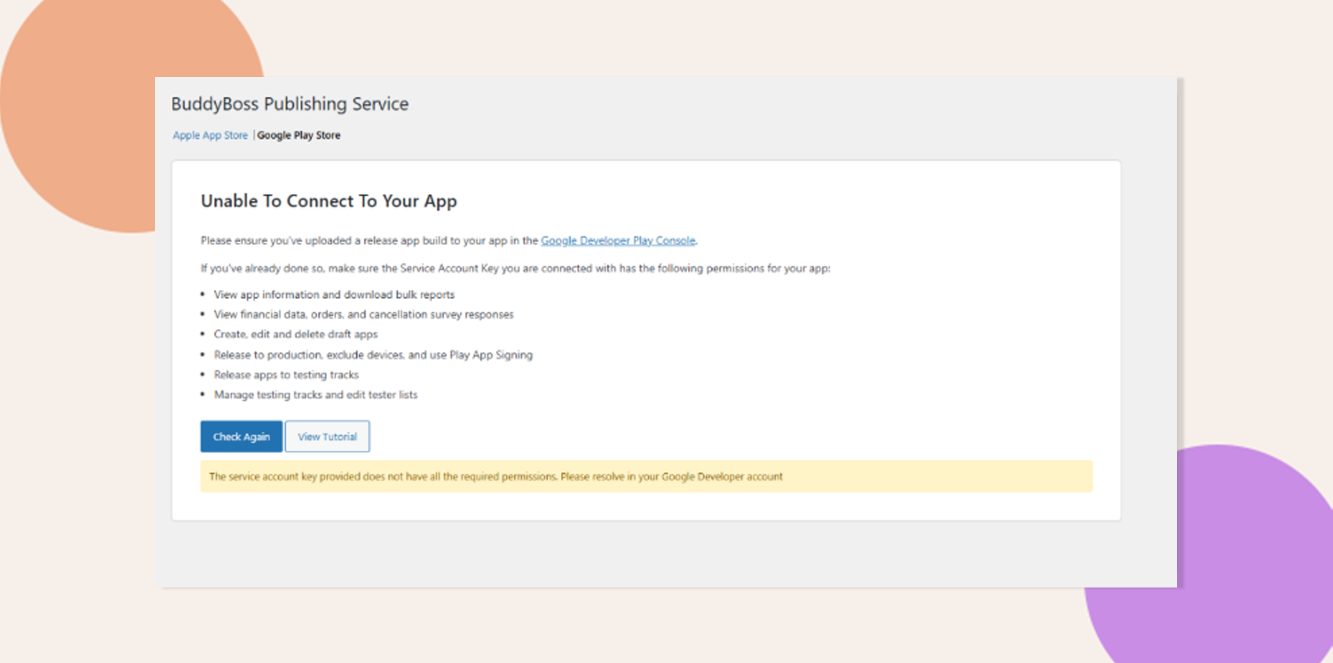
This article explains how to resolve it by meeting the prerequisites and granting the correct permissions to your Google service account.
Ensure Requirements Are Met
- A release build is uploaded to your Google Play Console.
- The Service Account Key has been generated and is available in JSON format.
Grant and Configure Service Account Permissions
- Sign in to https://play.google.com/console and select your app.
- Click the gear icon (Settings) > Users & permissions.
- Click Invite new user, enter your service account email (e.g., [email protected]), and click Next.
- Under Role, select Admin (or, for least privilege, choose Release manager plus Manage production releases, View app information, and Manage build artifacts).
- Click Invite user.
- (If prompted) Accept the invitation by signing in with your service account credentials.
- You may refer to the tutorial here: Connect Google Play Developer Account
Retry Publishing Service Connection
- In your BuddyBoss plugin or publishing settings, upload or re-select the Service Account JSON key.
- Click Connect or Test Connection.
- Confirm that the warning is gone and the connection succeeds.
Troubleshooting and FAQs
Q: The warning persists after granting permissions—why?
A: Permission changes can take 15–30 minutes to propagate. Verify the service account email matches exactly and retry after waiting.
Q: Can I limit permissions instead of using Admin?
A: Yes. Use the granular roles listed above under Release manager to follow the principle of least privilege.