














Introduction
By default, BuddyBoss does not offer a direct “lock” on the First Name and Last Name fields once a user registers. However, you can effectively prevent members from seeing or editing these fields by switching your display name format to Username and disabling the name fields in your profile settings. This removes those fields from the front end and stops users from modifying them.
Configure Display Name and Profile Name Fields
Set Display Name Format to Username
- In your WordPress admin, go to BuddyBoss Dashboard > Settings > Profiles.
- Under Display Name Format, select Username.
- Click Save Settings to apply.
Switching to “Username” ensures that user profiles rely solely on their username for display, so hiding first/last name won’t produce blank or awkward profiles.
Disable First and Last Name Fields
- Still under Settings > Profiles, scroll to the Profile Names section.
- In the Display Name Fields area, uncheck First Name and Last Name.

- Click Save Settings.
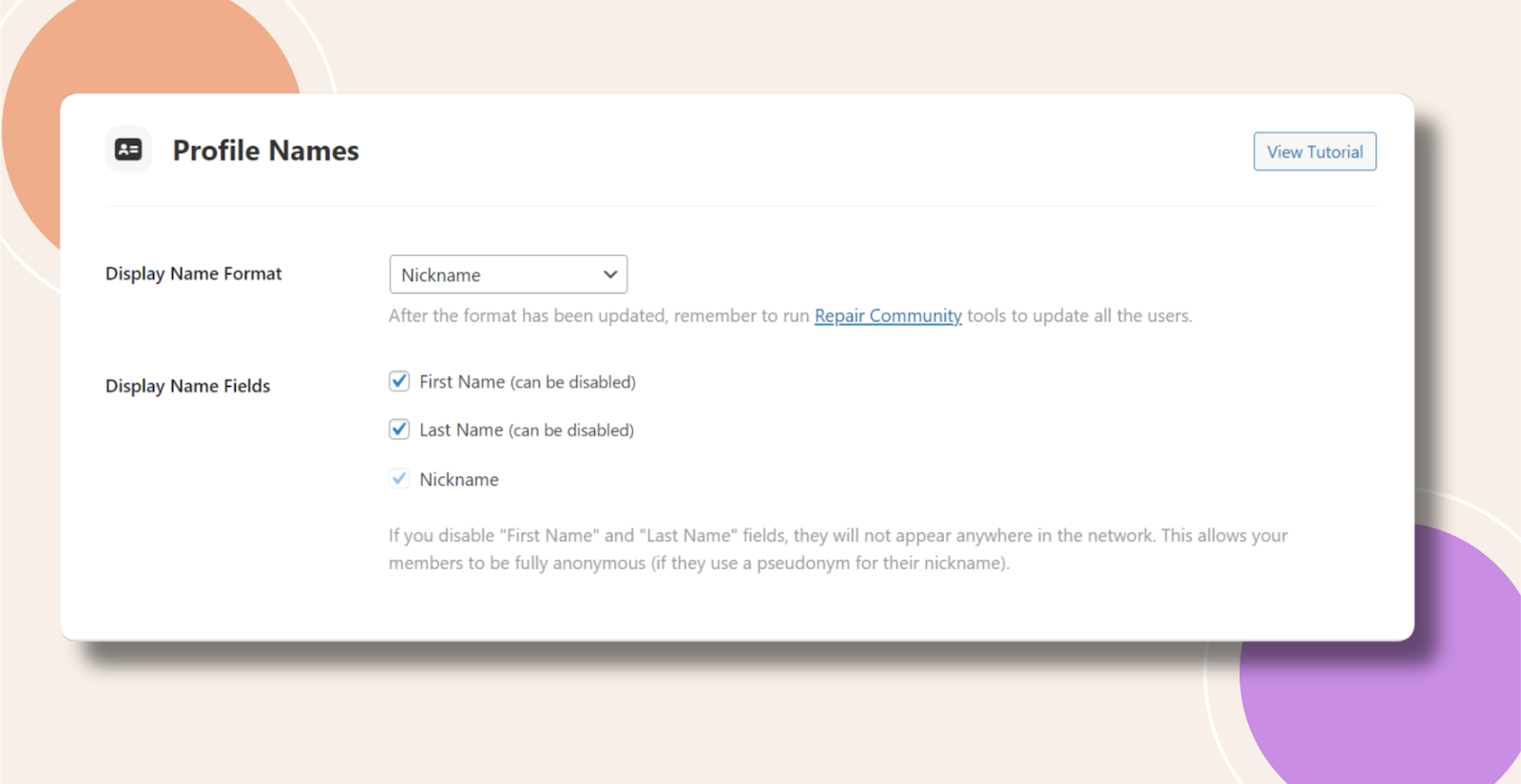
With these boxes unchecked, those fields no longer appear on profile edit screens or in public profiles, effectively preventing any edits.
Troubleshooting and FAQs
Q: I still see first/last names on my profile—what did I miss?
A:
- Confirm you saved both the Display Name Format change and the Profile Names settings.
- Clear any caching plugins or your browser cache, then reload your profile page.
Q: Can administrators still edit names?
A: Yes. These settings hide fields only from non-admins. Administrators retain full access to edit any user’s profile fields in the back end.
Q: How do I revert users back to editing their names?
A:
- Change Display Name Format back from Username to your preferred format (e.g., “First Last”) under Settings > Profiles.
- Re-check First Name and Last Name in Profile Names.
- Save settings.
Q: What if I want to hide only “Last Name” but show “First Name”?
A: In Profile Names, simply uncheck Last Name while leaving First Name checked, then save. Users can only edit whichever fields remain checked.
Q: Will hiding name fields affect other plugins or integrations?
A: Most integrations reference the user’s display name or username. Since you’re using Username as the display format, third-party tools will bypass first/last name entirely and rely on the username. If you have custom code expecting first/last names, you may need to adjust it accordingly.