














Introduction
BuddyBoss doesn’t natively show WooCommerce or membership plugin levels on user profiles, but you can surface this information by leveraging Profile Types. By creating a Profile Type that matches each membership level, you can display the user’s assigned profile type on their profile header.
Create Profile Types for Each Membership
- In WordPress admin, go to BuddyBoss Dashboard > Profiles > Profile Types.
- Click Add New Profile Type, name it after your membership level (e.g., “Gold Member”), and save.
- Repeat for each membership tier you offer.
Assign Profile Types to Users
- When a user’s membership is set or changed, assign them the corresponding Profile Type.
Enable Profile Type in the Header
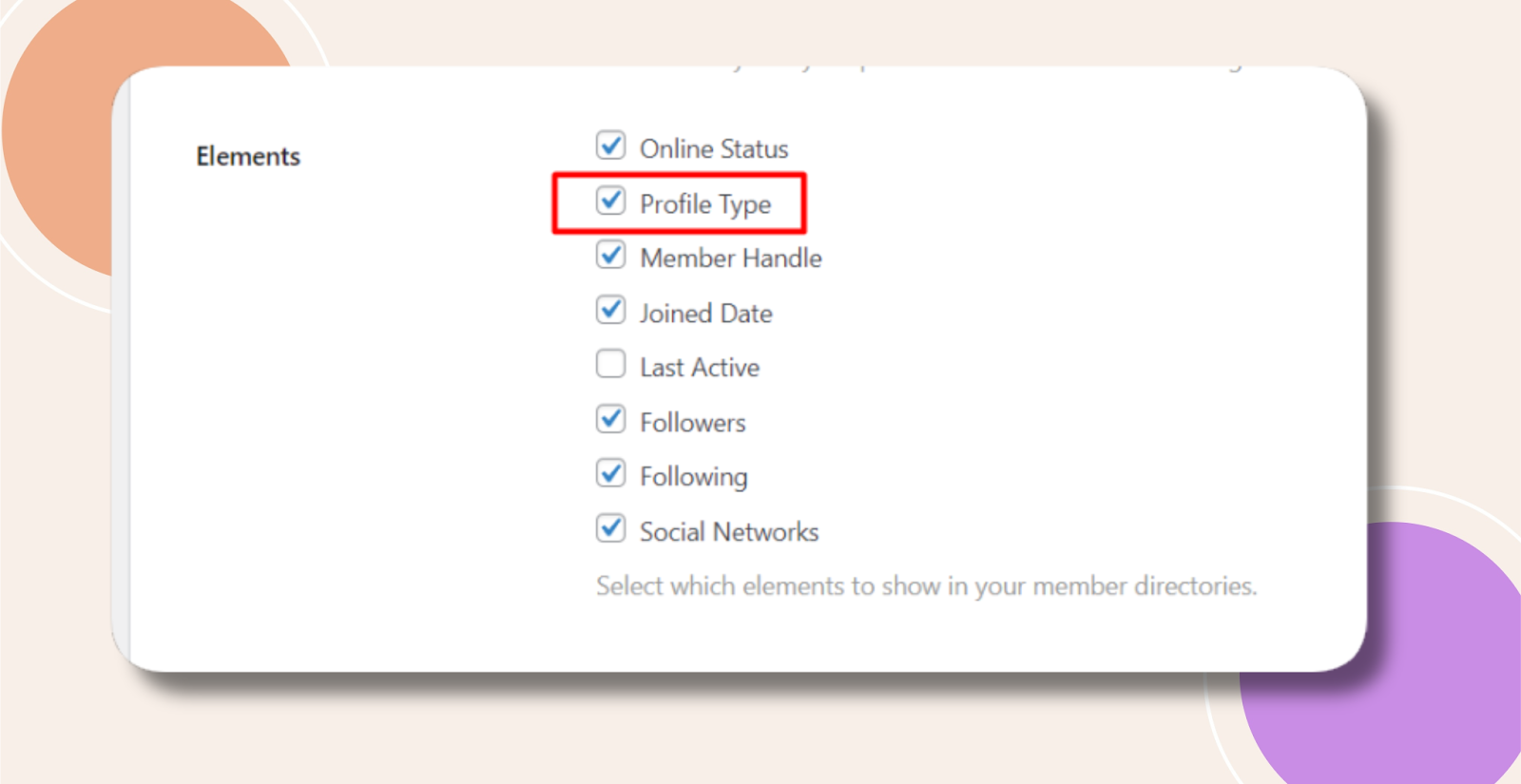
- Navigate to BuddyBoss Dashboard > Settings > Profiles > Profile Headers > Elements.
- Check Profile Type to include it in the header display.

- Click Save Settings at the bottom of the page.
Troubleshooting and FAQs
Q: Will this affect mobile app profiles?
A: Profile Types enabled in the header also appear in the BuddyBoss mobile app.