














Android App Links allow members to open supported website links directly in your BuddyBoss App instead of a web browser. This creates a connected experience between your website and mobile app, allowing members to access community content through verified links.
You can configure which links open in the app, connect your Google Play signing certificate, and verify that your website is properly associated with your Android app.
Before You Begin: Make sure your Android app is connected under BuddyBoss App > Configure > Android Settings and all four KeyStore fields are completed. These details are required to generate the Digital Asset Links JSON file correctly.
Obtain Your SHA-256 Certificate Fingerprint
If your Android app uses Google Play App Signing, you need the SHA-256 certificate fingerprint associated with your app.
- Log in to Google Play Console.
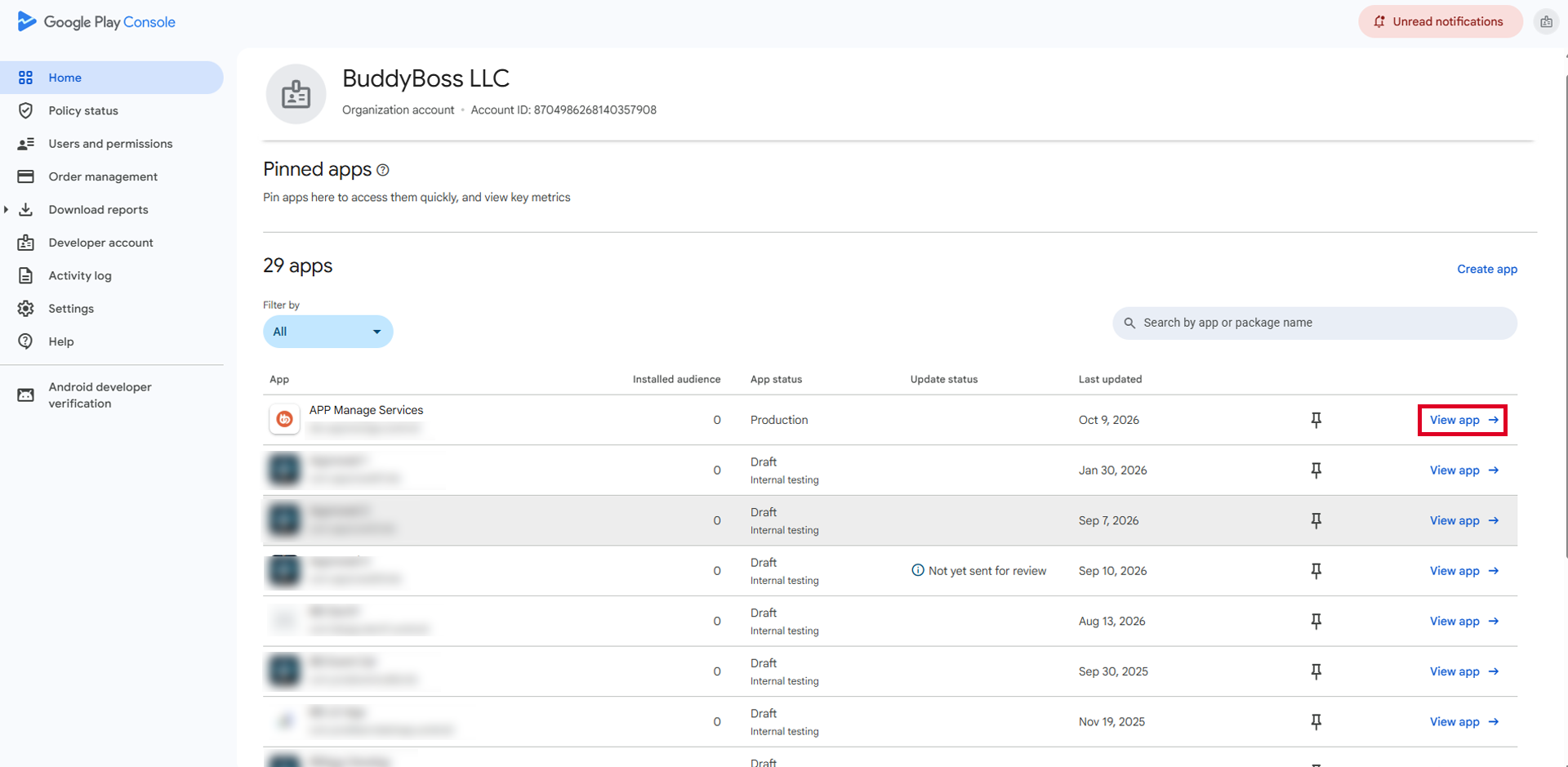
- Find your app and click View app.
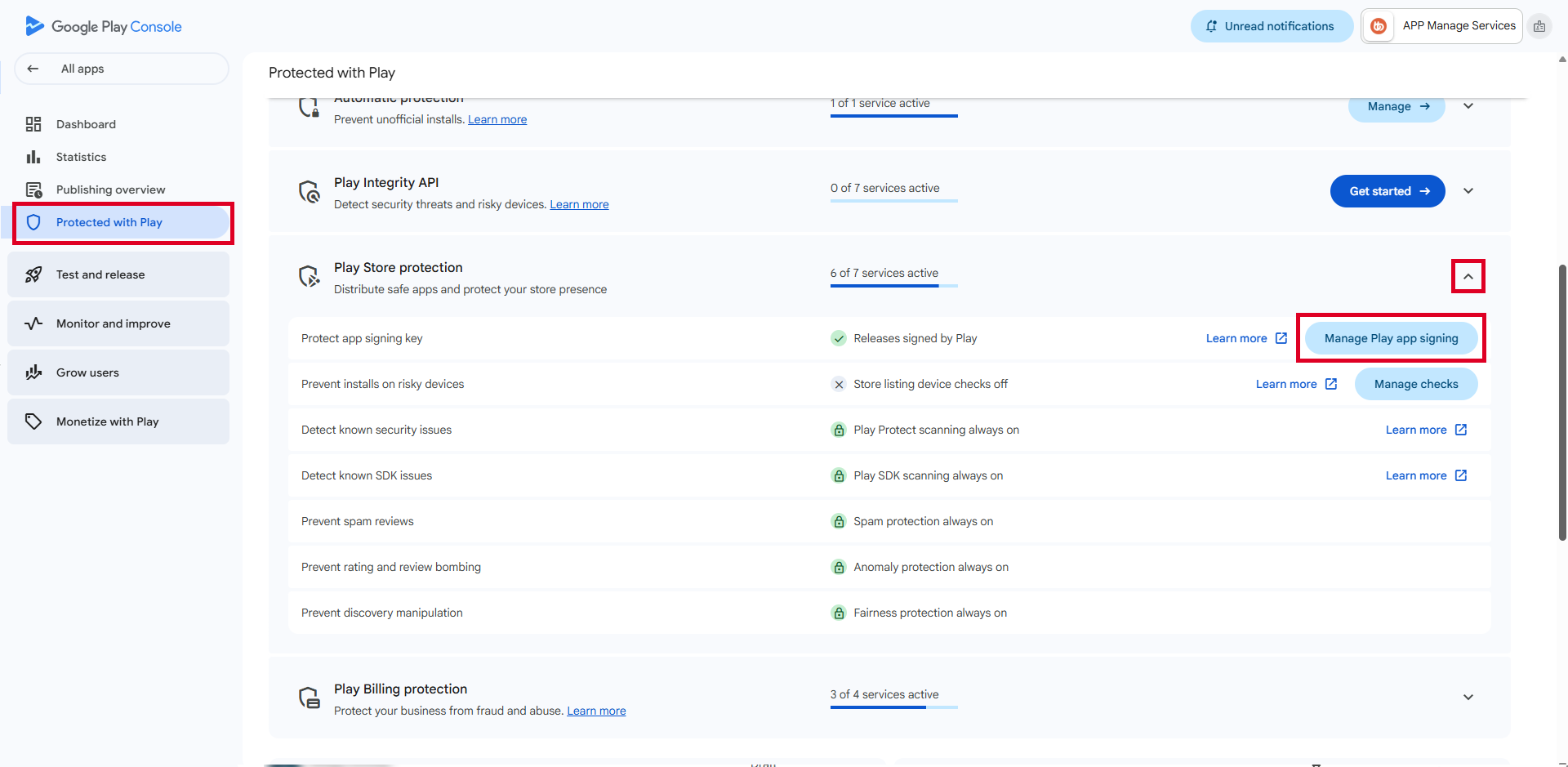
- Navigate to Protected with Play > Play Store protection > Manage Play app signing.
- Locate the App signing key section.
- Click SHA-256 certificate fingerprint to copy the fingerprint.
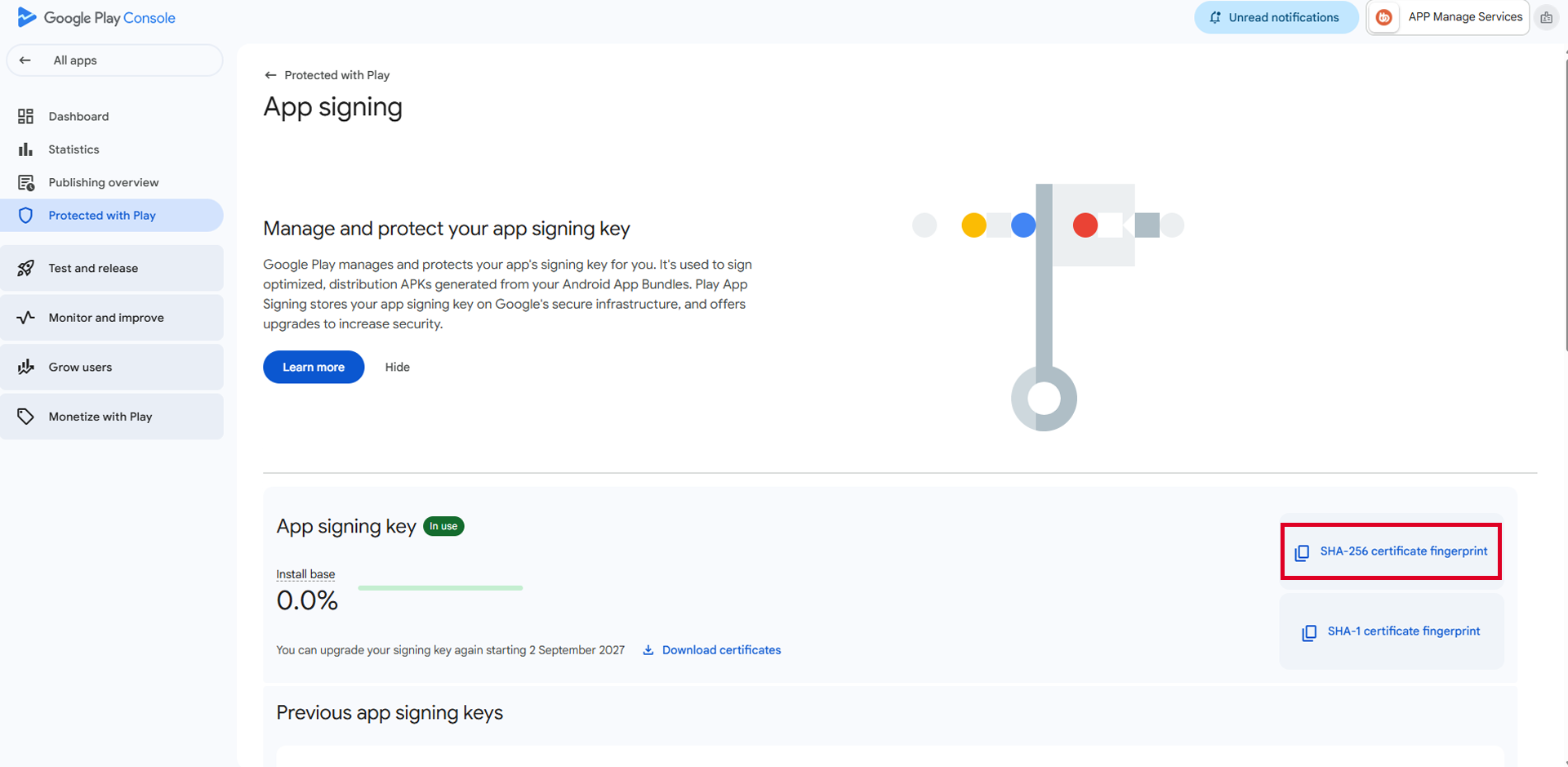
Important: Do not copy the fingerprint values listed under Upload key certificate. You must use the SHA-256 fingerprint associated with the App signing key, which Google Play uses to sign the app distributed to members.
Enable Android App Links
- In your WordPress Dashboard, navigate to BuddyBoss App > Configure > Android Settings.
- Scroll to Android App Links.
- Enable Android App Links.
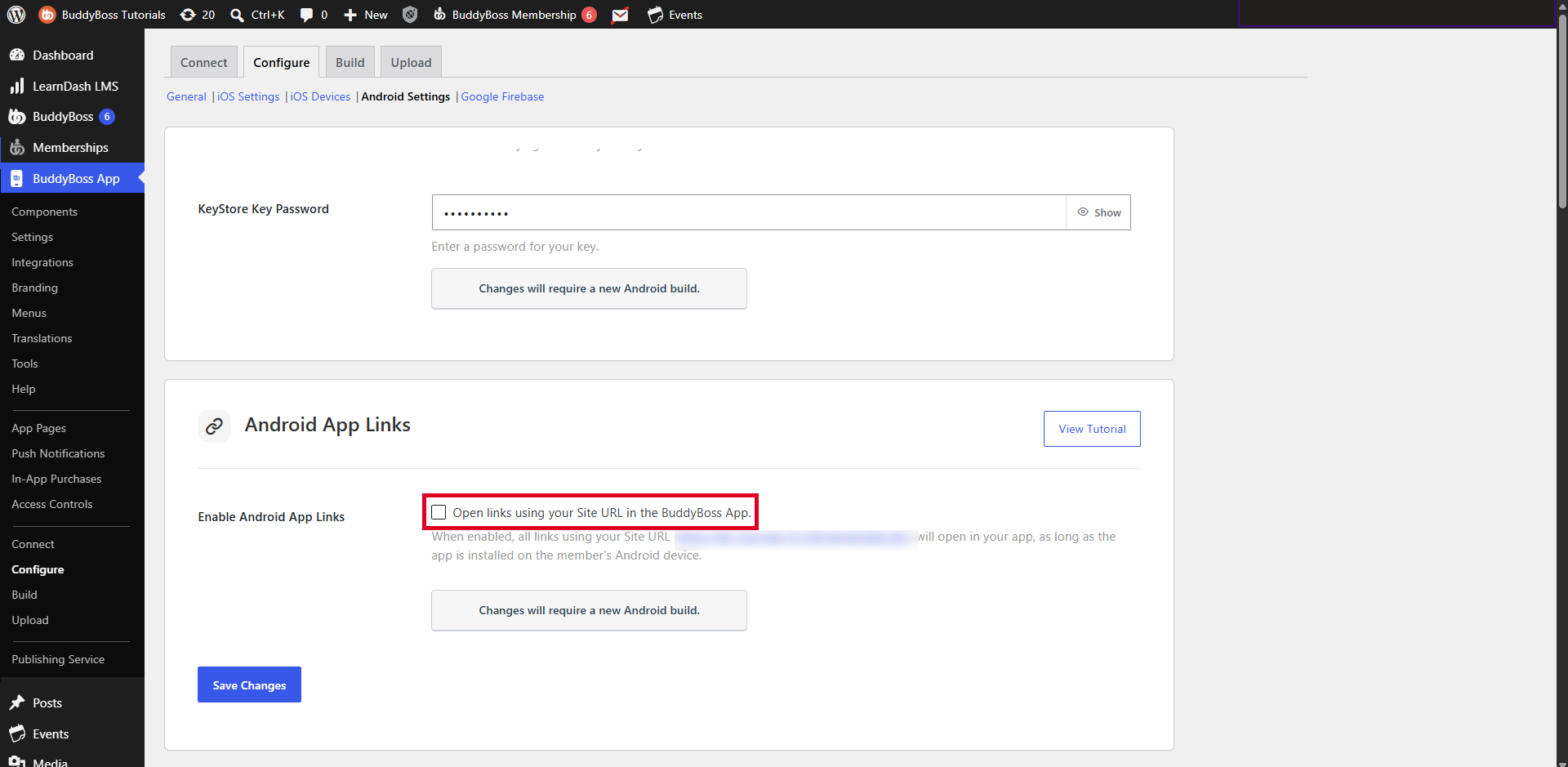
- Under Links to Open, select one of the following options:
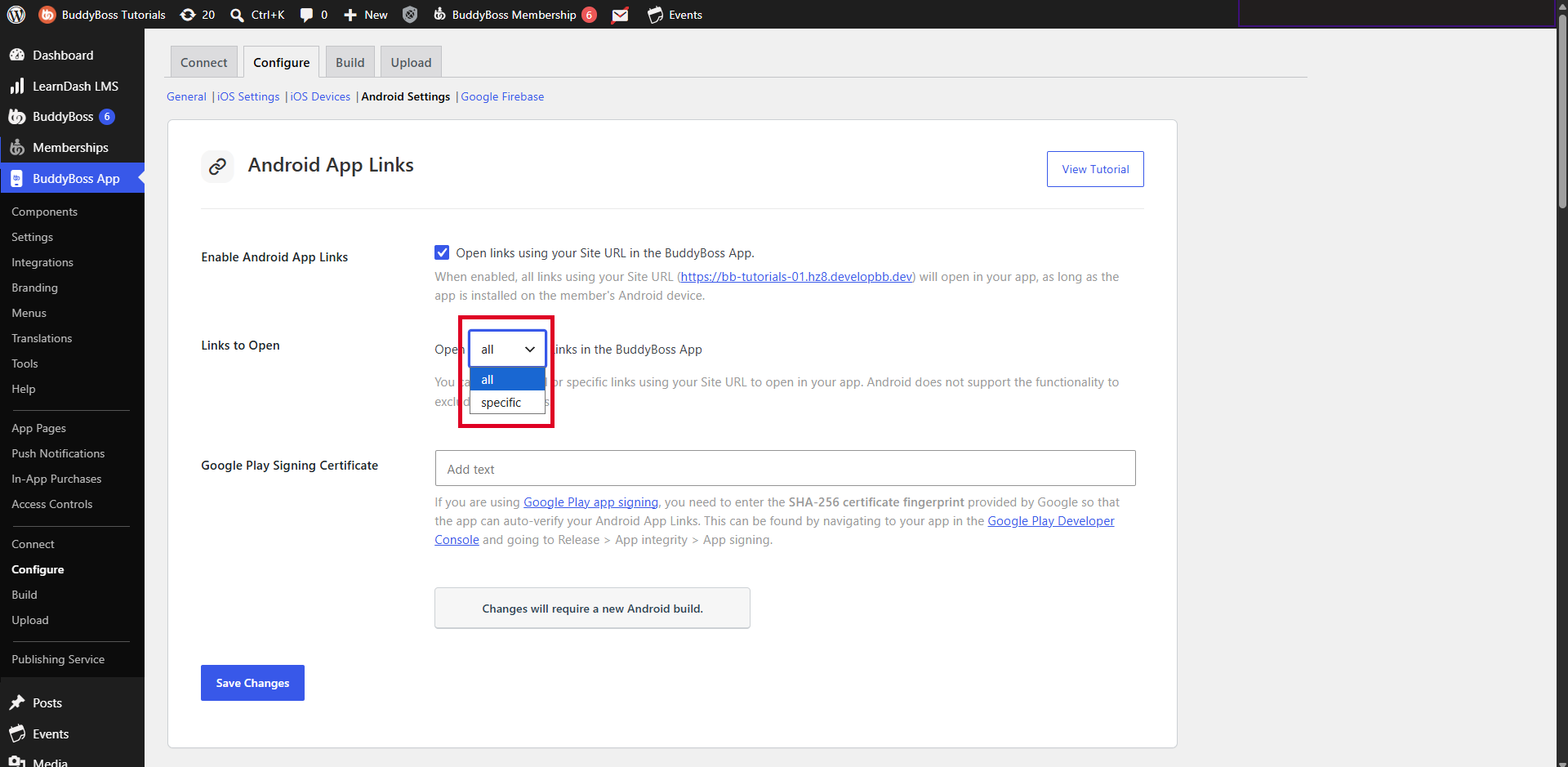
- All: Allow all supported website links to open in the app.
- Specific: Specify which website paths should open in the app.
If you select Specific under Links to Open, a text box appears where you can enter the website paths that should open in your BuddyBoss App. Add one path per line.
For example:
/groups/
/members/
/activity/
Only the supported website links matching the configured paths will be selected to open in the app.
Note: The Specific option is used to define which links should open in the app, not which links should be excluded.
- If you use Google Play App Signing, paste the copied SHA-256 certificate fingerprint into the Google Play Signing Certificate field.
- Click Save Changes.
Note: If the Android App Links section is not visible, your current BuddyBoss App plan may not include Android support.
Important: If a “Digital Asset Links Not Accessible” warning appears under the Android App Links toggle, your hosting environment may be blocking access to the assetlinks.json file. Contact your hosting provider and ask them to allow public access to:
https://yourdomain.com/.well-known/assetlinks.json
The file must be publicly accessible through HTTPS for Android to verify the association between your website and app.
Generate a New Android Build
After configuring Android App Links, generate a new Android build to apply your changes.
- Navigate to BuddyBoss App > Build.
- Click Request Build.
- Under Select Architecture, choose App Next Gen or BuddyBoss App (Legacy), depending on your app configuration.
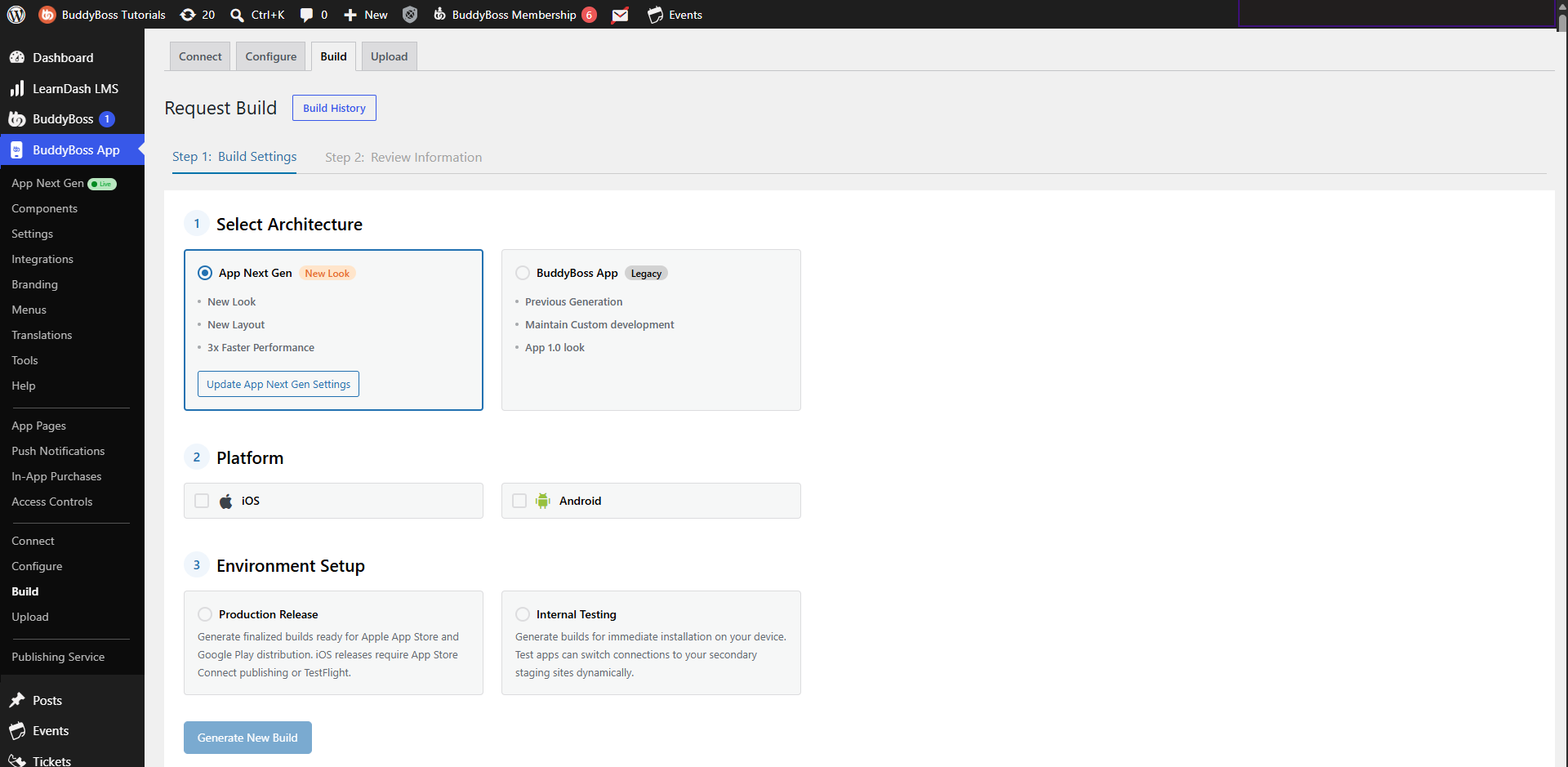
- Under Platform, select Android.
- Under Environment Setup, select Production Release or Internal Testing, depending on the build you need.
- Click Generate New Build.
- Review the build details under Review Information.
- Confirm and submit your build request.
Once the build is complete, install the updated Android app on your device to test the App Links configuration.
Verify Your Digital Asset Links JSON File
Android uses a Digital Asset Links JSON file (assetlinks.json) to verify the association between your website and Android app.
BuddyBoss automatically generates this file using your Android app configuration, KeyStore details, and Google Play signing certificate.
- Open a web browser.
- Navigate to the following URL, replacing yourdomain.com with your website’s domain:
https://yourdomain.com/.well-known/assetlinks.json
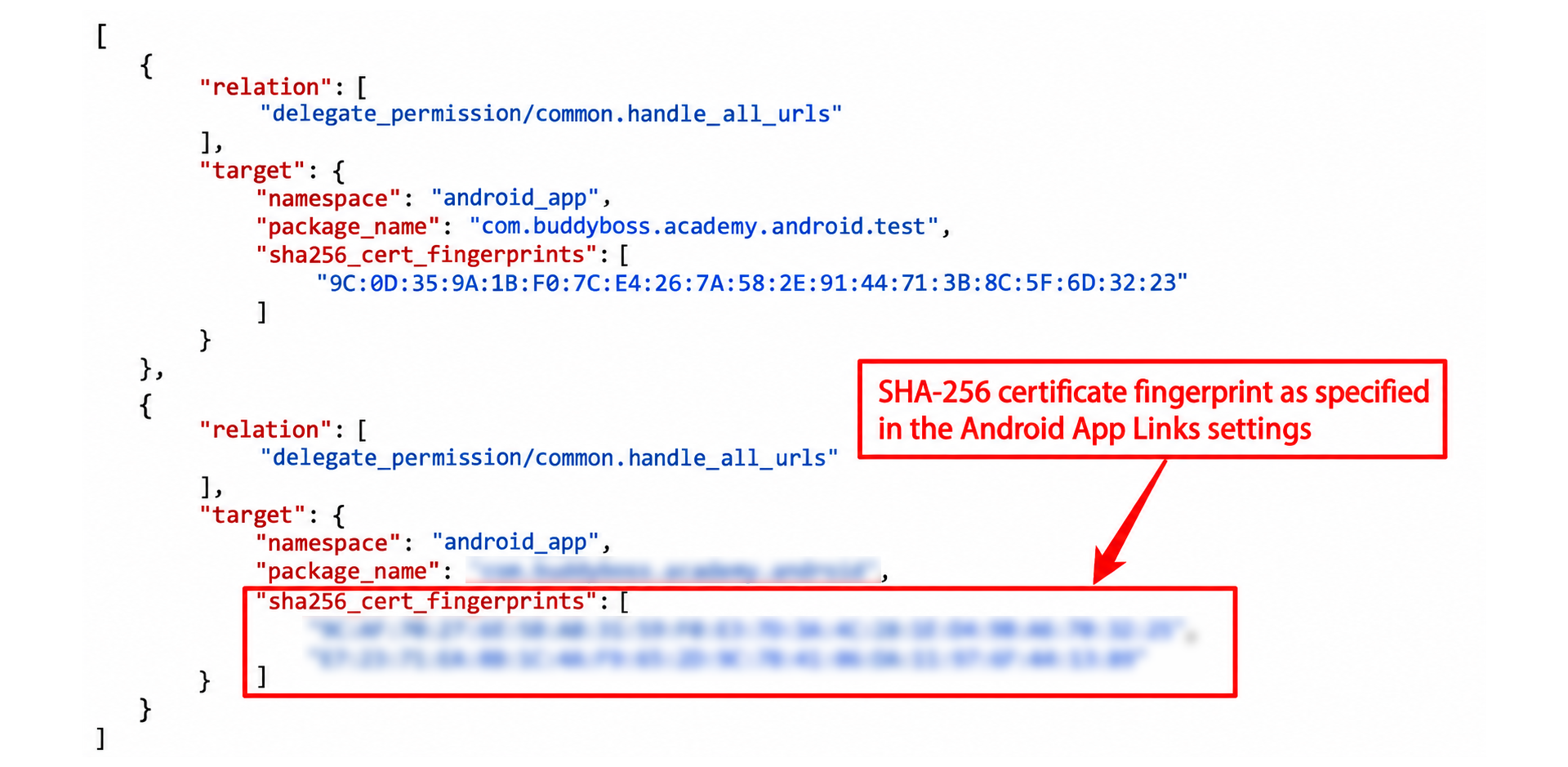
- Confirm that the URL displays a valid JSON response.
- Verify that the file contains two entries:
- Test App: Contains the package name and signing fingerprint associated with your Android Test App.
- Release App: Contains the package name and two signing fingerprints: your KeyStore certificate fingerprint and the Google Play SHA-256 certificate fingerprint you entered in BuddyBoss.
The JSON file must be publicly accessible through HTTPS without redirects.
Important: BuddyBoss automatically generates and manages the assetlinks.json file. You do not need to create or manually edit it.
If the file displays a missing data message, verify that your Android app is connected and all four KeyStore fields are completed under BuddyBoss App > Configure > Android Settings.