














Introduction
Managing navigation is key to delivering a smooth user experience in BuddyBoss ReadyLaunch. By learning how to configure header and sidebar menus, you can control which links appear at the top of your site and inside the app’s sidebar. This guide walks you through setting up, reordering, and customizing menus for consistent and intuitive navigation.
Setting the Header Menu
Choose the menu that appears in your site’s main navigation bar at the top of your site..
- Go to the ReadyLaunch > Menus > Menu Settings > Header.
- Choose the type of menu that you want to use as your Header menu. (e.g., ReadyLaunch Menu).
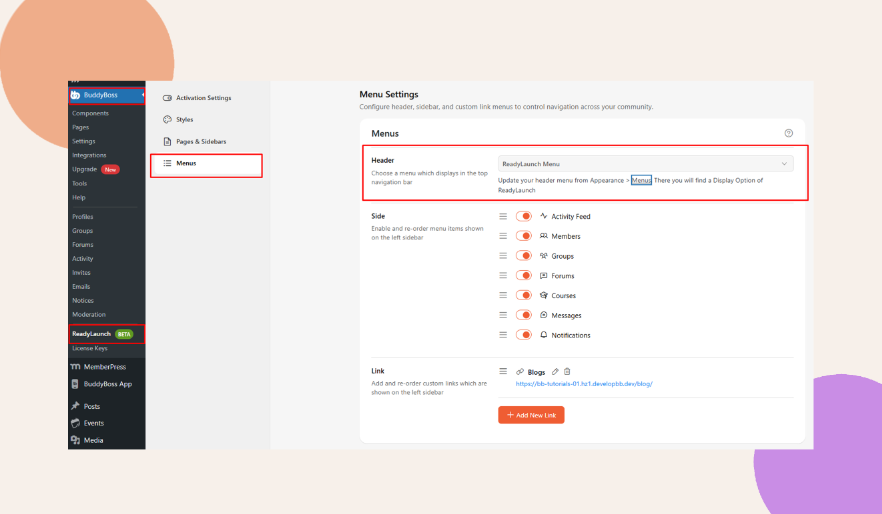
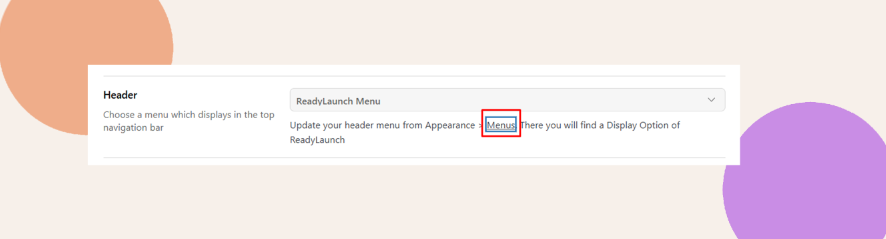

Header Menu
Configuring the Side Menu
Control what appears in the sidebar and allow reordering to improve the user experience.
- Under the ReadyLaunch > Menus > Menu Settings > Side section, enable or disable sidebar links using the toggles:
- Activity Feed
- Members
- Groups
- Courses
- Forums
- Messages
- Notifications
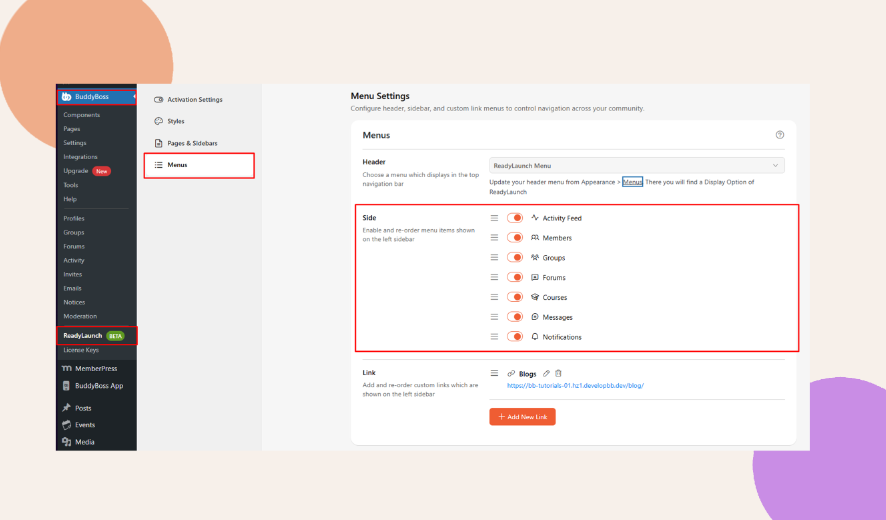
- Use the drag-and-drop handles to reorder items as needed.
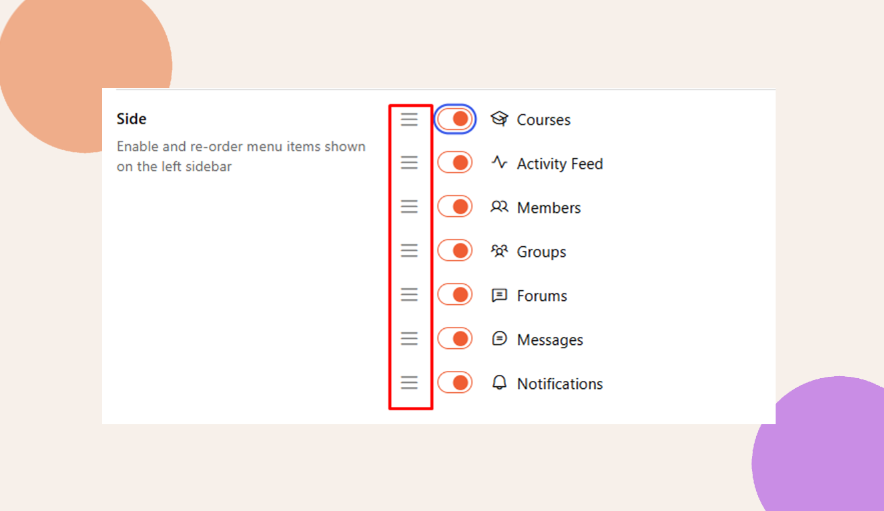
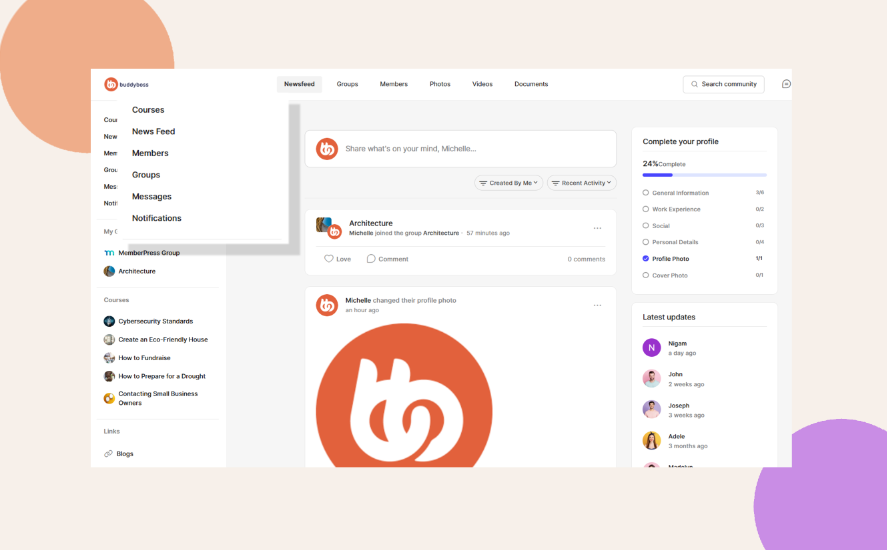
Side Menu
Adding Custom Side Menu Links
Insert new links to internal or external pages to expand your navigation.
- Scroll down to the ReadyLaunch > Menus > Menu Settings > Link section and click + Add New Link.
- Provide the Label and URL for your custom link.
- Example 1:
- Label: Test Link
- URL: https://www.google.com
- Example 1:
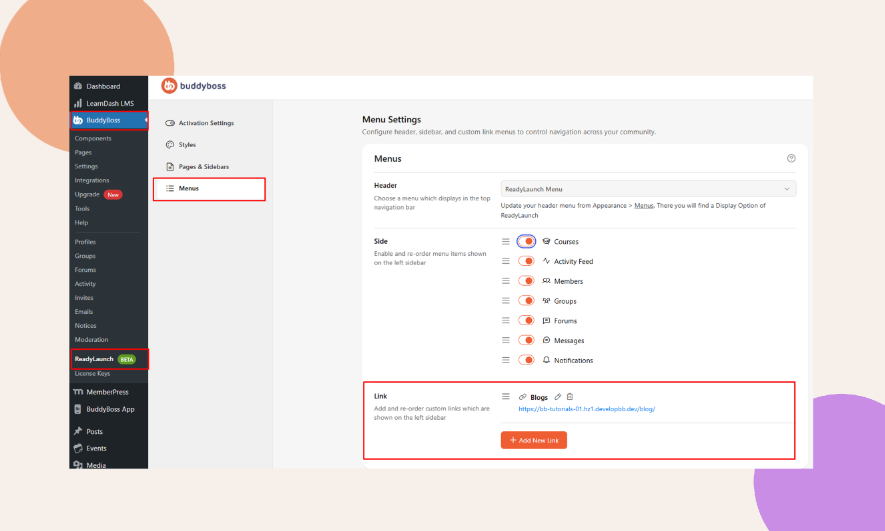
- Edit or delete links anytime using the icons beside each link.

Custom Link Menu
Troubleshooting and FAQs
Q: Why aren’t my menu changes appearing on the site?
A: Clear your caching plugin, then reload your browser.
Q: Can I reorder sidebar menus after saving?
A: Yes. Return to ReadyLaunch > Menus > Menu Settings > Side, drag items into a new order.