














Introduction
After creating your test builds in BuddyBoss App, you can install them on Android and iOS devices. Android uses a QR-based install directly from the build page, while iOS requires registering each device and installing a provisioning profile. Follow the steps below to install test builds on both platforms.
Install on Android Devices
- In WordPress, go to BuddyBoss App > Builds
- Filter to find your latest Android Test Build
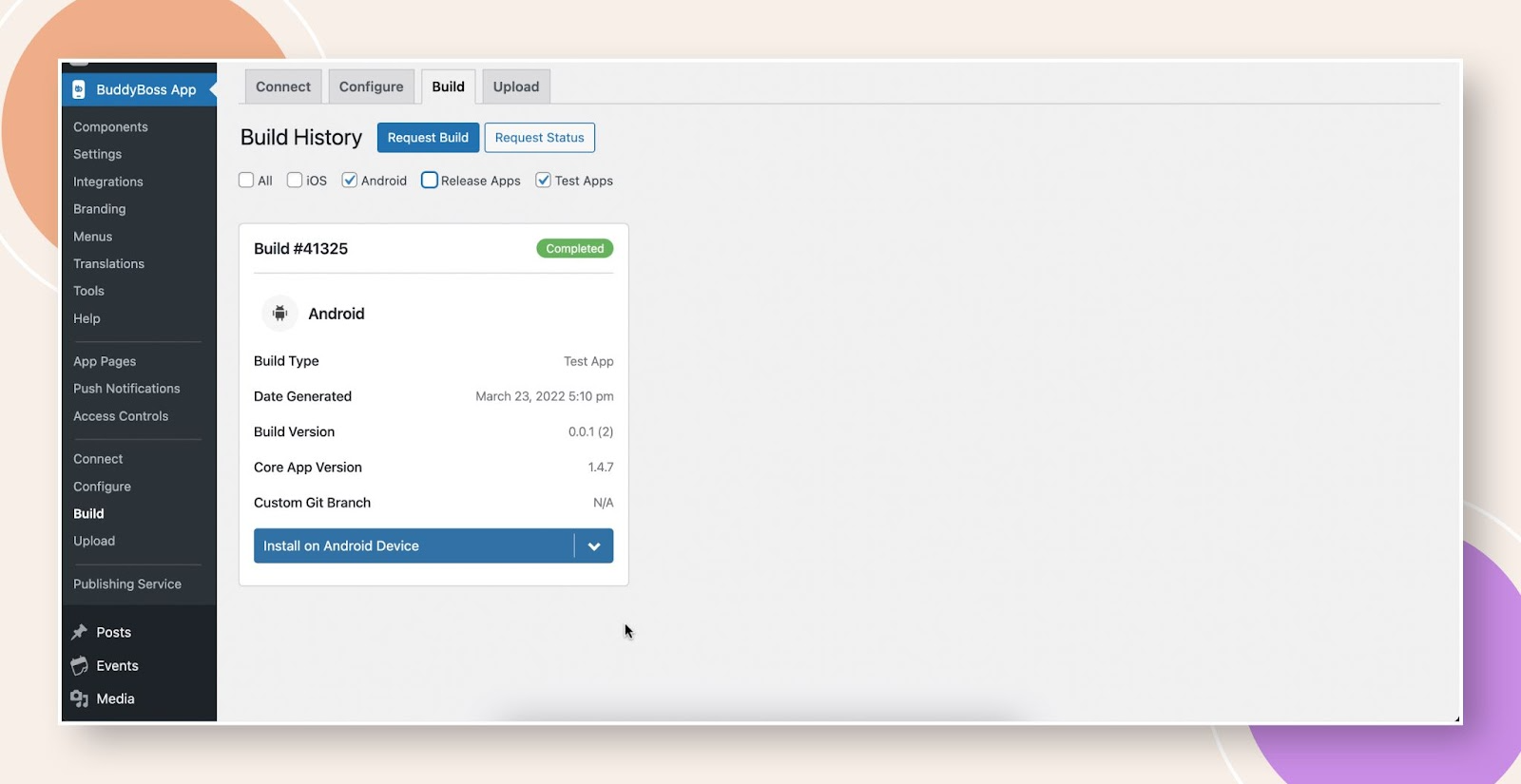
- Click Install on Android Device and scan the QR code
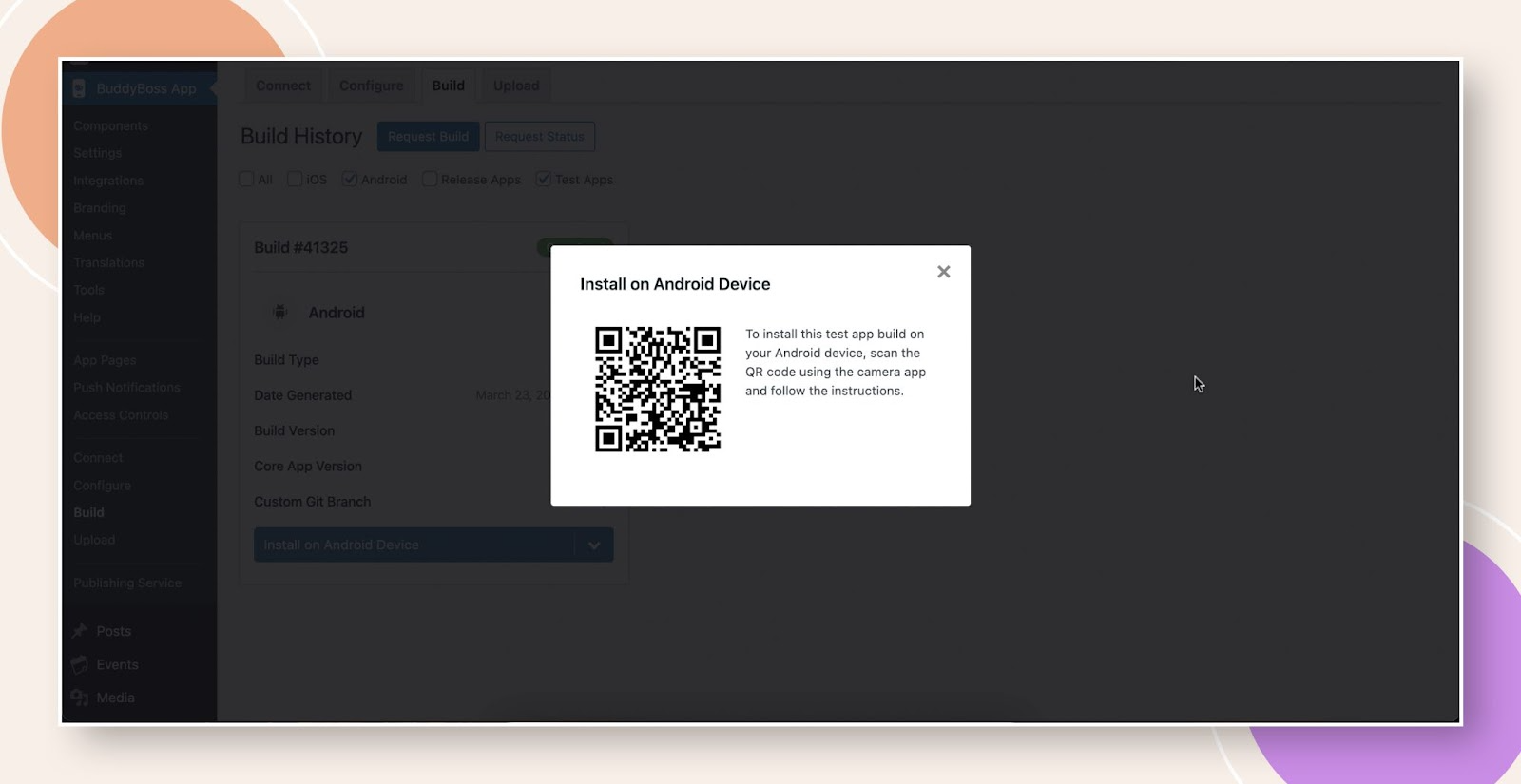
- Follow prompts to download and install the APK on your device
Install on iOS Devices
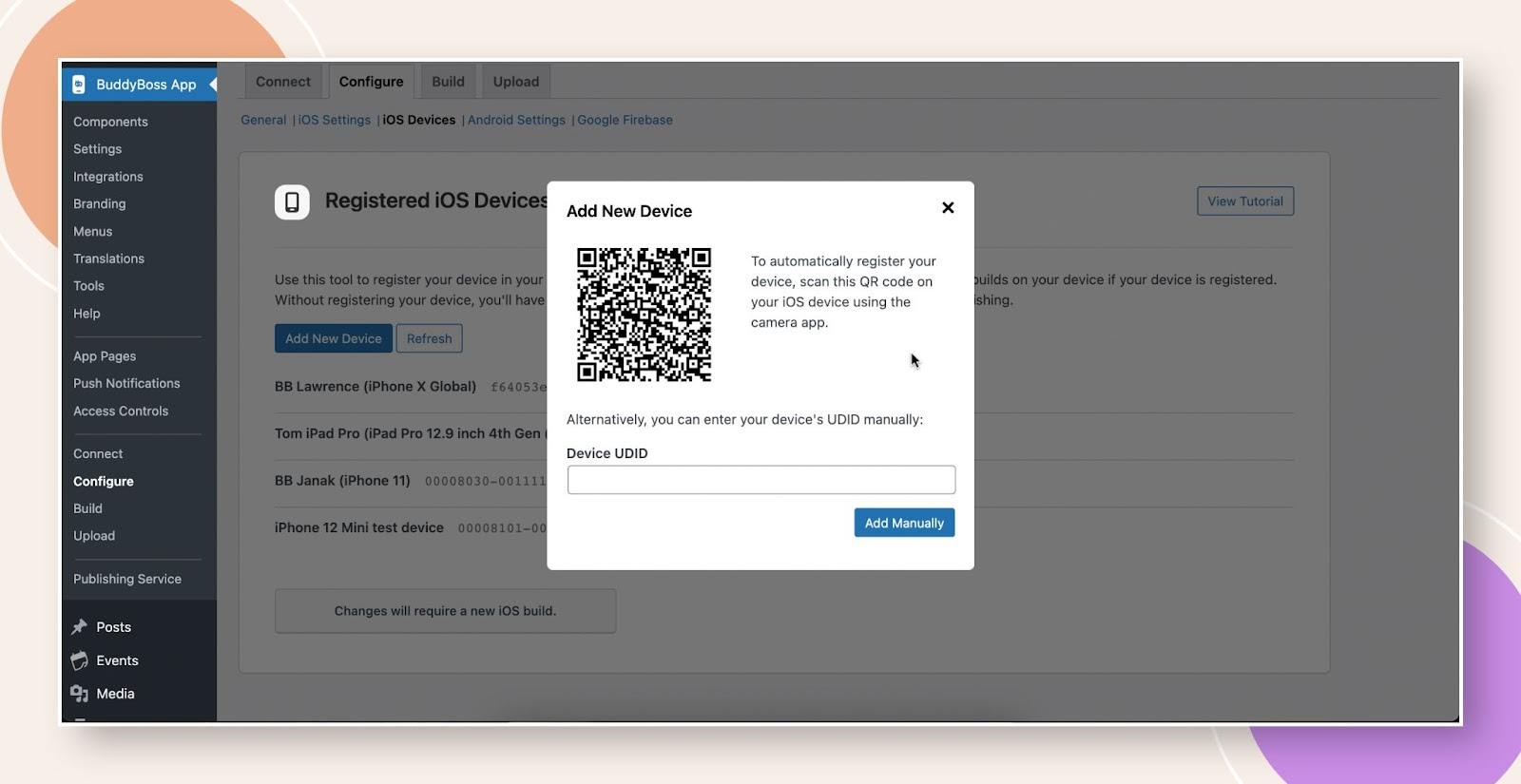
- In WordPress, go to BuddyBoss App > Configure > iOS Devices
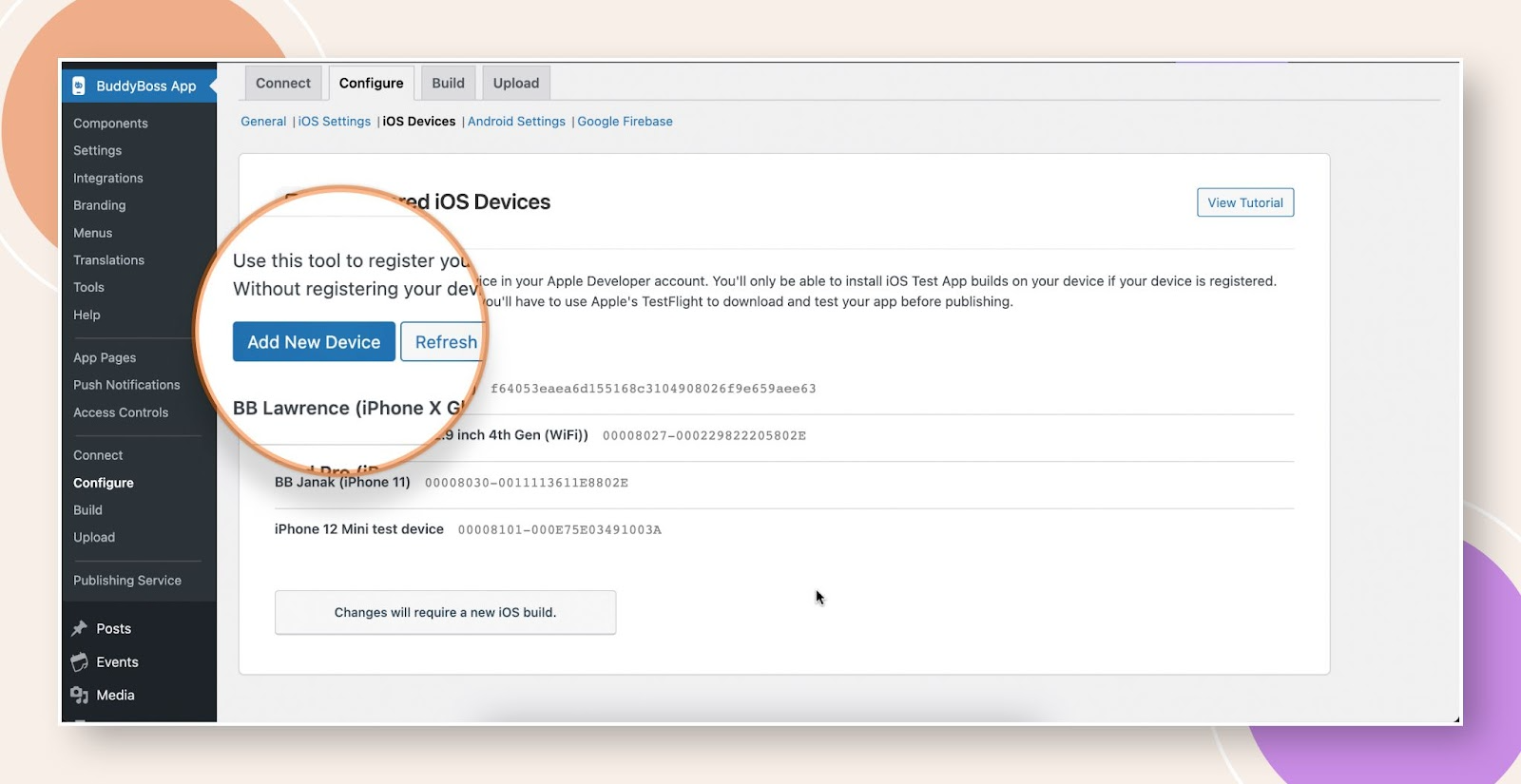
- Click Add New Device, then use Refresh to display newly added devices.
- Enter a device name and scan the QR code shown.
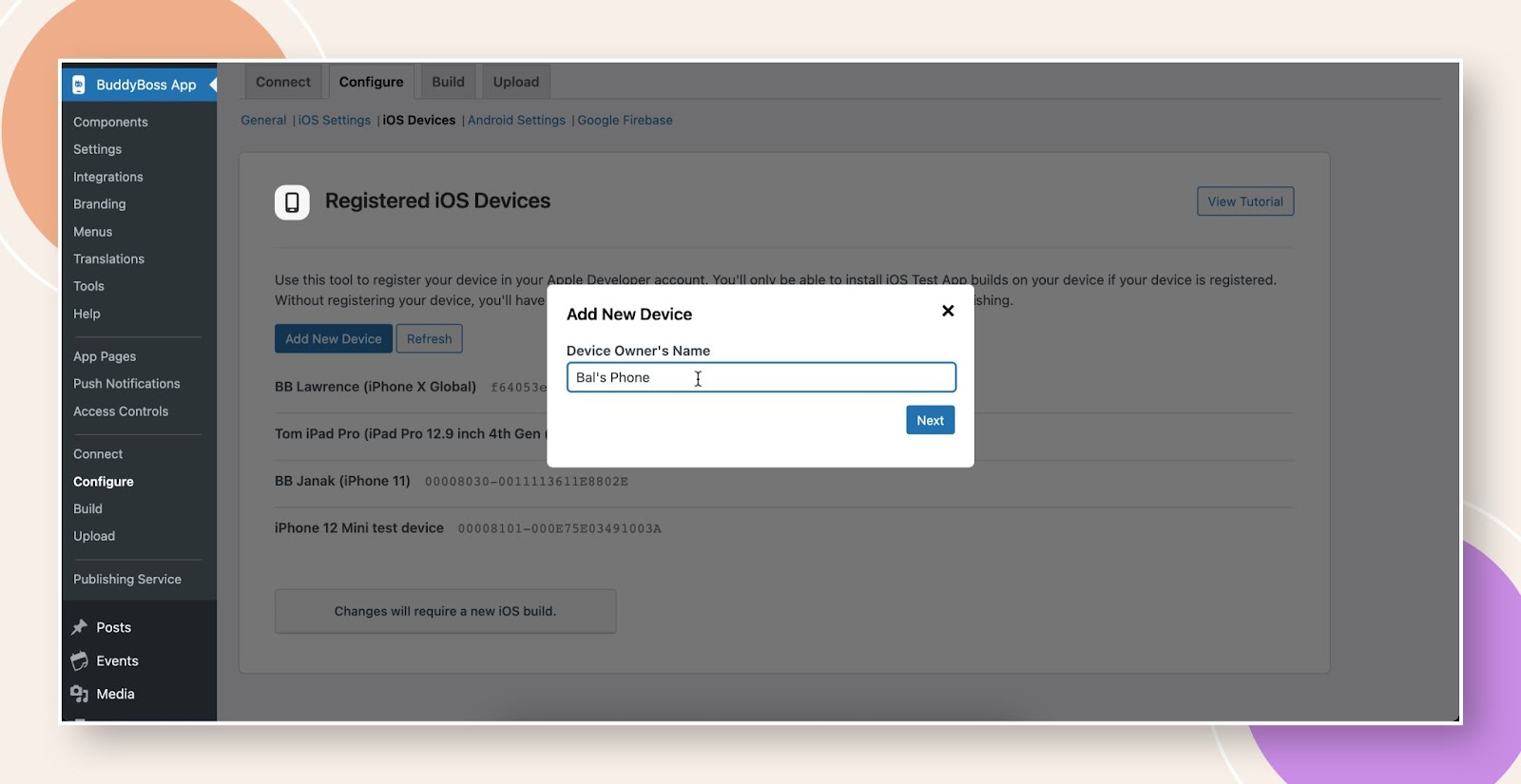
- Tap Allow on your iOS device to download the BuddyBoss provisioning profile.
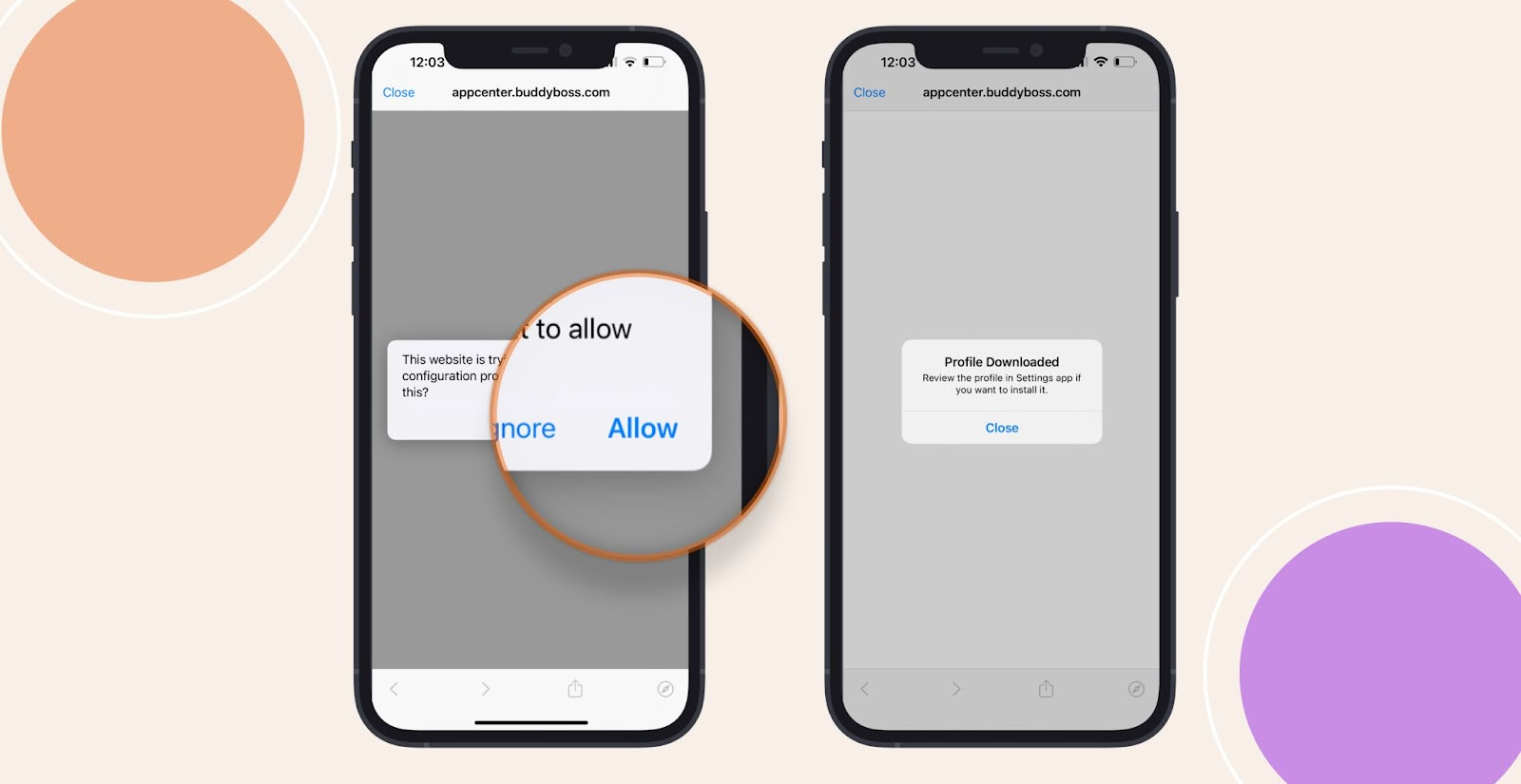
- Open Settings > Profile Downloaded, tap Install, then confirm.

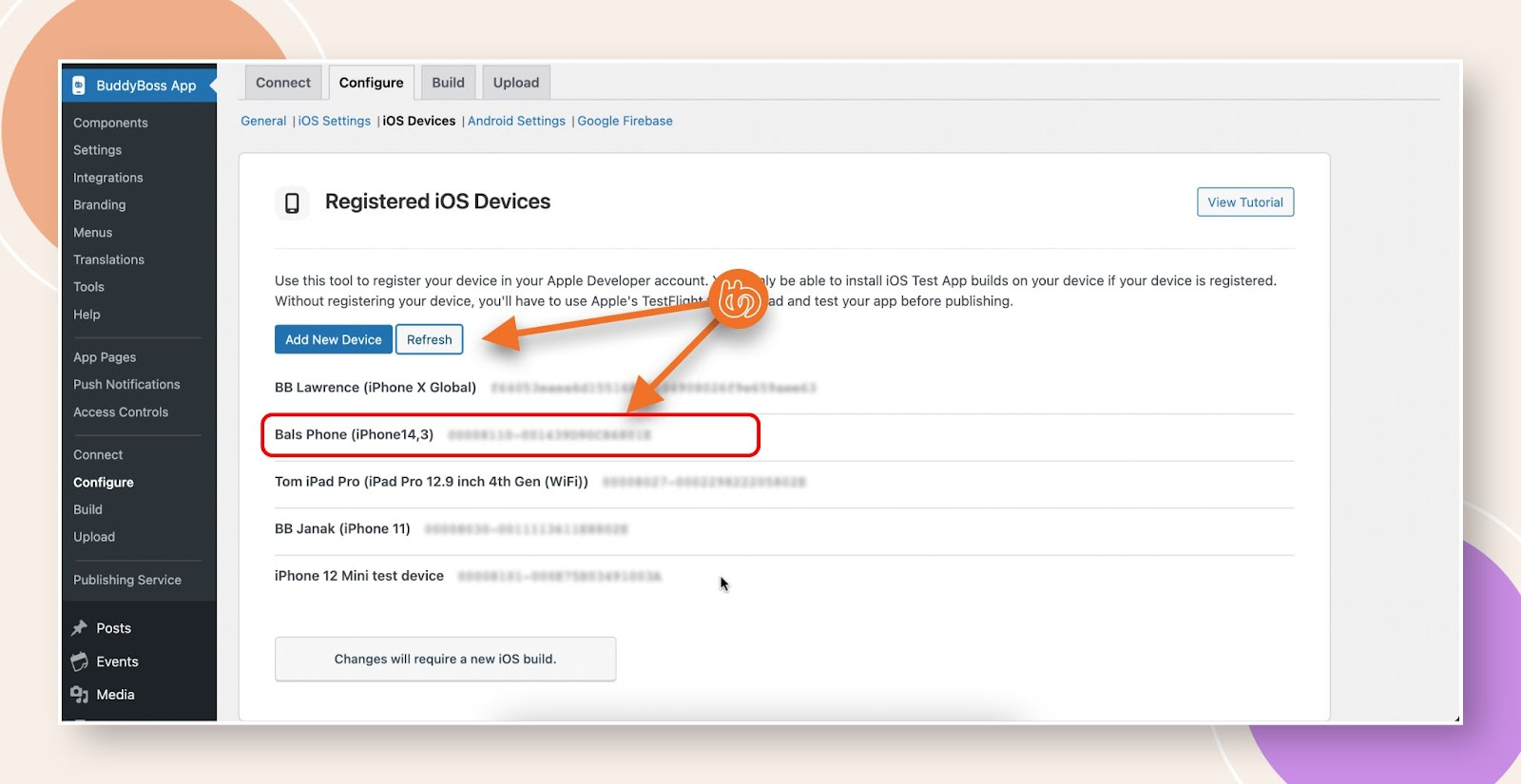
- Return to iOS Devices in WP Admin, close the QR popup, and click Refresh to verify your device.
Troubleshooting and FAQs
Q: My Android device won’t install from the QR code
A: Ensure QR scanning is enabled and that your device allows installations from unknown sources (for APKs outside the Play Store).
Q: My iOS device does not appear after scanning the QR code
A: Restart your device after installing the profile, then tap Refresh in iOS Devices.
Q: Test builds created before device registration won’t install on new iOS devices
A: Only test builds generated after registering a device can install on that device; register all devices first, then create a new test build.
Q: How can remote testers install test builds?
A: Share the QR code image via screenshot or message so they can scan and install on their devices.