














Introduction
The LoginPress plugin lets you modify the look-and-feel of the login page. The plugin includes customization of login error messages, registration error messages, forgot error messages, forget password hint message, and much more.
You do not need any coding skills to customize the login page of your website. LoginPress is built using the Customizer API for live-preview of any changes to the layout.
The plugin lets you customize the login error messages, login image, login page background image, login form look-and-feel, login form button styling, login page footer, and much more.
The BuddyBoss Theme styles and blends all the login forms seamlessly without breaking your site.
Installing the plugin
To install the plugin:
- Download the FREE LoginPress from the link below:
https://wordpress.org/plugins/loginpress/
Optionally, buy and download the Pro version –
https://wpbrigade.com/wordpress/plugins/loginpress-pro/ - Extract the downloaded loginpress.latest-stable.zip and the loginpress-pro.zip file to the WordPress plugins folder yourhostname/wordpress/wp-content/plugins
OR
Go to your WordPress Dashboard > Plugins > Add New. Click the Upload Plugin button. Browse to the download file location, select the loginpress.latest-stable.zip and the loginpress-pro.zip & install the plugin. - Click the Activate Plugin button to activate the LoginPress and LoginPress Pro plugin on your website. OR
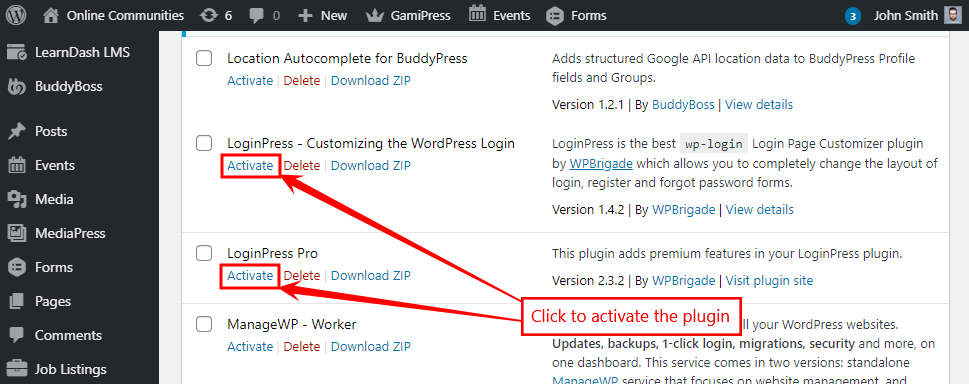
To activate the plugin on your website site go to WordPress Dashboard > Plugins and then click the Activate button for LoginPress and LoginPress Pro.
Setting up the plugin
To set up the LoginPress plugin:
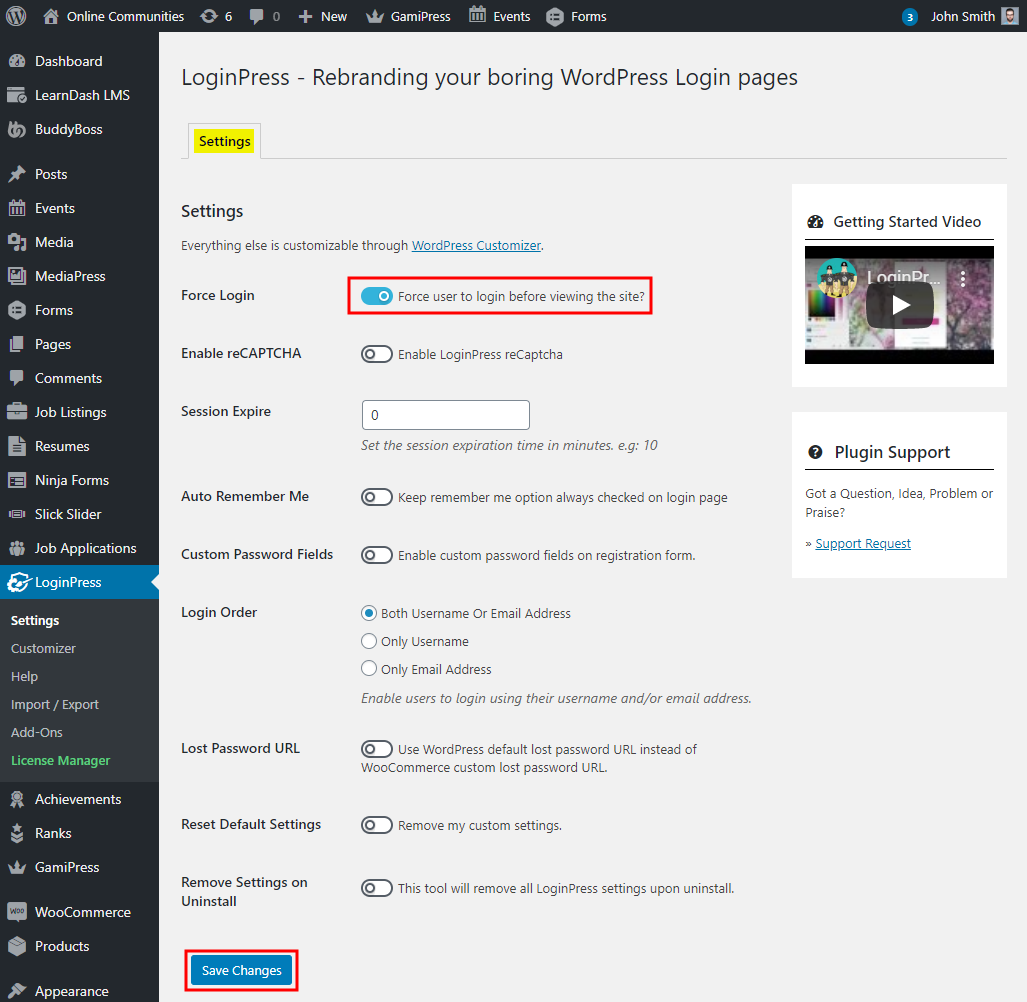
- Go to WordPress Dashboard > LoginPress > Settings.
- Make the preferred changes to the settings and then click the Save Changes button.
Applying a theme to the login page
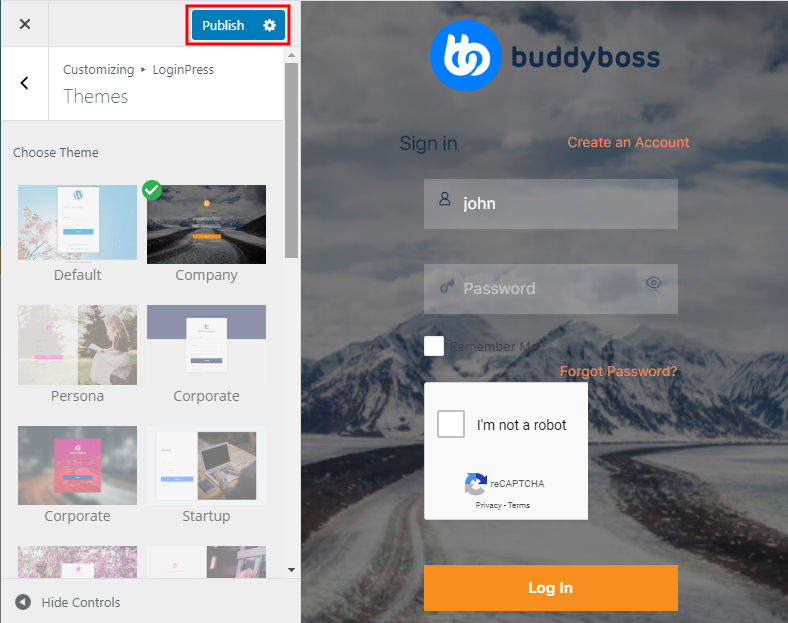
You can choose a theme for the login page from the existing themes by LoginPress using the built-in WordPress Customizer. To change the login page theme:
- Go to WordPress Dashboard > LoginPress > Customizer.
- Click the Themes menu to choose the login page theme of your website.
- Click the preferred theme for the login page from the available themes.
- Click the Publish button to apply the selected theme.
Similarly, you can completely customize the look-and-feel of the login page via WordPress Dashboard > LoginPress > Customizer > Customize Login Form.
For further setup and customizations, refer to the official documentation of LoginPress.