










Introduction
The Social Media Share Buttons & Social Sharing Icons plugin lets you add share icons for RSS, Email, Facebook, Twitter, LinkedIn, Pinterest, Instagram, Youtube, ‘Share’ (covering 200+ other social media platforms) and upload custom share icons of your choice to your website.
You can:
- Pick from 16 different designs for your social media share icons
- Give several actions to one social media share icon
- Decide to give your social media icons an animation to make your visitors aware of the share icons, increasing the chance that they follow/share your blog
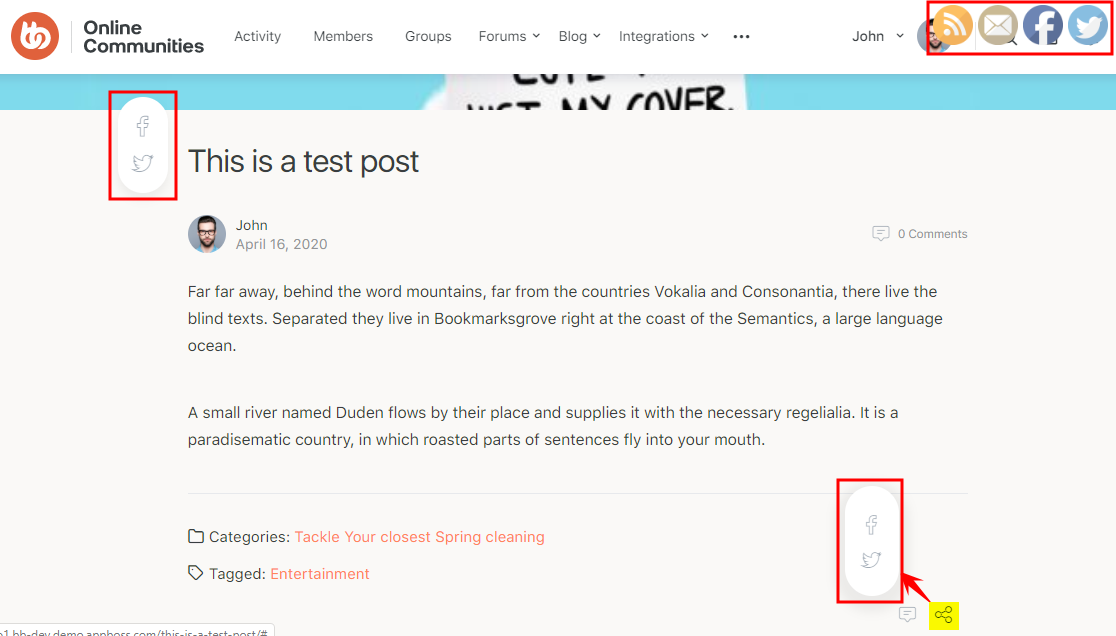
- Make your social media icons ‘float’ or ‘sticky’
- Allow visitors to subscribe to your blog by Email
- Add ‘counts’ to your social media buttons
- Decide to display a pop-up (on all or only on selected pages) asking people to follow/share you via your social media icons
- Decide to display sharing-buttons and social media icons at the end of every post
The BuddyBoss Theme blends in the social share icons beautifully within the website.
Installing the plugin
To install the plugin:
- Download the Social Media Share Buttons & Social Sharing Icons plugin from the link below
https://wordpress.org/plugins/ultimate-social-media-icons/ - Extract the downloaded ultimate-social-media-icons.zip file to the WordPress plugins folder yourhostname/wordpress/wp-content/plugins OR
Go to your WordPress Dashboard > Plugins > Add New. Click the Upload Plugin button. Browse to the download file location, select the ultimate-social-media-icons.zip & install the plugin. - Click the Activate Plugin button to activate the Social Media and Share Icons (Ultimate Social Media) plugin on your website. OR
To activate the plugin on your website site go to WordPress Dashboard > Plugins and then click the Activate button for Social Media and Share Icons (Ultimate Social Media).
Setting up the plugin
To set up the plugin:
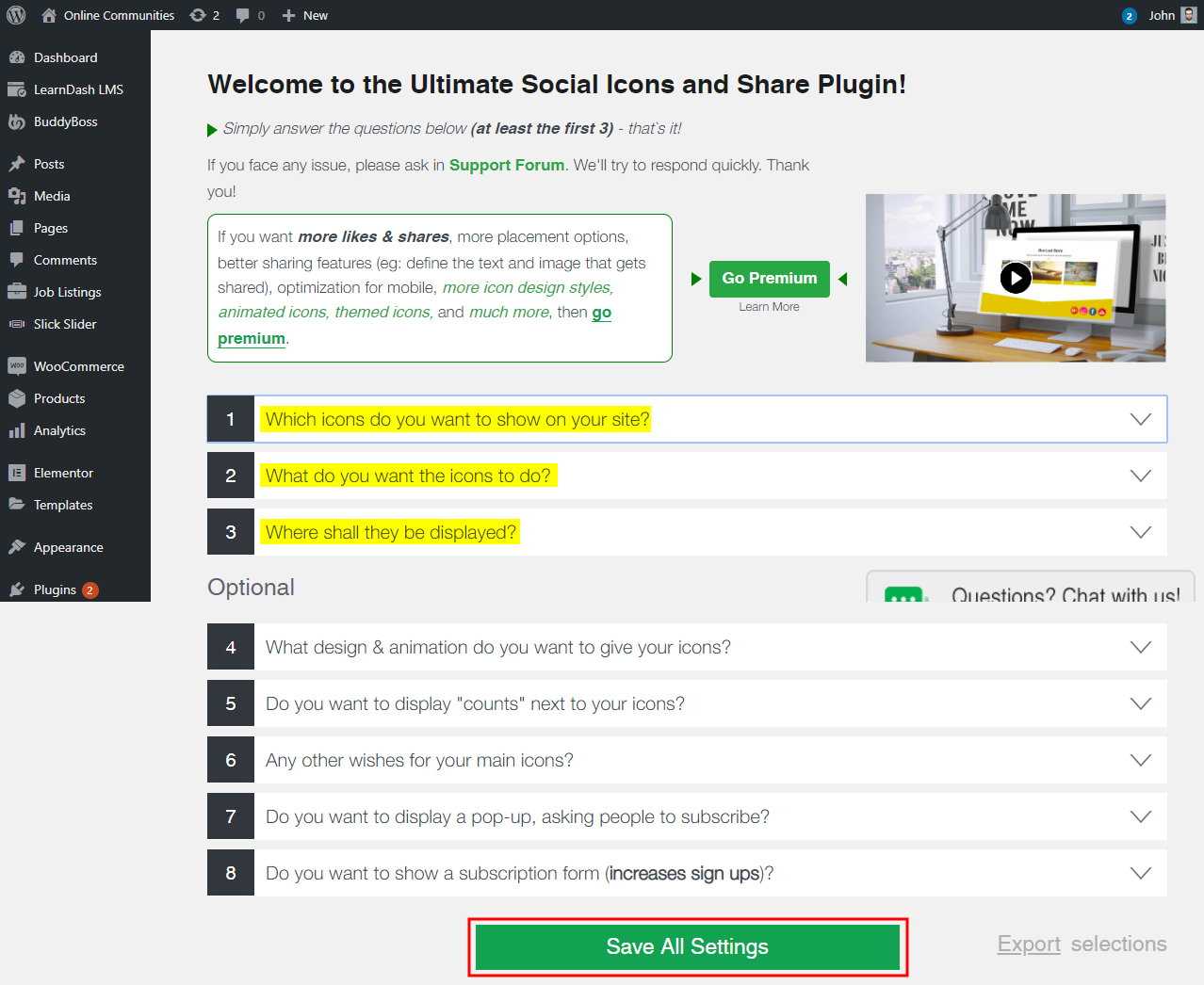
- Go to WordPress Dashboard > Ultimate Social Media Icons.
- Choose which social media icons you want to display.
- Define what actions your social media icons should perform.
- Select where you want to display the social media icons on your website.
- Pick design & animation options for your social media icons.
- Click the Save All Settings button to apply the settings.