














Introduction
WordPress’s built-in Theme Editor may be hidden by default on some hosting environments to enhance security. You can restore the Theme Editor option under Appearance either by requesting your host to allow file editing or by updating your wp-config.php file.
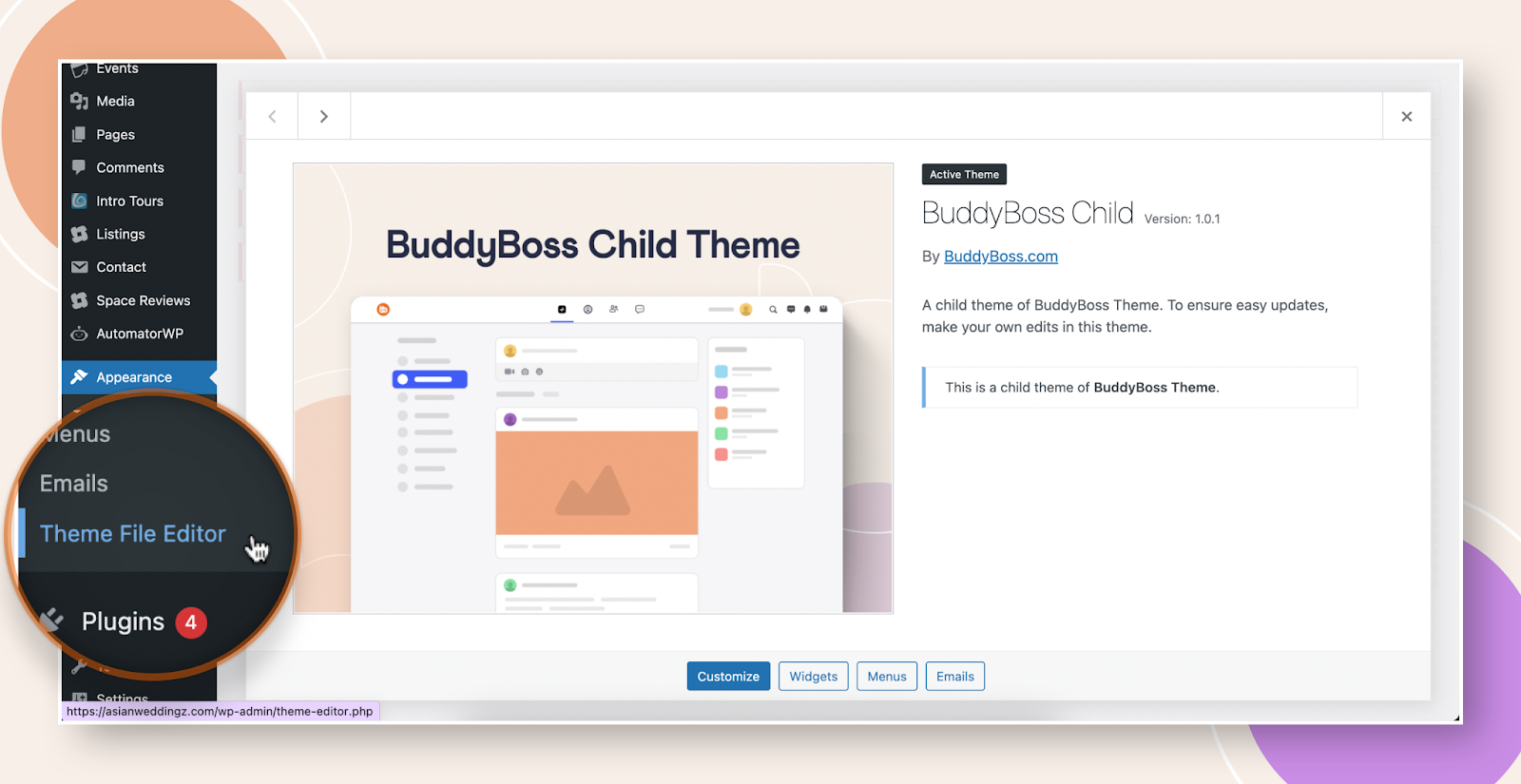
Method 1: Request Hosting Provider Enable File Editing
- Contact your hosting provider’s support team.
- Ask them to disable any restrictions on the Theme Editor or file editing in the WordPress dashboard.
- Once they confirm, refresh your admin Appearance menu to see Theme Editor.
Method 2: Enable via wp-config.php
- Access your site’s files via FTP or your hosting control panel’s File Manager.
- Open the wp-config.php file in the root of your WordPress installation (e.g., public_html/wp-config.php).
Add or update this line anywhere before the “That’s all, stop editing” comment:
/** Enable or Disbale Theme Editor option for WordPress */
define('DISALLOW_FILE_EDIT', false);- Save the file and refresh your WordPress admin Appearance menu. Theme Editor should now be visible.
Troubleshooting and FAQs
Q: I updated wp-config.php but still don’t see Theme Editor—what next?
A:
- Clear any caching (object cache, page cache, or CDN) and reload the dashboard.
- Confirm you saved edits to the correct wp-config.php file in your WordPress root.
Q: Will enabling the Theme Editor affect security?
A: Allowing file editing in the dashboard can pose a risk if unauthorized users gain access. Limit admin accounts and use strong passwords.
Q: How can I disable the Theme Editor again?
A: Change the constant in wp-config.php to define( ‘DISALLOW_FILE_EDIT’, true );, save, and refresh the admin.
Q: Who can help if these methods don’t work?
A: Submit a support ticket via your BuddyBoss account dashboard for further assistance.