














Why Can’t I Insert Certain Elementor Templates?

Introduction

Some BuddyBoss Elementor templates require additional plugins before they can be used. If a required plugin is missing or inactive, the template will display an Unavailable message, and you’ll see a View Requirements option instead of the Insert button.

This guide explains how to check a template’s requirements, activate the necessary plugins, and identify which templates depend on Elementor Pro, LearnDash LMS, or both.

Check a Template’s Requirements 

Navigate to your WordPress Dashboard. Hover to Pages and click on Add New. 
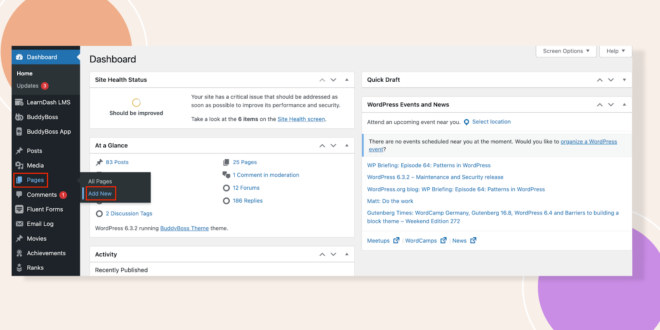
WordPress admin dashboard showing Pages menu with Add New option highlighted in the left navigation
image

This will lead you to a page where you can customize your page. Here, click on Edit with Elementor button. 
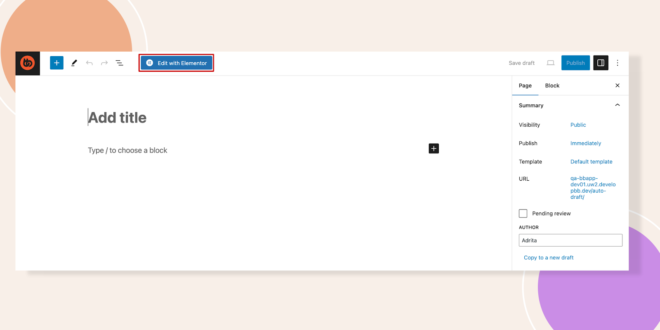
WordPress editor screen with Elementor Add title prompt highlighted Edit with Elementor button and right sidebar draft settings
image

On this customization page of Elementor, click on the BuddyBoss logo.
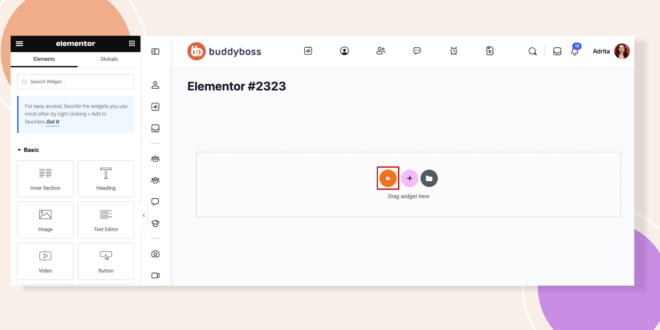
Elementor editor screen showing a page titled Elementor 3233 with a left widget panel and a dotted drop zone in the content area
image

For example, under Sections, press on Contact Form. In the templates, you will see the Unavailable notice.  
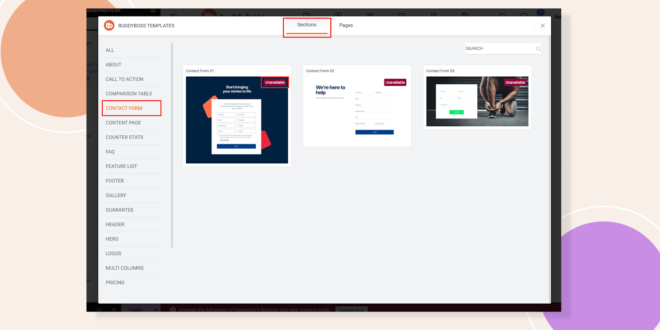
UI screenshot of BuddyBoss templates panel with Sections tab selected left navigation highlights CONTACT FORM and three form thumbnails displayed two labeled Unavailable
image

If you hover over the templates, you will see the View Requirements option.
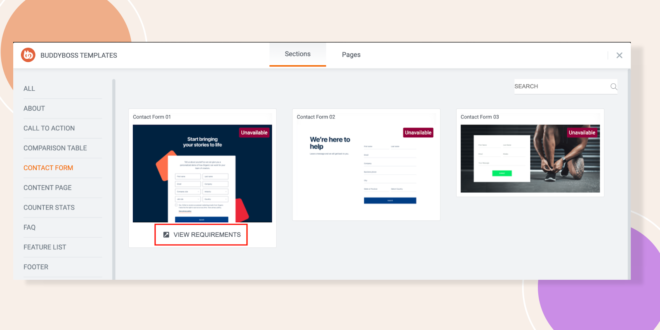
Screenshot of a BuddyBoss template library UI left vertical navigation with sections a main content area showing three template cards the first card highlighted with a red outline around a VIEW REQUIREMENTS button
image

In the same way, you will see in the Pages option. 
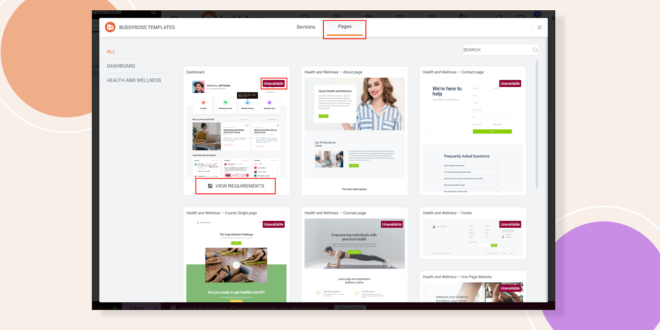
Screen showing BuddyBoss Templates Pages tab active grid of page templates with Unavailable badges and a left category list
image

Again from your WordPress dashboard, navigate to Plugins and Activate the Elementor Pro and LearnDash LMS plugins. 
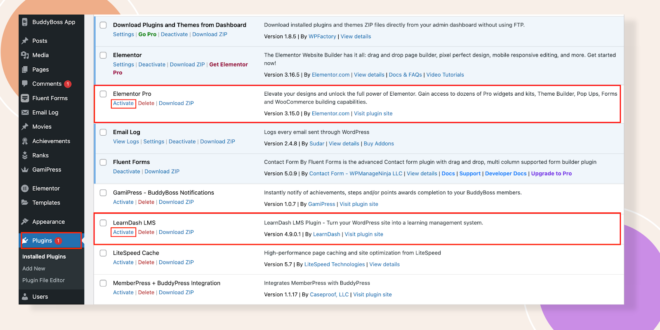
WordPress Plugins page showing installed plugins Elementor Pro and LearnDash LMS highlighted with Activate options
image

Now if you go to your templates you can Insert it. 
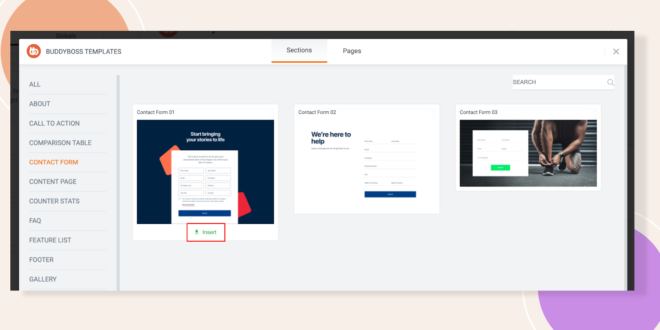
Admin dashboard screenshot showing Buddypress Templates gallery left navigation with sections three contact form previews and an Insert button under the first form
image

You will see the same thing in the Pages. 
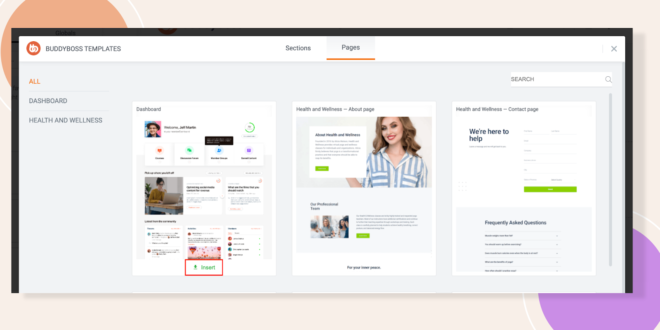
Screenshot of BuddyBoss Templates showing a Pages gallery with three template previews a left sidebar with ALL DASHBOARD HEALTH AND WELLNESS and an Insert button highlighted under the first template
image

Templates That Require Elementor Pro

The following templates require Elementor Pro to be activated:

Sections

  • Contact Form
  • Footer Template
  • Header Template
  • Pricing Template
  • Testimonial Template (Template #3 only)

Pages

  • Contact Page
  • Course Single Page
  • Footer Page (Templates #1–4 only)
  • Header Page
  • Pricing Page

Templates That Require LearnDash LMS

The following pages require LearnDash LMS to be activated:

  • Dashboard
  • Course Page
Was this article helpful?

Related Articles

Subscribe to Our Newsletter

Stay In Touch

Subscribe to our Newsletter, and we’ll send you the latest news from BuddyBoss

This field is for validation purposes and should be left unchanged.
This field is hidden when viewing the form