














Introduction
The BuddyForms is a powerful drag-and-drop form builder that allows you to create contact forms, registration forms, post submission forms, and other frontend forms without writing code. It includes ready-made templates and an intuitive form wizard, making it easy to build custom forms for your website.
BuddyForms integrates seamlessly with the BuddyBoss Theme, ensuring that forms match your community’s design and layout.
Installing the plugin
The integration works with the BuddyBoss Theme and blends any contact form added to a post or page seamlessly.
- Download the BuddyForms Contact – Registration – Post Form Builder & FrontEnd Editor plugin from the link below
https://wordpress.org/plugins/buddyforms/ - Extract the downloaded buddyforms.zip file to the WordPress plugins folder yourhostname/wordpress/wp-content/plugins OR
Go to your WordPress Dashboard > Plugins > Add New. Click the Upload Plugin button. Browse to the download file location, select the buddyforms.zip & install the plugin. - Click the Activate Plugin button to activate the BuddyForms plugin on your website. OR
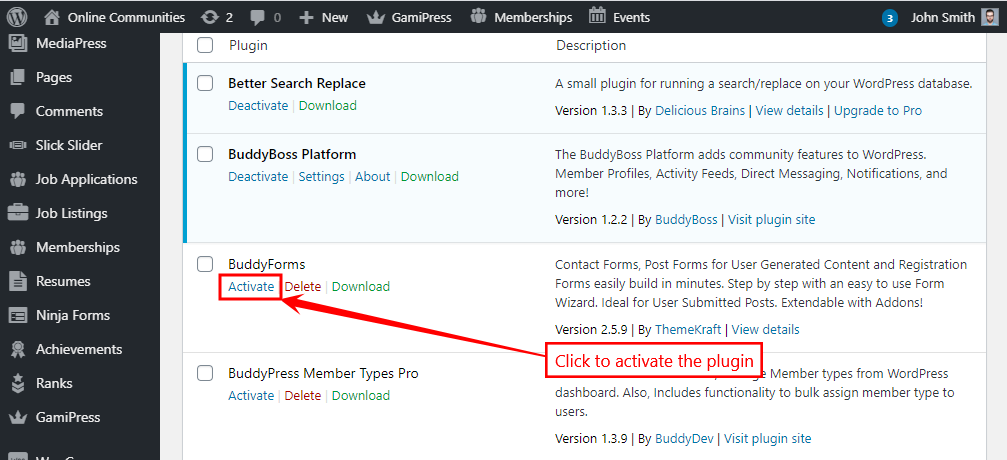
To activate the plugin on your website site go to WordPress Dashboard > Plugins and then click the Activate button for BuddyForms.
Creating a new BuddyForms form
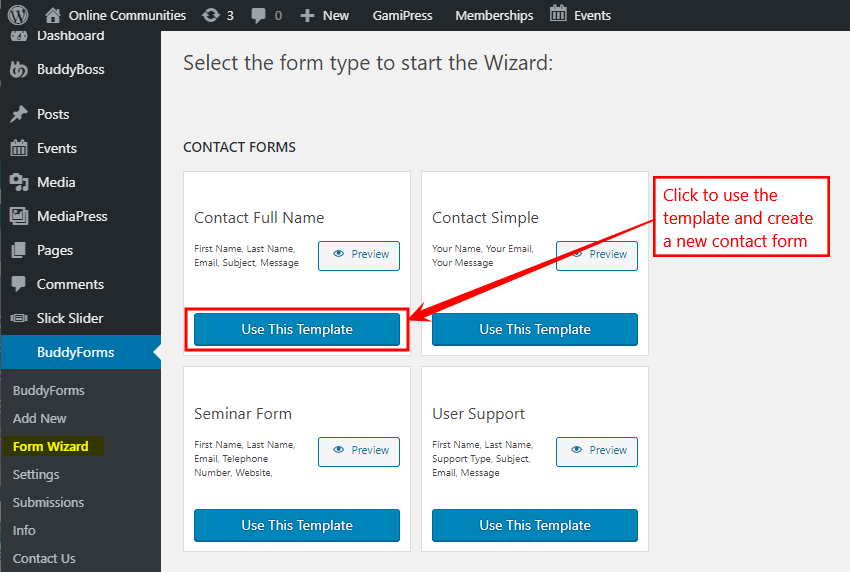
- Go to WordPress Dashboard > BuddyForms > Form Wizard and select the preferred template. For example, let’s create a contact form using the pre-defined Contact Full Name template.
- Click the Use This Template button for the Contact Full Name template.
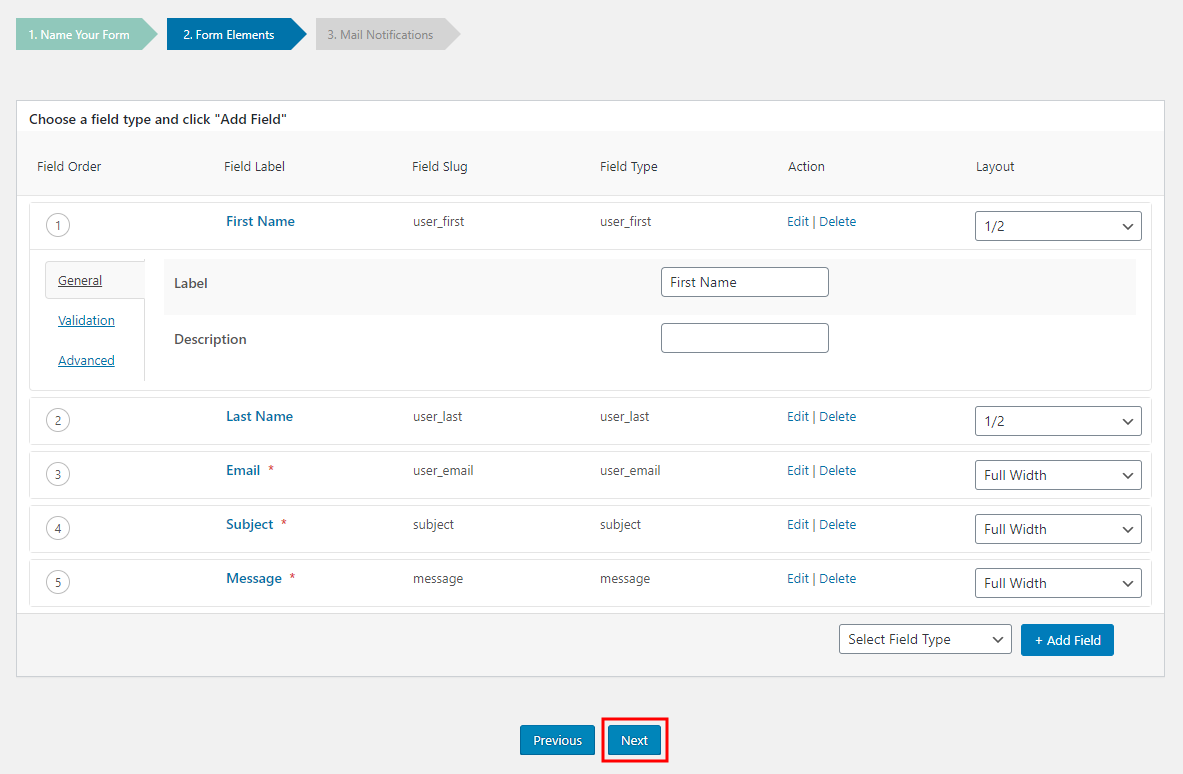
- Add a title for the form in the Name Your Form section and then click the Next button.
- Drag-and-drop and edit the form fields as preferred and then click the Next button.
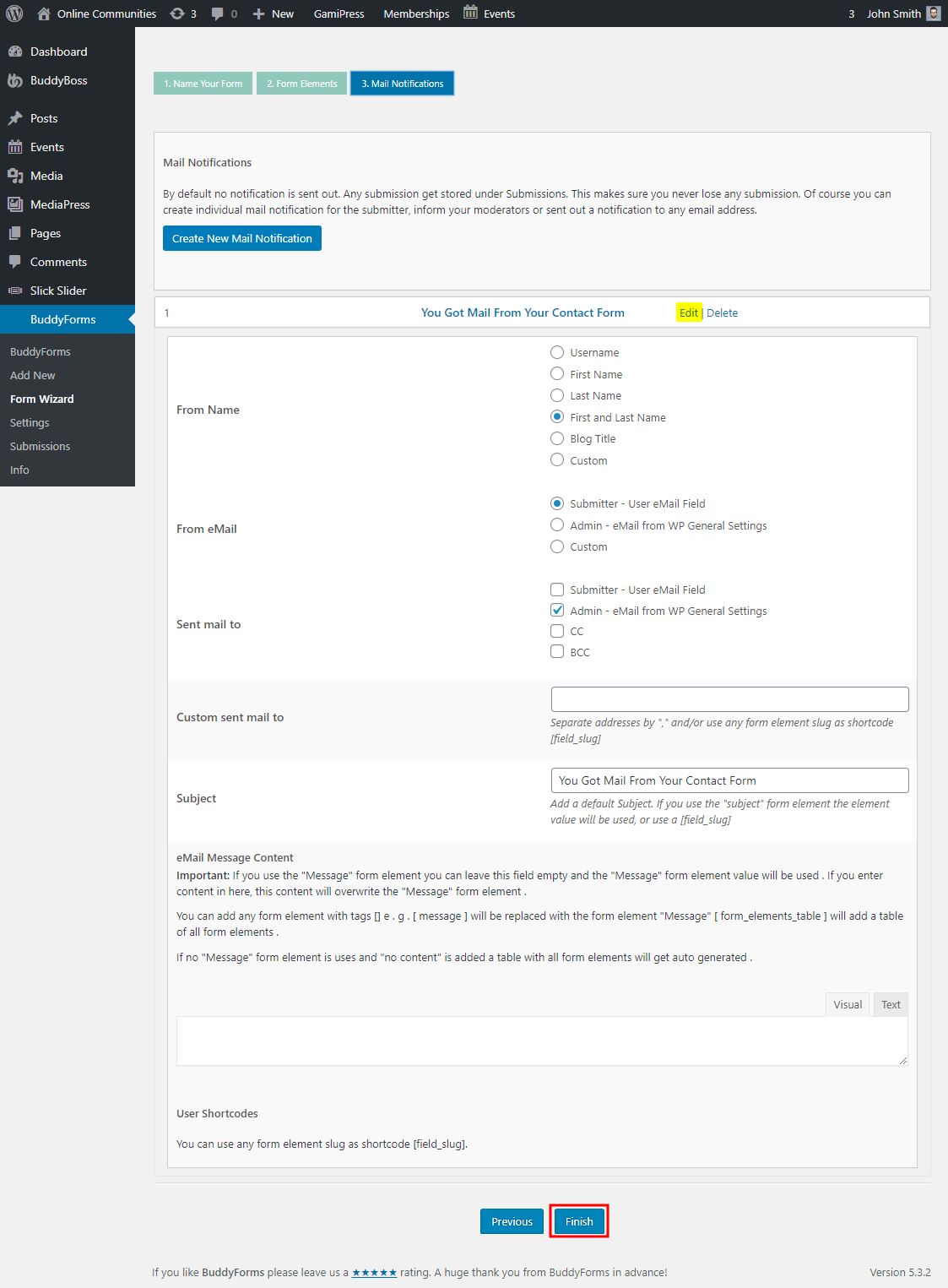
- To enable the individual mail notifications for the form submissions click the Edit button and select the preferred options and then click the Finish button.
Adding the form to a page
- Create a new page ‘BuddyForms’, add optional text on it and click the Add BuddyForm Form (
 ) button.
- Select the newly created form from the drop-down list.
 ) button.
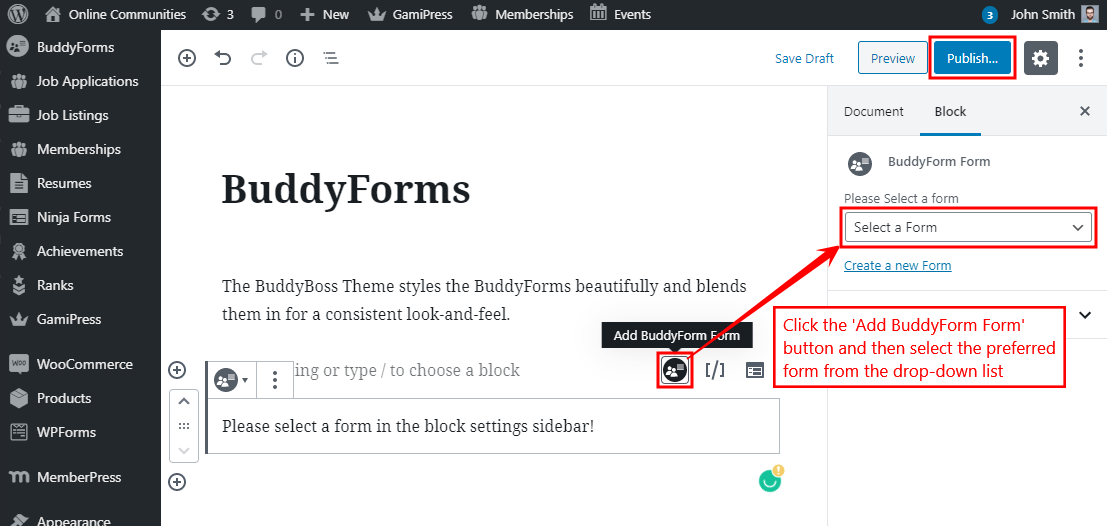
- Click the Publish button.
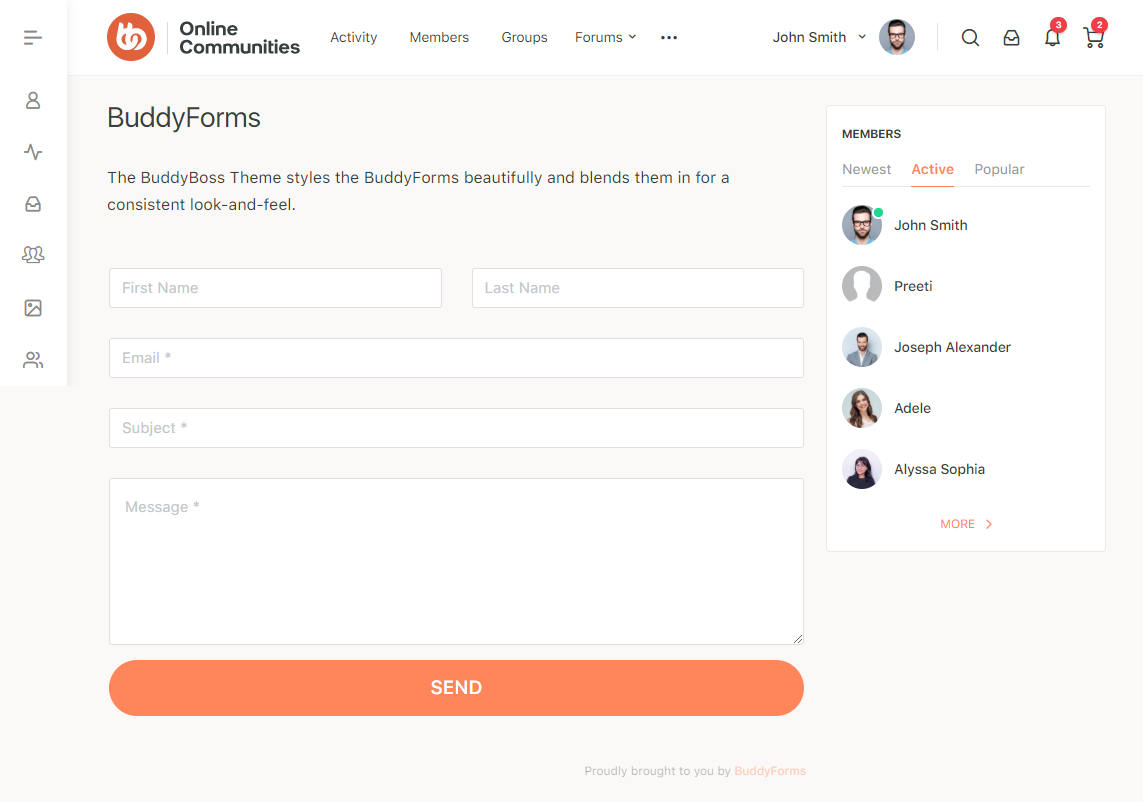
You can create multiple contact forms for Course Requests, Course Feedback if you are running a website for courses using the LearnDash plugin. Simply create a new form through BuddyForms and add it to a page on your website.