
REQUIRES: PRO PLAN OR HIGHER • Last updated: Mar 12, 2026 • ~3 min read
The Profile Name settings control how member names are formatted and displayed across your BuddyBoss community – from the Activity Feed and Groups to the Members Directory and beyond. This manual walks you through each option to help you configure name display consistently across your site.
Tutorial Video
Accessing Profile Name Settings
To access these settings, navigate to your WordPress Dashboard, go to BuddyBoss > Settings > Member Profiles, then select Profile Name from the left panel.
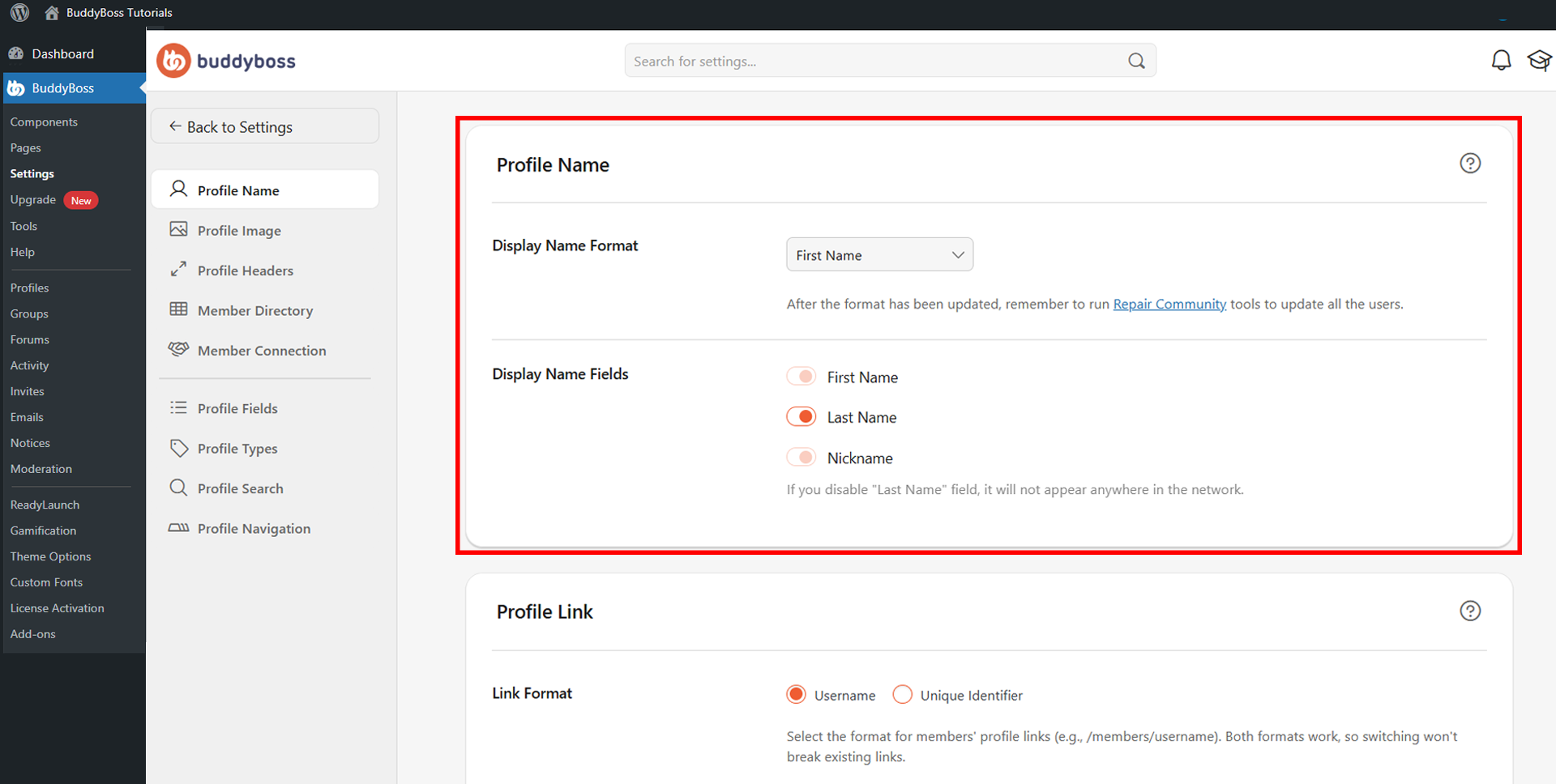
Display Name Format
The Display Name Format dropdown determines how member names appear throughout the platform – including the Activity Feed, Groups, and Members Directory. Select your preferred format from the dropdown.
- First Name
- First Name & Last Name
- Nickname
Note: After changing the display name format, run the Repair Community tool to apply the update to all existing users site-wide.
Display Name Fields
The Display Name Fields section controls which name fields are available and visible across the network. Toggle each field on or off based on your community’s needs. Disabling a field removes it entirely from member profiles and the platform.
The available fields are:
- First Name
- Last Name
- Nickname
Note: Disabling Last Name can improve member privacy in public-facing communities.
© 2026 BuddyBoss LLC. All Rights Reserved. | buddyboss.com