
REQUIRES: PRO PLAN OR HIGHER • Last updated: Mar 12, 2026 • ~2 min read
The Subgroups feature allows you to create hierarchical relationships between groups, organizing them into parent and child structures. This makes it easier to manage large communities with multiple categories or levels. This manual walks you through enabling subgroups and how the hierarchy works.
Tutorial Video
Accessing Subgroup Settings
To access this setting, navigate to your WordPress Dashboard, go to BuddyBoss > Settings > Social Groups, click Group Settings from the left menu, then scroll to the Subgroups section.
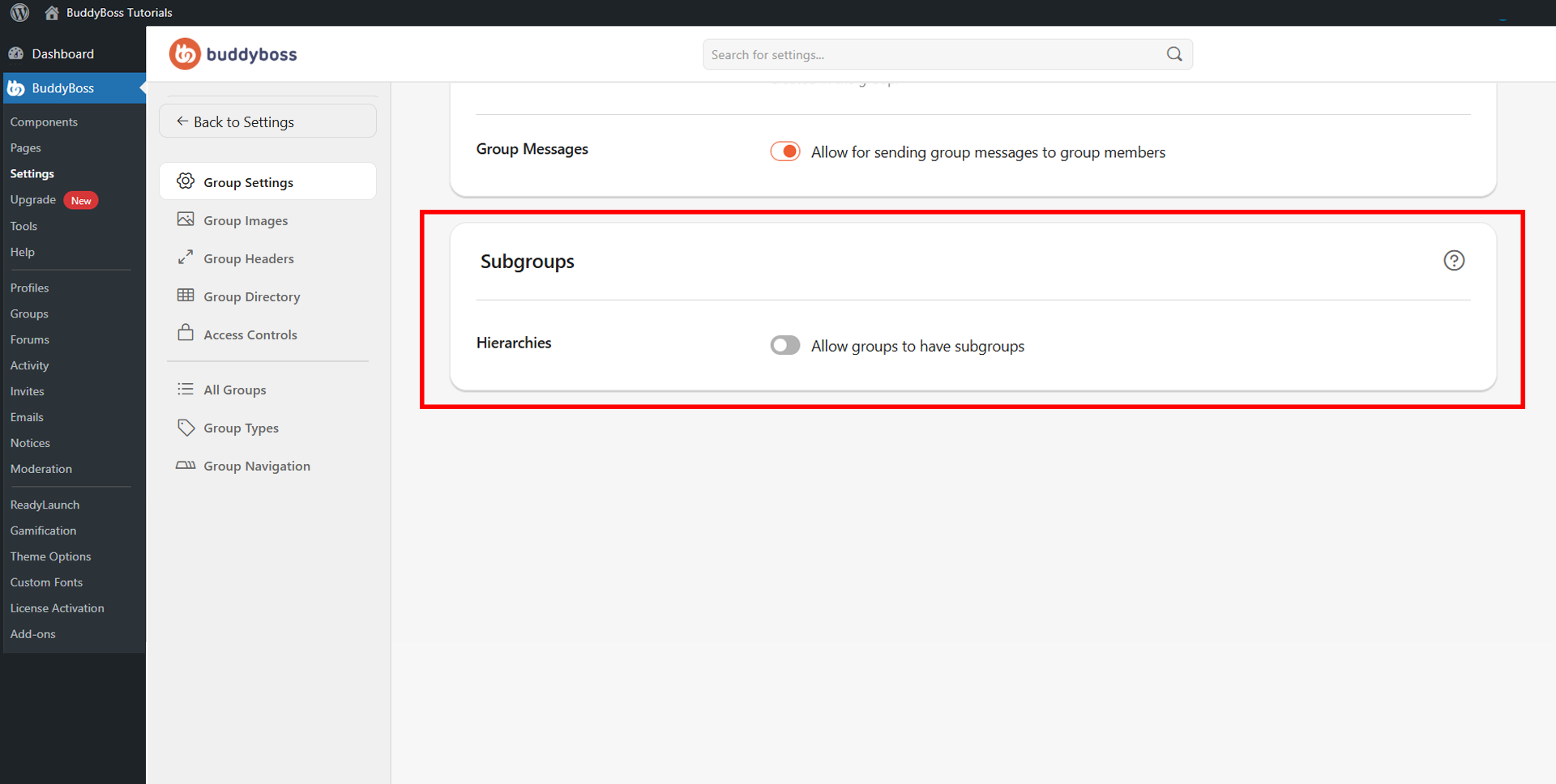
Enable Subgroups
Three toggles are available to configure subgroup behavior across your community:
- Allow groups to have subgroups: Enables the subgroup feature, allowing child groups to be nested under a parent group. This is the main activation toggle and must be on for the other subgroup options to apply.
- Hide subgroups from Groups Directory & Group Type Shortcode: When enabled, subgroups are hidden from the main Groups Directory so only top-level groups appear publicly. Subgroups continue to function normally within their parent group.
- Restrict subgroup invites to members of the parent group: When enabled, only existing members of the parent group can be invited to its subgroups, ensuring proper access control and group hierarchy integrity.
© 2026 BuddyBoss LLC. All Rights Reserved. | buddyboss.com