














REQUIRES: PRO PLAN OR HIGHER • Last updated: Mar 12, 2026 • ~4 min read
The Replies section allows administrators to create, manage, and moderate replies within forum discussions. From the Dashboard, you can create new replies, edit existing ones, control visibility and publishing status, and remove content when needed. This manual walks you through creating replies and managing existing ones.
Tutorial Video
Accessing the Replies Section
Navigate to your WordPress Dashboard, go to BuddyBoss > Settings > Forum Discussion > Replies.
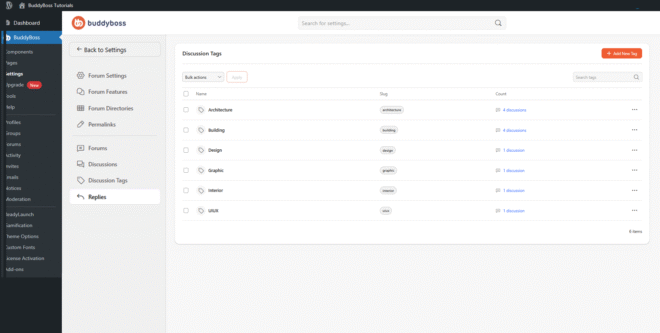
The panel lists all existing replies with a content preview, the forum and discussion they belong to, and the date created. Use the Search replies field to find a specific reply, the All Forums filter to narrow by forum, or Bulk Actions to manage multiple replies at once.
Creating a New Reply
Click Create New Reply to open the creation form. Configure the fields below, then click Save to publish the reply inside the selected discussion.
- Description: The reply content, entered using the Visual or Code editor. This is what members see inside the discussion.
- Forum: Select the forum where this reply belongs.
- Discussion: Select the parent discussion the reply should appear under.
- Reply to: Optionally target a specific existing reply to create a threaded conversation. If left empty, the reply posts as a standard top-level response to the discussion.
- Visibility: Controls who can see the reply – Public, Private, or Password Protected.
- Status: Sets the publishing state – Published, Pending Review, or Draft.
- Publish: Choose whether to publish the reply Immediately or Schedule it for a future date and time.
Managing Existing Replies
Each reply has a three-dot menu with quick actions for View, Edit, Spam, and Delete.
To manage multiple replies at once, select them using the checkboxes, open the Bulk Actions dropdown, choose Edit or Delete, and click Apply.
© 2026 BuddyBoss LLC. All Rights Reserved. | buddyboss.com