














In this tutorial, you will learn about our many new Elementor widgets for displaying social content, creating marketing pages, and displaying LearnDash content. We also introduced an interface for inserting pre-built Elementor Sections and Pages.
The Elementor section templates available are:
- About
- Call to Action
- Comparison Table
- Contact Form
- Content Page
- Counter Stats
- FAQ
- Feature list
- Footer
- Gallery
- Guarantee
- Header
- Hero
- Logos
- Multi Columns
- Pricing
- Reviews
- Tabbed Content
- Testimonials
The Elementor page templates available are:
- Dashboard
- Health and Wellness
You must have the Elementor page builder plugin installed and activated on your website to use and configure these widgets.
Using the Elementor sections and pages templates
The BuddyBoss Theme contains prebuilt Elementor sections such as a call to action, contact form, feature list, pricing tables, footer, etc. Also, page templates for landing pages and sales pages.
Note: Some templates may require the Pro version of the Elementor Page Builder plugin.
To add the Elementor sections and widgets to a page:
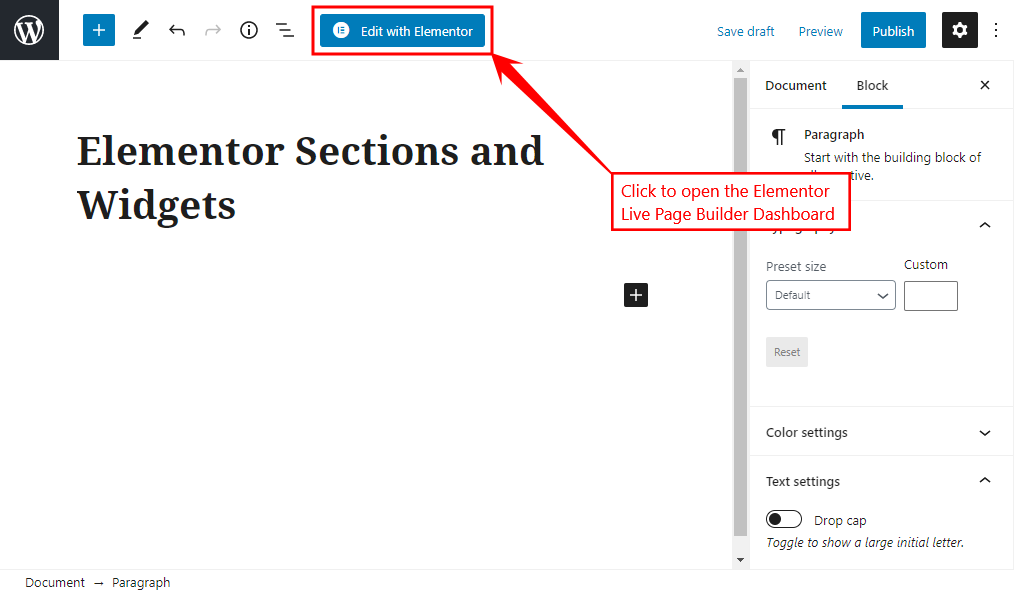
- Go to WordPress Dashboard > Pages > Add New to create a page. Add a title for the page and then click the Edit with Elementor button to open the Elementor Page Builder Dashboard.
- Click the BuddyBoss icon (
 ) to open BuddyBoss Templates pop-up.
 - Navigate to the Sections or Pages tab to insert the template in a page or post as per your requirements. For example, hover your mouse the preferred pre-built section, click the Insert button for the About 03 template.
 ) to open BuddyBoss Templates pop-up.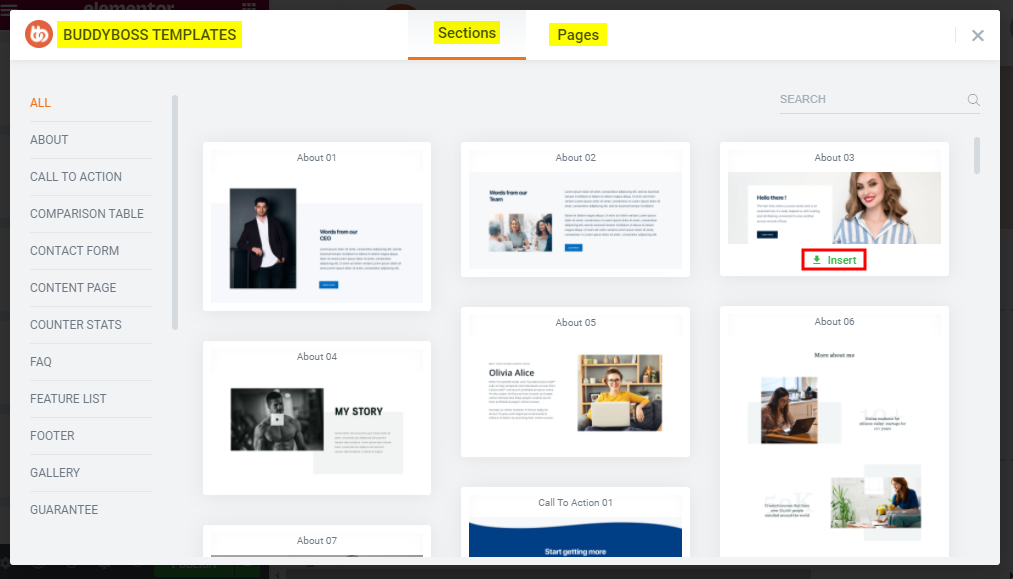
- Edit the element/block contents and style and then click the Publish button.
Add as many sections to the page as per your brand’s requirements and design.