














Introduction
The Email Subscribers & Newsletters plugin lets you collect leads, send automated new blog post notification emails, create & send broadcasts and also manage them all in one single place.
The integration works with the BuddyBoss theme and blends the widgets and forms for the email subscriptions seamlessly.
Installing the plugin
To install the plugin:
- Download the Email Subscribers & Newsletters plugin from the link below
https://wordpress.org/plugins/email-subscribers/ - Extract the downloaded email-subscribers.zip file to the WordPress plugins folder yourhostname/wordpress/wp-content/plugins OR
Go to your WordPress Dashboard > Plugins > Add New. Click the Upload Plugin button. Browse to the download file location, select the email-subscribers.zip & install the plugin. - Click the Activate Plugin button to activate the Email Subscribers & Newsletters plugin on your website. OR
To activate the plugin on your website site go to WordPress Dashboard > Plugins and then click the Activate button for Email Subscribers & Newsletters.
Adding the Email Subscribers form using the widget
To add the Email Subscribers widget to a page/post:
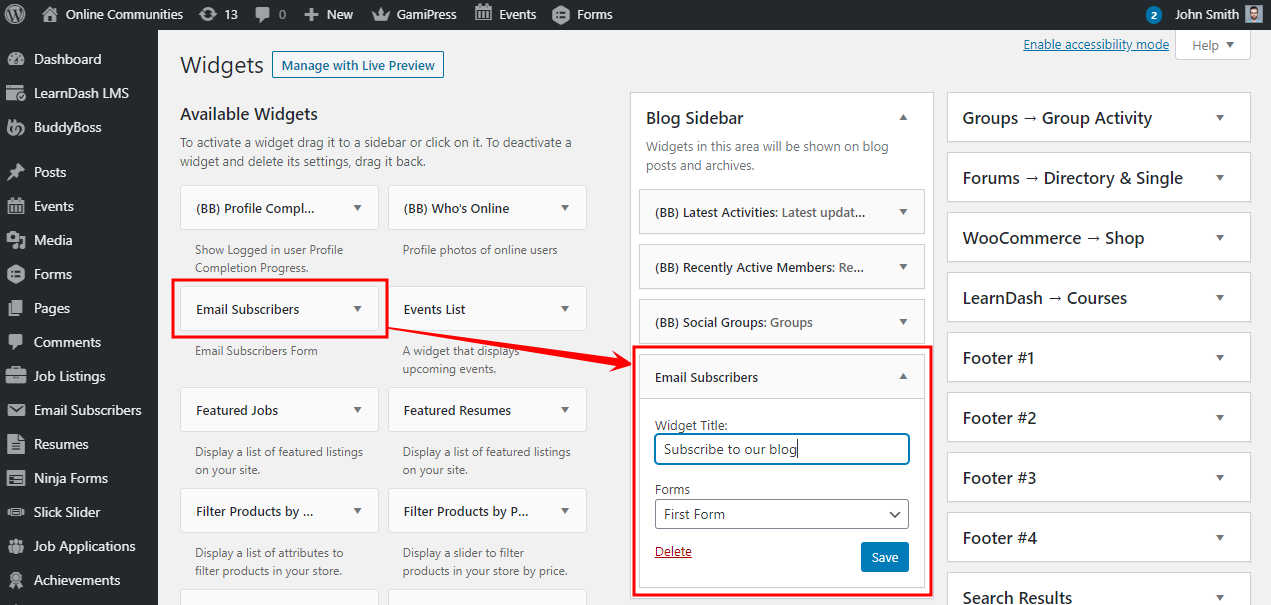
- Go to WordPress Dashboard > Appearance > Widgets.
- Drag-and-drop the Email Subscribers widget into the preferred sidebar.
- Select the preferred email subscription form from the drop-down list.
- Add a title for the widget and then click the Save button.
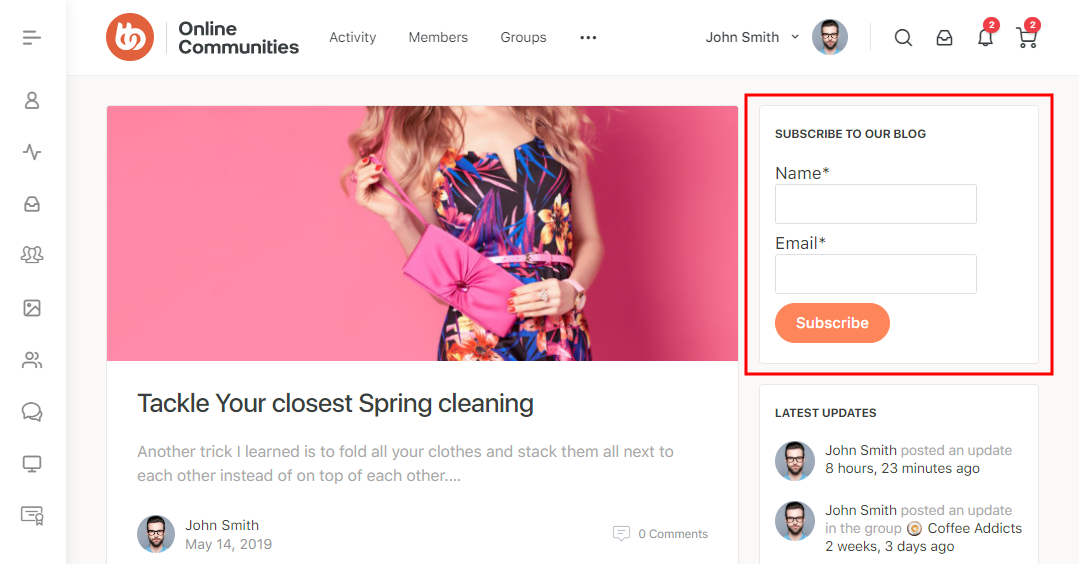
For further setup and usage tutorials, refer to the official documentation of the Email Subscribers & Newsletters plugin.