














Introduction
The Forums List Widget allows you to display a list of forums in your sidebar or other widget-ready areas. This makes it easy for members to quickly access discussions from anywhere on your site. This guide explains how to configure the Forums list widget in BuddyBoss Theme.
Adding the Forums List Widget
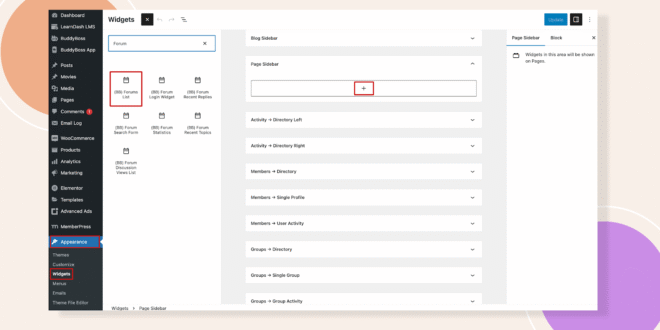
- Go to Appearance > Widgets in your WordPress Dashboard.
- Select the widget area where you want to display the forums list (e.g., Page Sidebar).
- In the widget search bar, type Forums List.
- Drag and drop the Forums List Widget into the selected area or click the + icon to add it.
Configuring the Widget
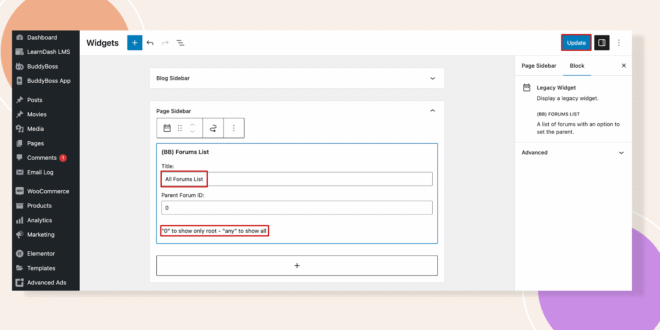
- Click on the Forums List Widget you added.
- Enter a Title (e.g., Community Forums).
- Adjust any additional settings if available.
- Click Update to save your changes.
Verifying the Widget
- Visit any published page that includes the widget area (e.g., the Page Sidebar).
- You should now see the Forums List Widget displayed, similar to the demo image.
Troubleshooting and FAQs
Q: The Forums List Widget doesn’t appear on my site. What should I do?
A: Ensure you placed it in an active widget area (e.g., Page Sidebar). Check that forums are enabled under BuddyBoss > Components.
Q: Can I add the widget to multiple areas?
A: Yes. You can place the Forums List Widget in any widget-ready area, including sidebars and footers.
Q: Why is my widget not updating after changes?
A: Make sure you clicked the Update button after editing the widget settings. Clear your cache if changes don’t appear immediately.