














How to Set Up a Cloudways Account and Authorize Credit Card Billing
Introduction
This guide walks you through creating a Cloudways account and authorizing your credit card for billing. By completing these steps, you’ll be signed up for the basic package and automatically billed for the default 4GB package within three days.
Once your account and billing are active, you can proceed to our tutorial on setting up the Cloudways hosting package.
Access Cloudways
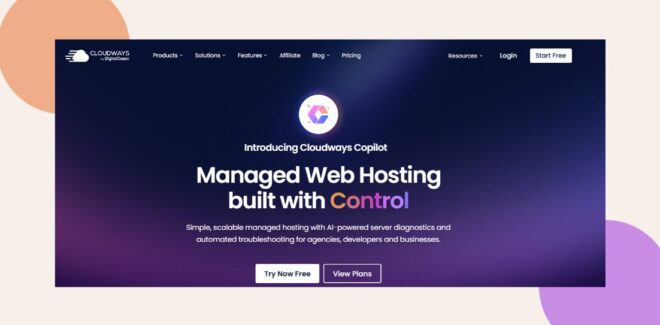
- Open your web browser and go to Cloudways.
- Click the START FREE button.
Complete the Signup Form
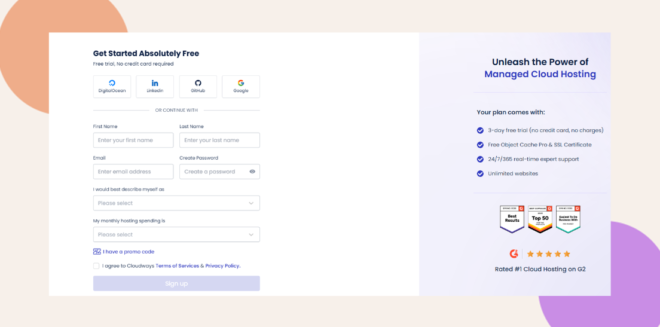
- Fill in your signup details (name, email, and password).
- Click TRY NOW FREE to create your account.
Add and Authorize Your Credit Card
- In the top navigation bar, click the + icon (next to the search field).
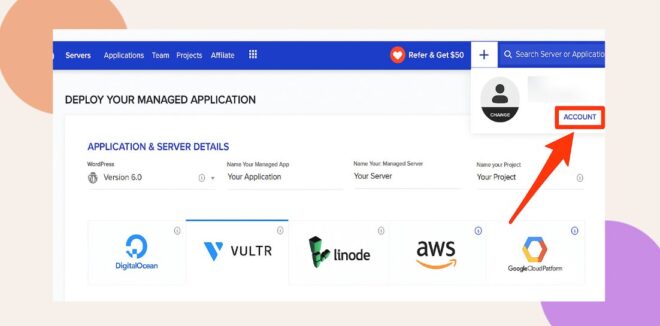
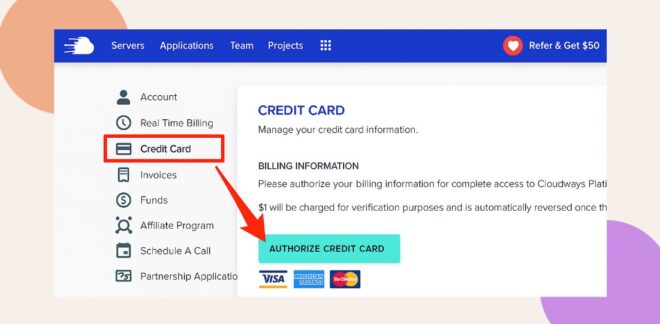
- From the left-hand menu, select Credit Card.
- Click AUTHORIZE CREDIT CARD.
Finalize Your Setup
Once your credit card is authorized, proceed to our tutorial:
Troubleshooting and FAQs
Q: What if I don’t see the + icon in the header?
A: Make sure you are logged into your Cloudways account. If the icon is still missing, refresh your browser or clear your cache.
Q: How can I confirm that my credit card has been successfully authorized?
A: Look for the on-screen confirmation message and check your email for verification from Cloudways.